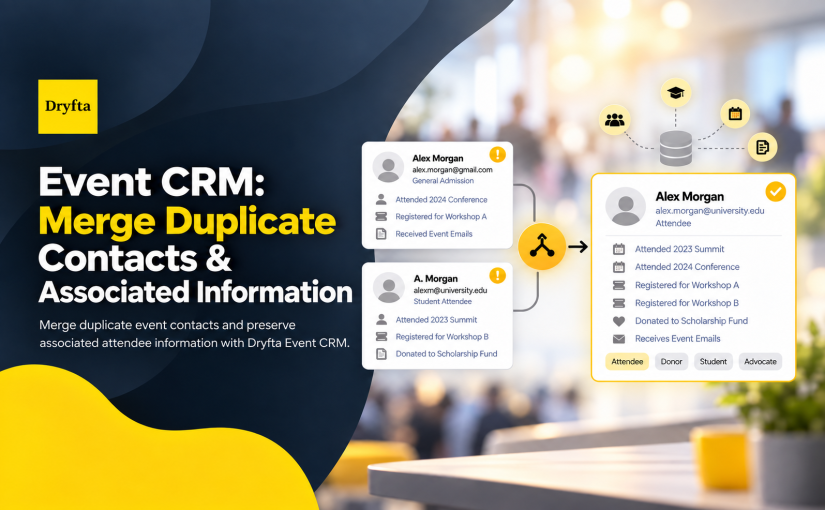
One person can end up with two contact records for perfectly ordinary reasons. They may register with a second email address, return as a speaker after attending an earlier event, or have an assistant create an account for them. Soon, their tickets, submissions, meetings, and messages sit in different profiles.
Dryfta’s Event CRM helps administrators review and merge duplicate contacts into one primary record. This guide explains how the merge works, which record to keep, and what to check before you confirm it.
What does merging duplicate contacts do?
A contact merge keeps one profile and brings the useful information from the duplicate into it. In Dryfta, you choose which profile will become the primary contact. Dryfta then folds the other profile into that record.
Depending on the activity attached to the two accounts, the completed profile can include:
- Registration details, tickets, orders, and invoices
- Abstract submissions and review assignments
- Saved schedules and session check-ins
- Event roles and access levels
- Meeting requests, survey responses, and collected vCards
- Communication and activity history
This gives the event team one clearer record to work from instead of forcing staff to check two profiles whenever the contact needs help.
Check the records before you merge them
Similar names do not always mean the contacts are the same person. Take a minute to compare both profiles before making a change.
- Confirm the full name, email address, organisation, and phone number.
- Look at the event roles on each profile, such as attendee, author, reviewer, or speaker.
- Check for tickets, payments, submissions, reviews, meetings, and schedule activity.
- Choose the account with the correct login email and the most reliable contact details as the primary record.
- If the details are unclear, ask the contact to confirm them before you continue.
This review matters most when two people share a name or work at the same organisation. A careful check now is quicker than correcting the wrong profile later.
How to merge duplicate contacts in Dryfta
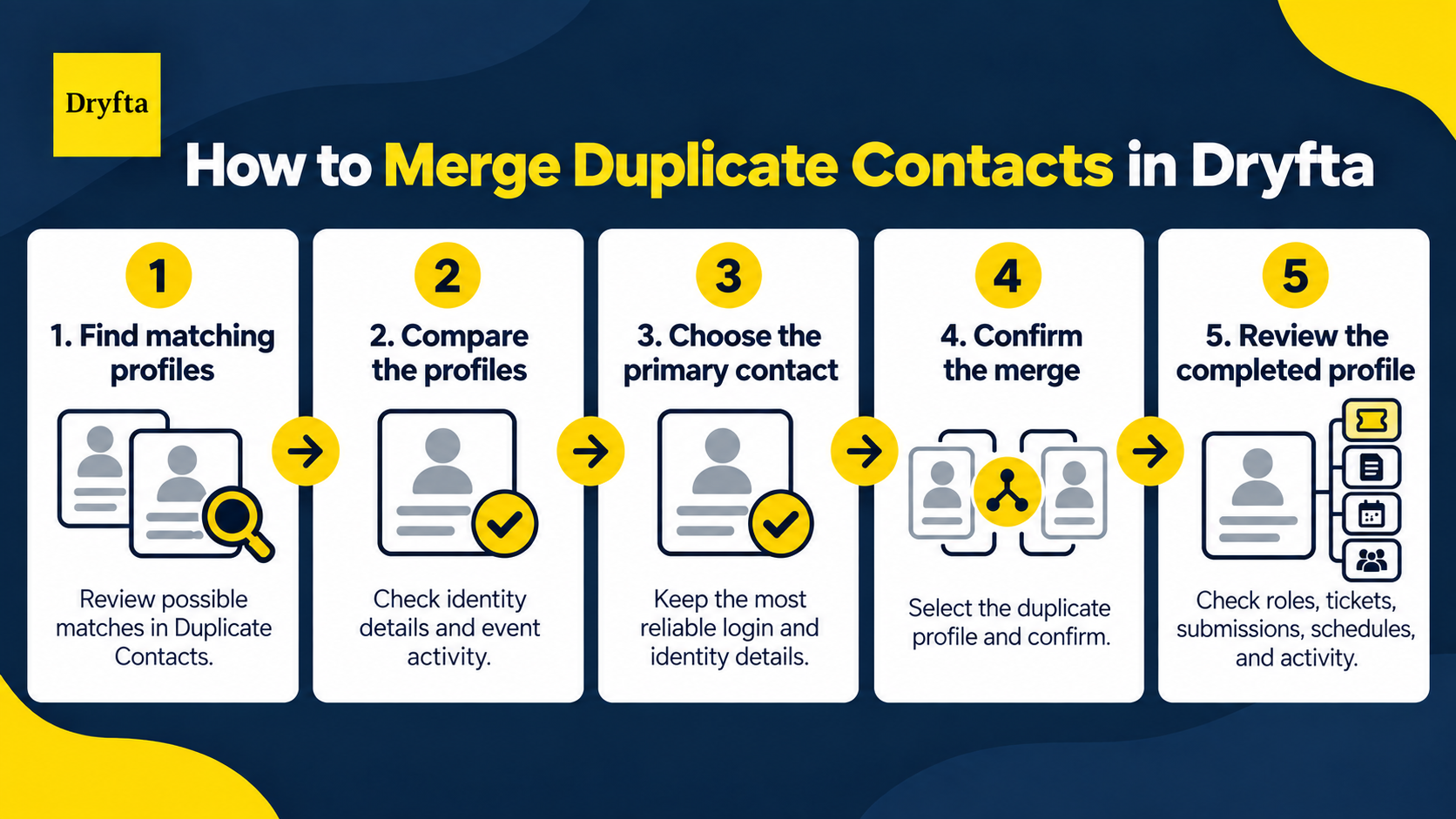
1. Find the matching profiles
Open the contact list and go to Duplicate Contacts to review the possible matches Dryfta finds. If you already know which records belong together, you can also search for the person in the contact list.
2. Compare the profiles
Open both records and compare their contact details and event activity. Make sure the profiles belong to one person, then decide which record has the identity and login information you want to retain.
3. Choose the primary contact
Select the profile that should remain after the merge. This becomes the primary contact. Dryfta keeps its existing values and uses relevant information from the duplicate record to fill gaps.
4. Confirm the merge
Select Merge, choose the duplicate profile, and confirm the action. Dryfta brings the associated event activity into the primary record and adds roles from the duplicate account.
5. Review the completed profile
Open the retained contact and check the result straight away. Confirm the email address, event roles, tickets, submissions, payments, schedule, and recent activity. This final review is especially useful for someone who takes part in several ways, such as an author who is also a reviewer and speaker.
What happens when the two profiles contain different information?
Dryfta does not automatically replace a filled field in the primary profile with a different value from the duplicate. If the primary field is empty, the available value from the duplicate can fill that space.
The same rule applies to information collected through registration and submission forms. Existing details in the primary account stay in place, while relevant event activity and roles from the duplicate account move into the retained profile.
For example, imagine the primary profile has the correct work email but no job title. If the duplicate profile includes a job title, Dryfta can add it without replacing the email already stored in the primary record.
Why duplicate contact records cause problems
Duplicate records do more than make a database untidy. They can send the same announcement twice, split an attendee’s history, place a submission under the wrong login, and make reports harder to trust.
The problem grows at conferences where one person may register, submit an abstract, review other papers, speak in a session, and book meetings. Keeping those activities in one contact record gives the organising team a more accurate view and makes support requests easier to resolve.
Frequently asked questions
How does Dryfta find possible duplicate contacts?
Dryfta compares contact information and presents possible matches for an administrator to review. A match is a prompt to investigate, not a reason to merge the records without checking them.
Can I search for duplicates manually?
Yes. If you already know that a person has more than one account, search the contact list, open the matching profiles, and begin the merge from there.
Which contact remains after the merge?
You choose the primary contact. Dryfta retains that profile, keeps its existing values, and adds relevant information and activity from the duplicate record.
Will the primary contact’s details be overwritten?
Filled fields in the primary profile remain in place. Dryfta can use a value from the duplicate record when the matching field in the primary profile is empty.
What should I do if I am not certain the records belong together?
Stop and verify the details before merging. Check the person’s email address, organisation, registrations, and submissions, or contact them directly. If your account uses a custom workflow or integration, ask Dryfta support to confirm the safest approach.
Keep one useful record for every contact
A clean contact list saves time during registration, review, scheduling, and onsite support. Dryfta’s Merge Contacts tool lets an administrator bring related activity together while keeping control over which contact record remains.
Want to see how contact management connects with registration, submissions, schedules, and communication? Request a Dryfta demo for a guided look at the Event CRM.