🚀 Join our Live Demo every Friday at 11:00AM EST and see Dryfta in action!
Skip to content
Dryfta
HomeProduct overview

Product overview

Bring your whole event together.

Plan the work, collect abstracts, register attendees and publish your program. Keep your team and participants connected before, during and after the event.

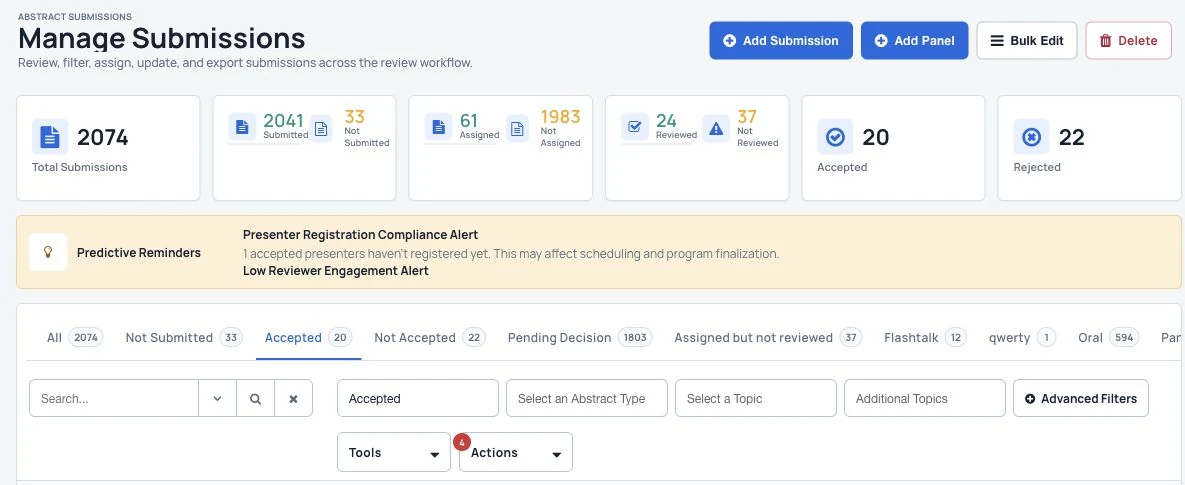
Submission status and review progress.

Keep work together

Use one place for event planning and participant information.

Fit your event

Choose your forms, ticket types, access rules and website content.

Help people take part

Give attendees useful schedules, profiles and ways to stay in touch.

From planning to follow-up

Find every event task in one place.

Explore all twenty areas from the product overview. Vendors & Contracts is currently unavailable.

Vendors & contracts

This feature is currently unavailable.

Keep supplier and contract records in the tools your team already uses while this area is unavailable.

Budgets & expenses

Manage your event budget, expenses and return on spending.

Use budget and expense information to connect everyday event decisions with your overall spending plan.
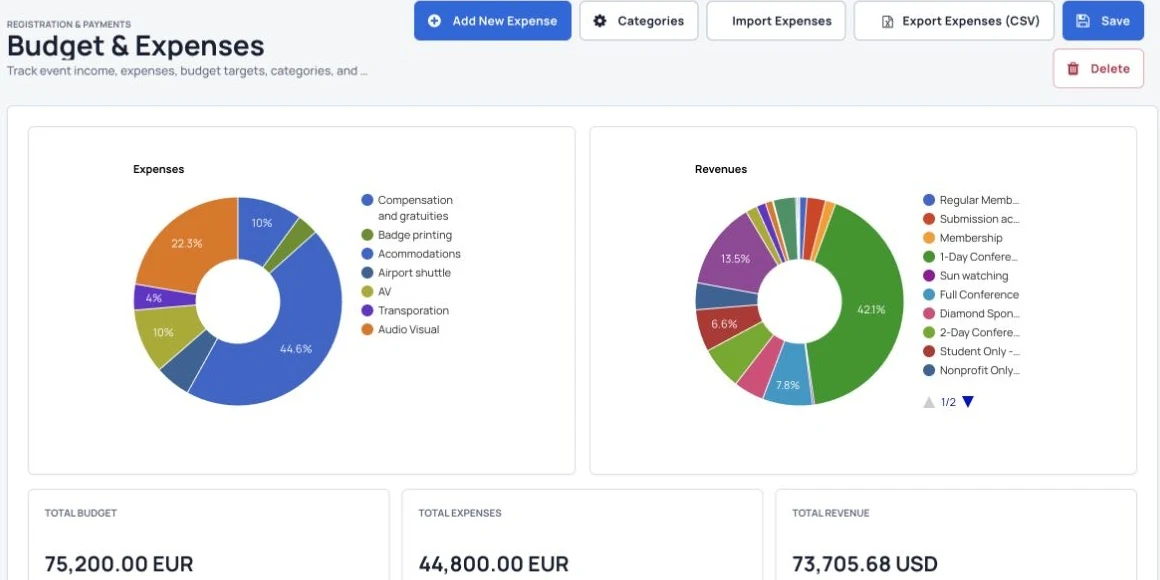
Track event expenses, categories and budget totals.
  • Keep the event budget and expenses together.
  • Review spending as your plans develop.
  • Use the figures when reviewing the event’s return on spending.

Team tasks

Create tasks, assign people and choose who can make changes.

Make responsibilities clear so your team knows who is handling each part of the event.
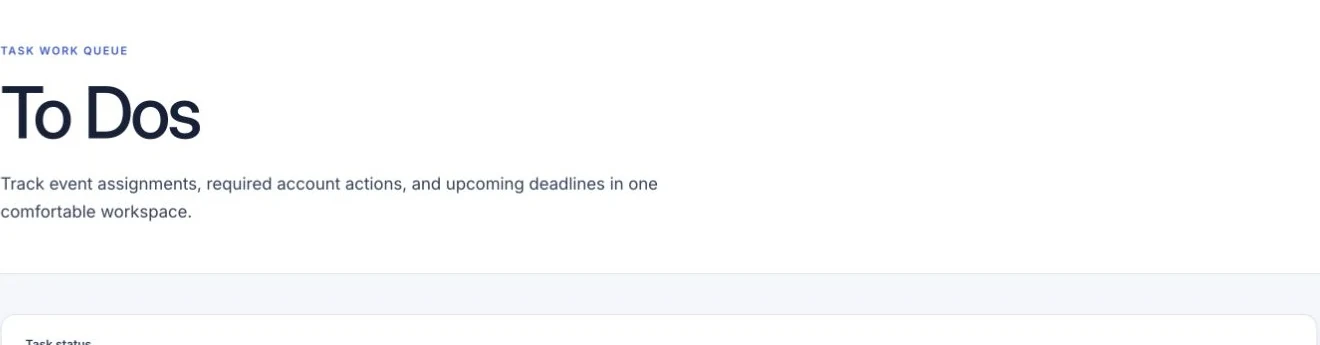
A task workspace with task-status filters and a queue summary.
  • Create a shared list of event tasks.
  • Assign the people responsible for the work.
  • Choose who can make changes to the task list.

Event basics

Set your event name, venue and dates.

Start with the details attendees need, then connect your event setup with its registration and ticket options.
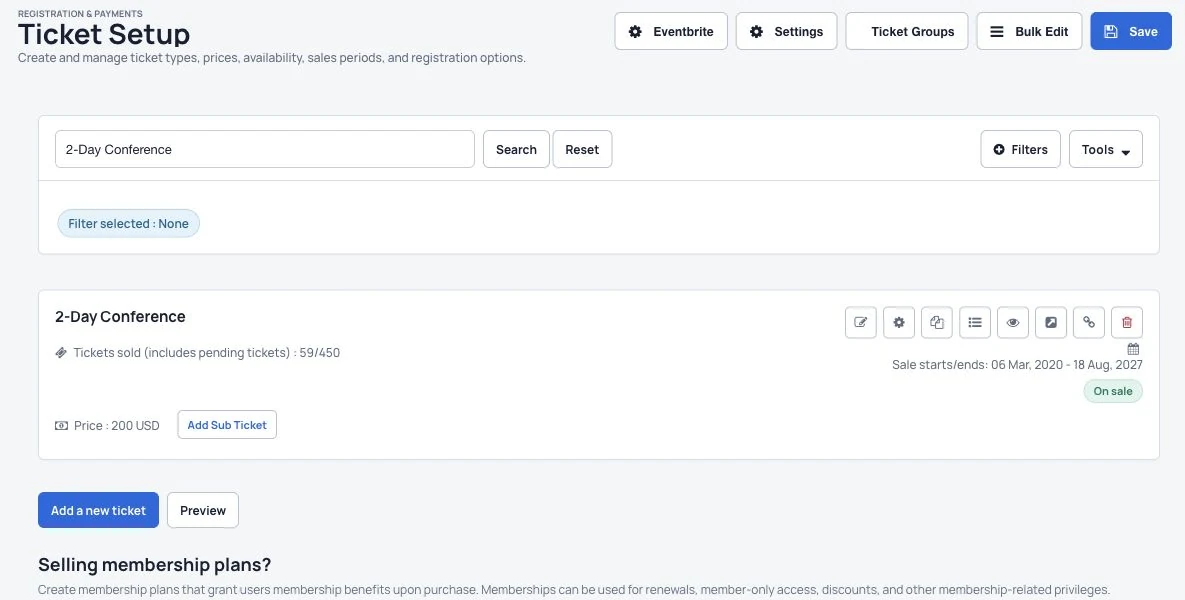
Create and manage ticket types in the Dryfta demo event.
  • Set the event name and location.
  • Enter the event’s start and end dates.
  • Keep the basic information consistent across your event setup.
Explore this tool

Contact records

See each person’s event information in one place.

Look up a person once and find the event information your team needs without checking separate lists.
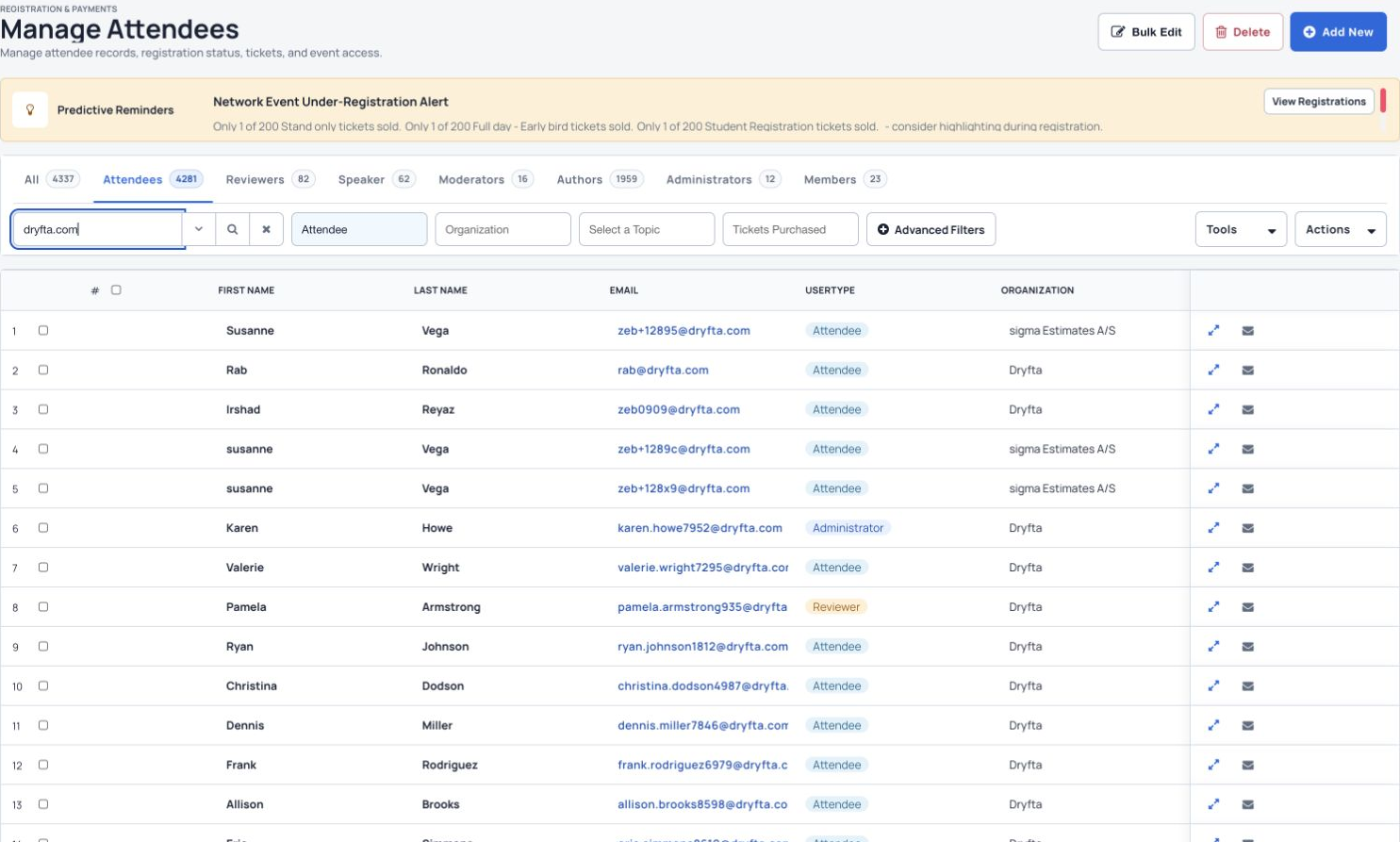
Search and organize attendee records in Manage Attendees.
  • Keep profile details and contact roles together.
  • See the person’s tickets, submissions and event activity.
  • Use one record when helping attendees, authors or speakers.
Explore this tool

Contact groups

Group contacts by location, personal details or custom tags.

Create useful groups so each message reaches people who need that information.

Search and organize attendee records in Manage Attendees.
  • Group people by location or collected profile details.
  • Use custom tags to organize your contacts.
  • Use the groups when preparing event email updates.
Explore this tool

Email invitations

Invite people using messages and templates you can change.

Prepare invitations that explain the event clearly and give each group a useful next step.
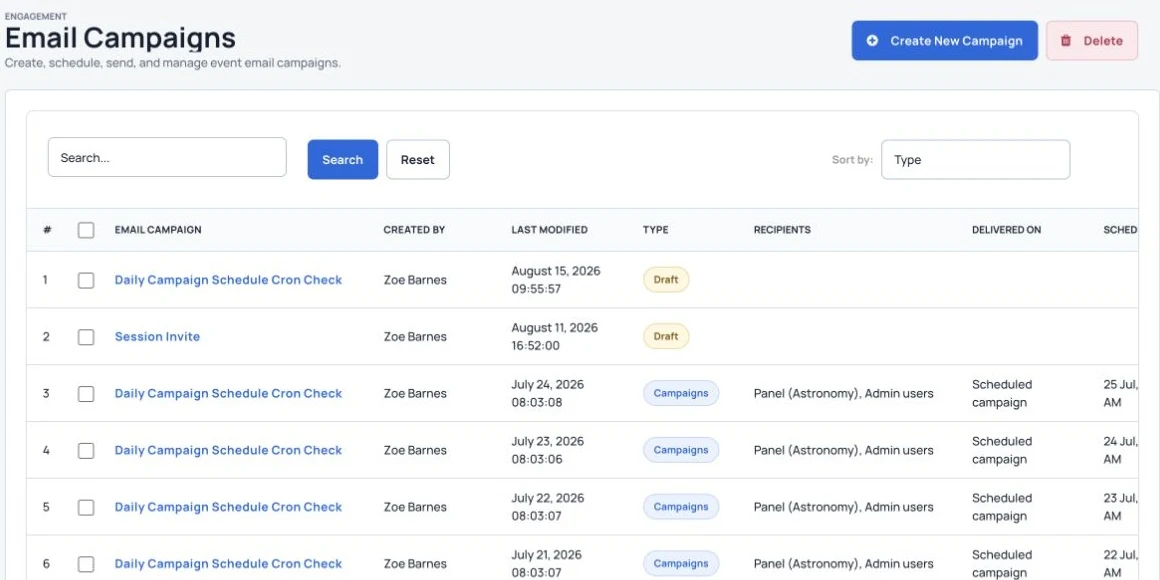
Create and schedule email campaigns for your event.
  • Change the message and email template.
  • Choose the contact group you want to invite.
  • Keep event details and registration links easy to find.
Explore this tool

Event website

Publish event pages and give attendees and speakers their own dashboard.

Bring event information and participant self-service together on a website your team can manage.
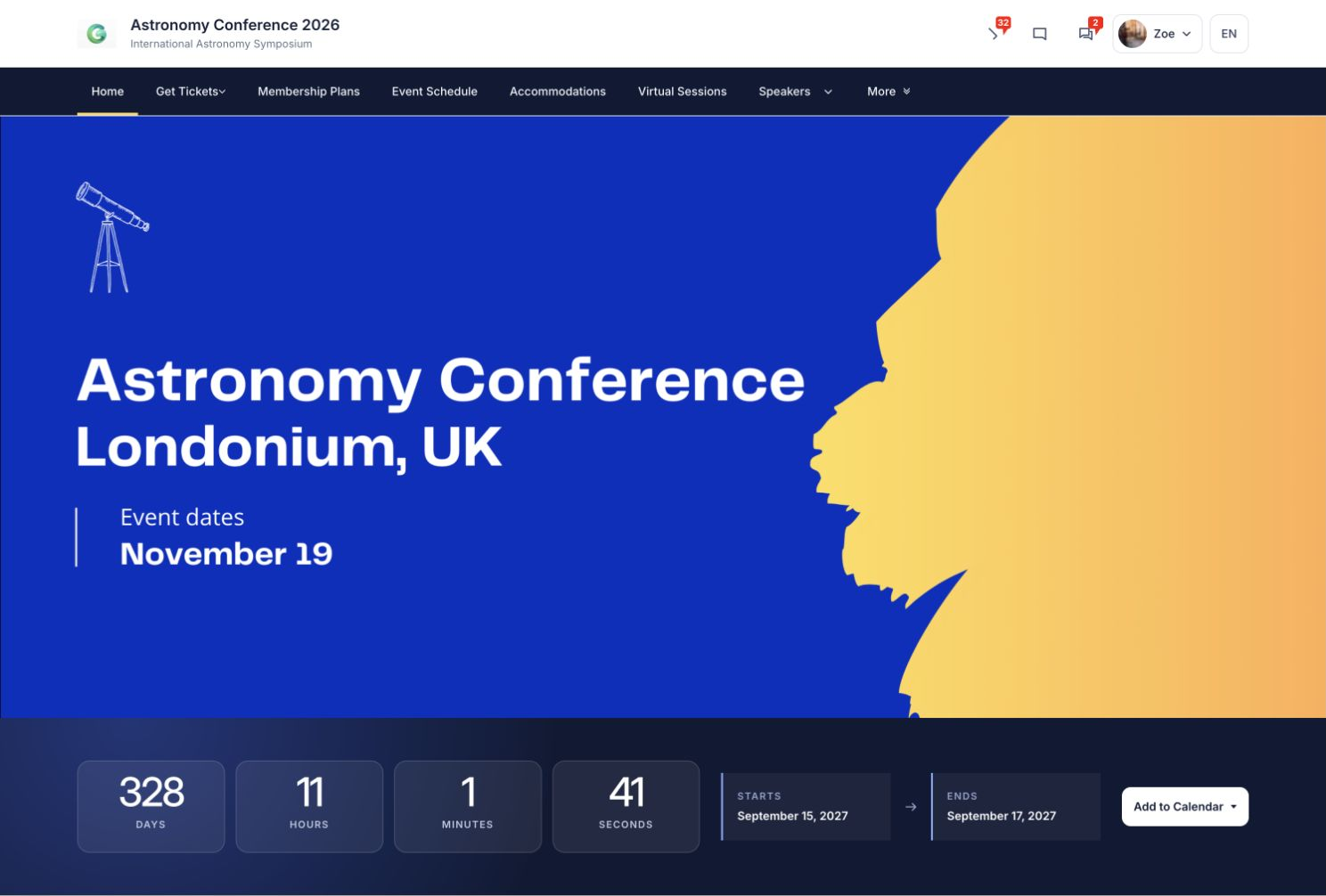
An event homepage, with navigation, an event banner and countdown.
  • Publish useful event pages and navigation.
  • Give participants a place to register and explore the program.
  • Connect the website with attendee and speaker dashboards.
Explore this tool

Event app

Keep the networking app connected to your event website.

Give attendees a convenient way to follow the program and find people while they are at the event.
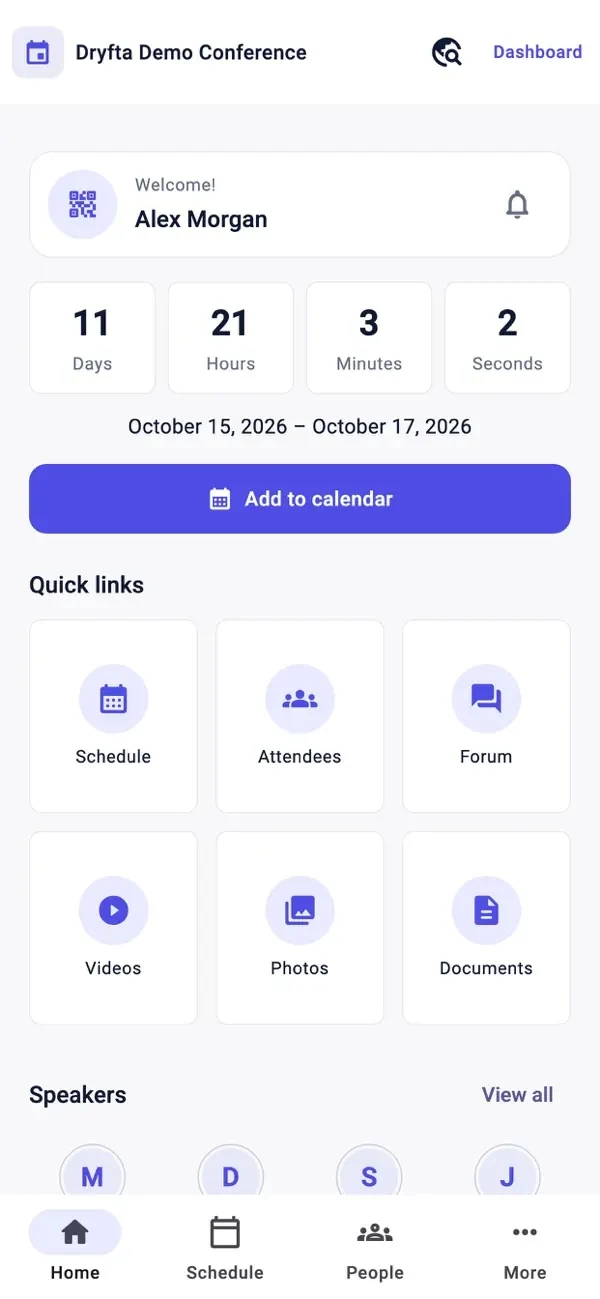
Dryfta’s iOS event home, as shown on the App Store.
  • Share event details and session information.
  • Let attendees keep a personal schedule.
  • Make people, speaker and sponsor information easy to browse.
Explore this tool

Sponsors & exhibitors

Show company details and representatives on the website and app.

Help attendees understand who is supporting the event and find the right company representatives.
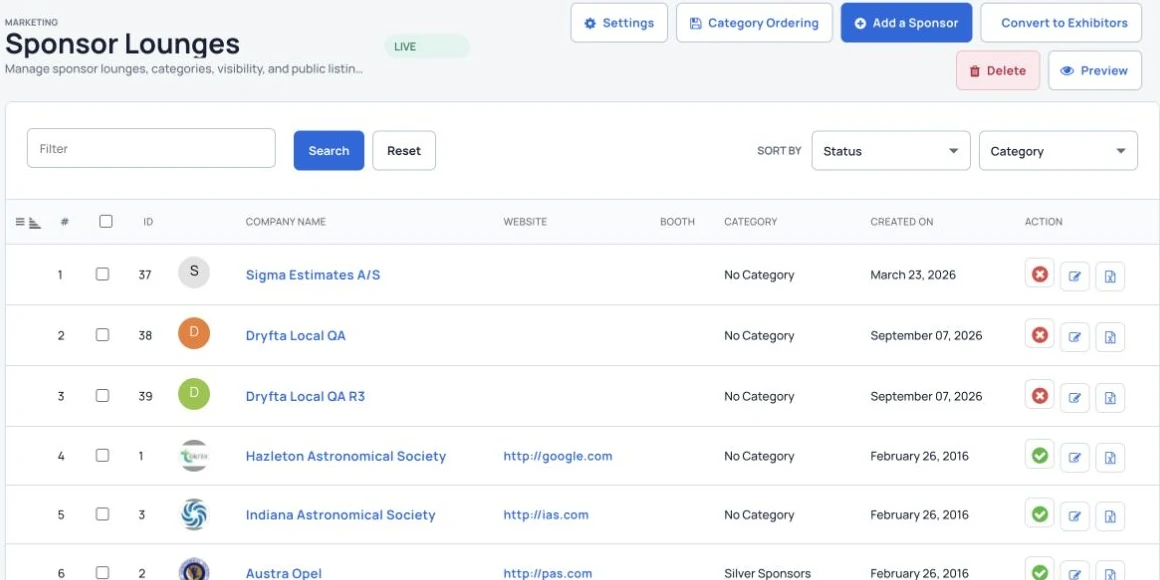
Sponsor records with company, booth and category details.
  • Add company logos, descriptions and website links.
  • Connect sponsors and exhibitors with their representatives.
  • Show the information on the event website and app.
Explore this tool

Custom reports

Share current event and attendee information with your teams.

Give each team a useful view of event information so they can follow the work that matters to them.
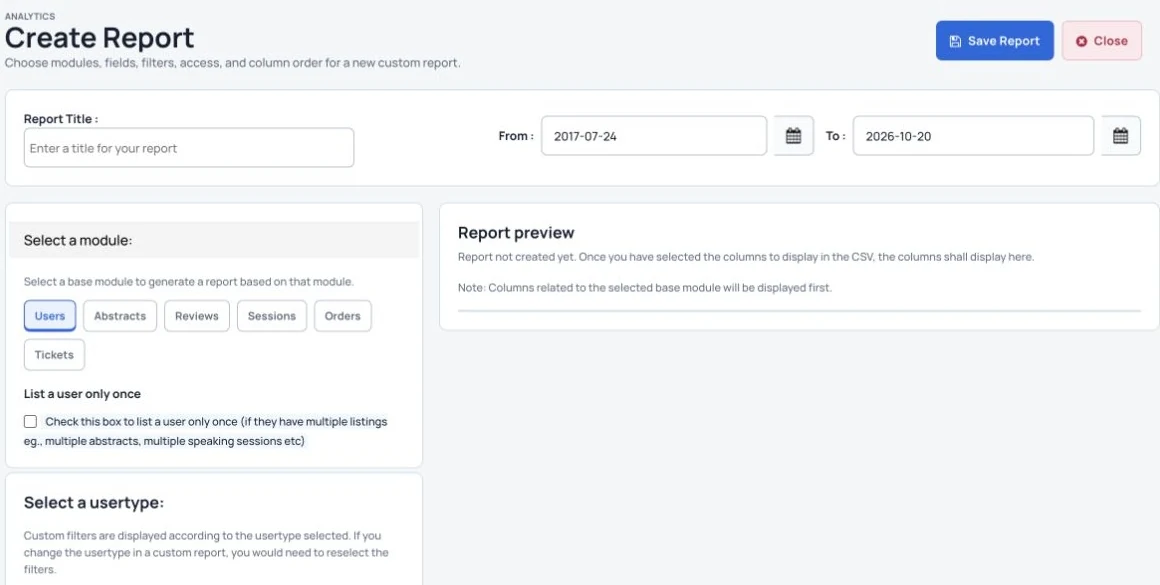
Choose the report module, dates and columns.
  • Prepare reports around event and attendee information.
  • Choose the information your teams need to review.
  • Share reports that reflect current event records.
Explore this tool

Tickets & payments

Choose ticket options and connect your payment provider.

Offer suitable ticket choices and payment methods, then keep purchases connected with your event records.
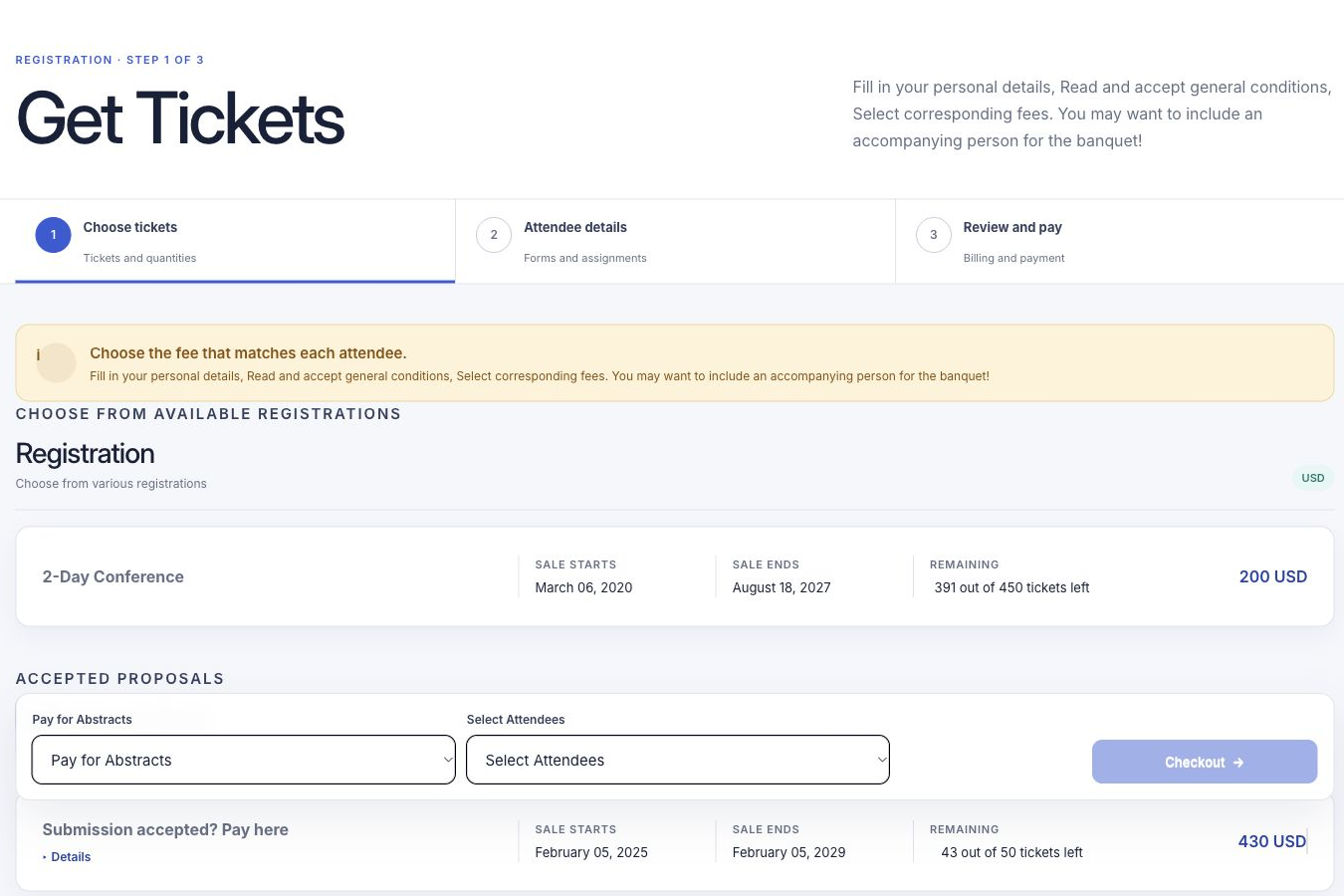
Attendees choose tickets and follow the registration steps on the event website.
  • Set ticket prices and sale dates.
  • Connect a supported payment provider.
  • Review orders, invoices and payment status together.
Explore this tool

Abstract submissions

Let authors submit and manage their work from their dashboard.

Give authors a clear submission process while your team keeps proposals organized in one place.

Submission status and review progress.
  • Collect abstracts, supported files and co-author details.
  • Let authors save work and return to their dashboard.
  • Keep submitted work separate from unfinished drafts.
Explore this tool

Peer review

Assign abstracts to reviewers and use double-blind review.

Connect assigned research with reviewer feedback so decisions can follow a clear review process.
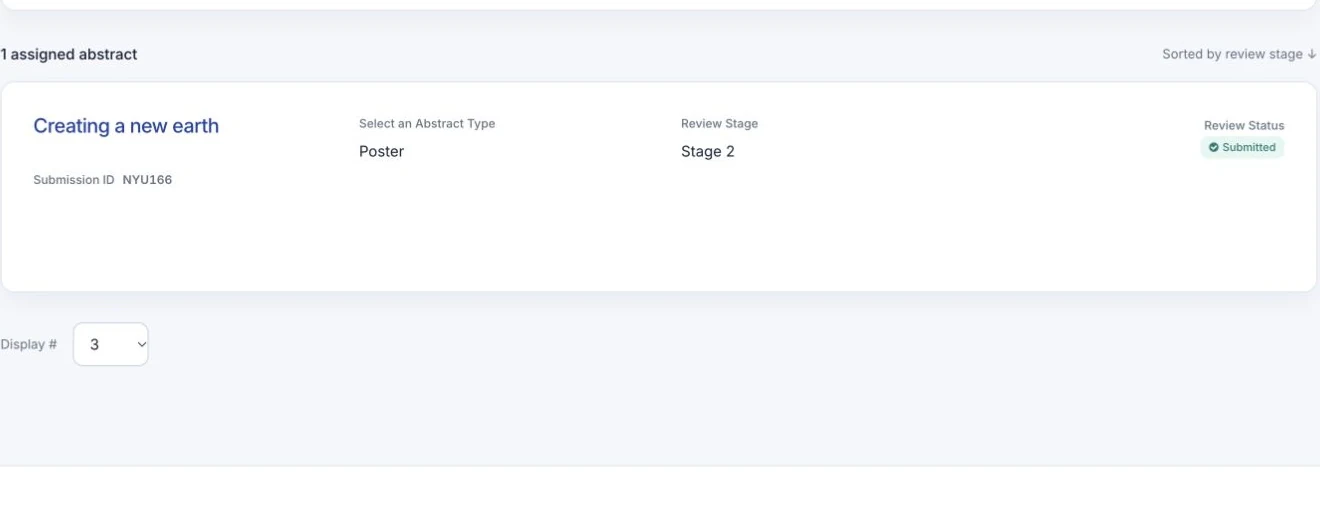
Reviewers can filter assigned abstracts and track their review stage and status.
  • Assign abstracts to the appropriate reviewers.
  • Use the review settings that suit your process.
  • Let reviewers submit feedback from their own dashboard.
Explore this tool

Attendee registration

Collect the details you need with your own registration form.

Collect the information your team needs at registration, using questions that fit your audience.
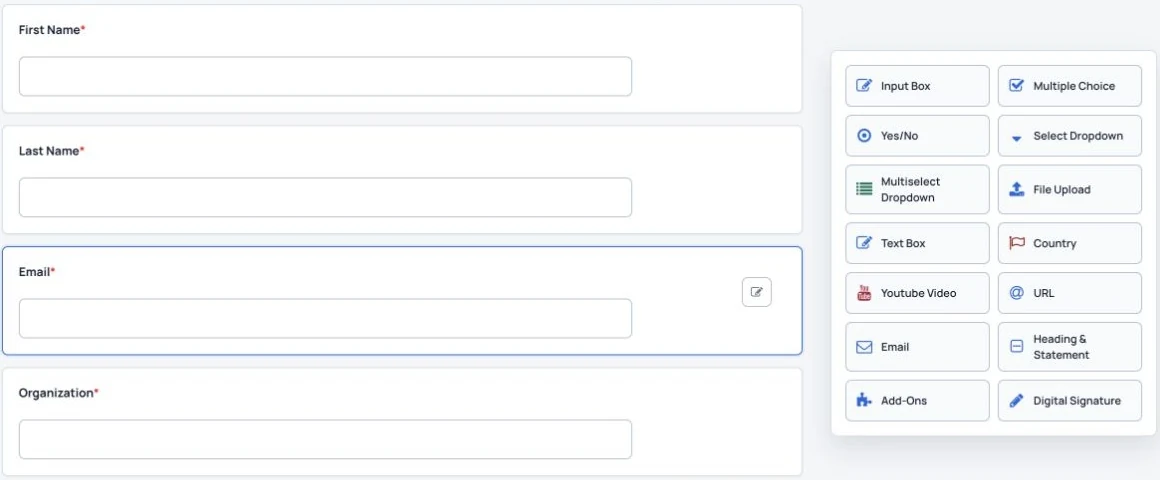
Build registration forms with attendee questions and a choice of field types.
  • Choose the registration questions your audience needs.
  • Use text, date and selection fields where appropriate.
  • Keep registration details connected with the attendee’s record.
Explore this tool

Badges & printing

Design QR-code badges and print them together.

Prepare consistent badges for your attendees and keep the information on them useful at the venue.
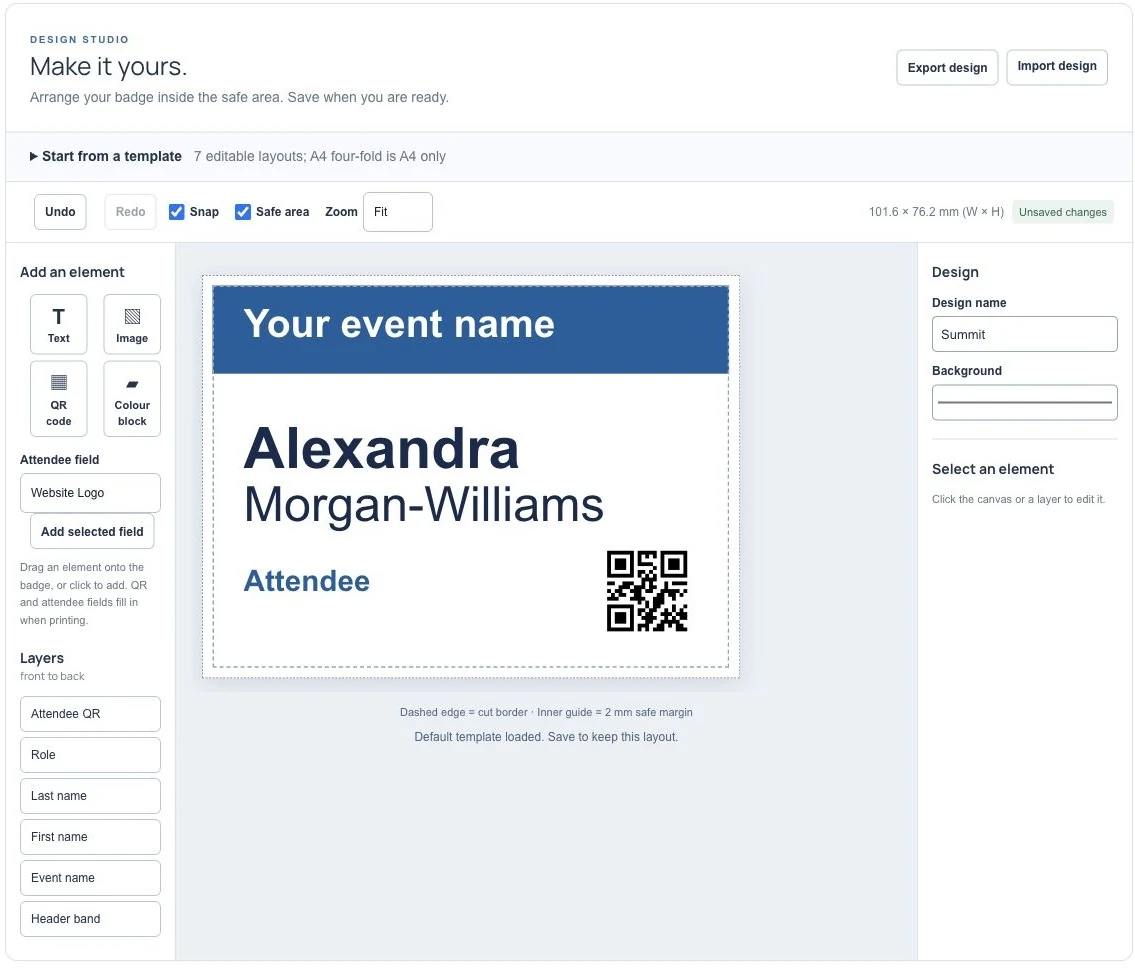
A badge layout in the badge designer.
  • Design a shared badge layout.
  • Include attendee details and QR codes.
  • Prepare badges together for printing.
Explore this tool

Event check-in

Check attendees in using the event check-in tool, including on an iPad.

Use the Guest Check-in screen to find guests quickly and keep arrival and departure records together.
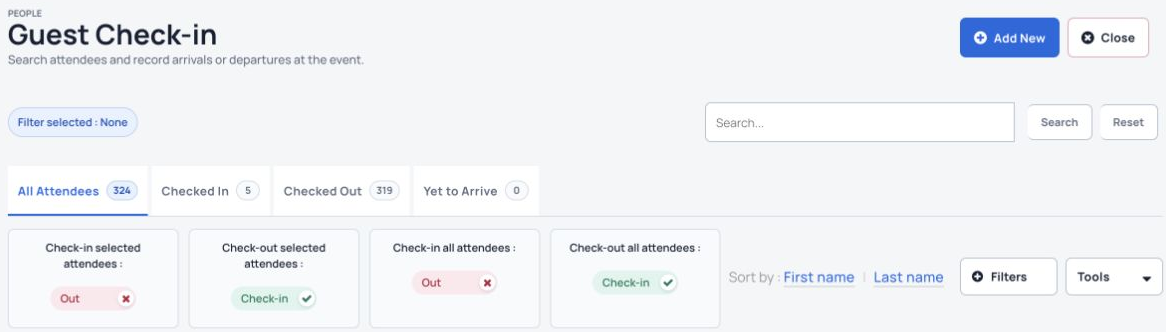
Guest Check-in in the organizer dashboard, with attendee search, arrival-status tabs and check-in and check-out controls.
Find guests and record arrivals or departures in Guest Check-in.
  • Search for an attendee at the check-in desk.
  • Record an arrival or departure using the check-in controls.
  • Review the checked-in and checked-out views.
Explore this tool

Lead collection

Let exhibitors collect contacts using QR codes and digital contact card requests.

Help exhibitors continue useful conversations by collecting contact details through the event’s networking tools.

Search and organize attendee records in Manage Attendees.
  • Use QR codes and digital contact card requests.
  • Let people choose when to share their details.
  • Keep collected contacts available for follow-up.
Explore this tool

After-event follow-up

Send useful follow-up emails to selected contact groups.

Continue the conversation after the event with messages suited to each group’s involvement.

Create and schedule email campaigns for your event.
  • Choose the contact groups you want to reach.
  • Share follow-up information and useful event links.
  • Thank attendees, authors, reviewers or other groups separately.
Explore this tool

Abstract books

Publish an abstract book with summaries and the fields you choose.

Turn submitted research into a useful publication that attendees and your wider community can read.
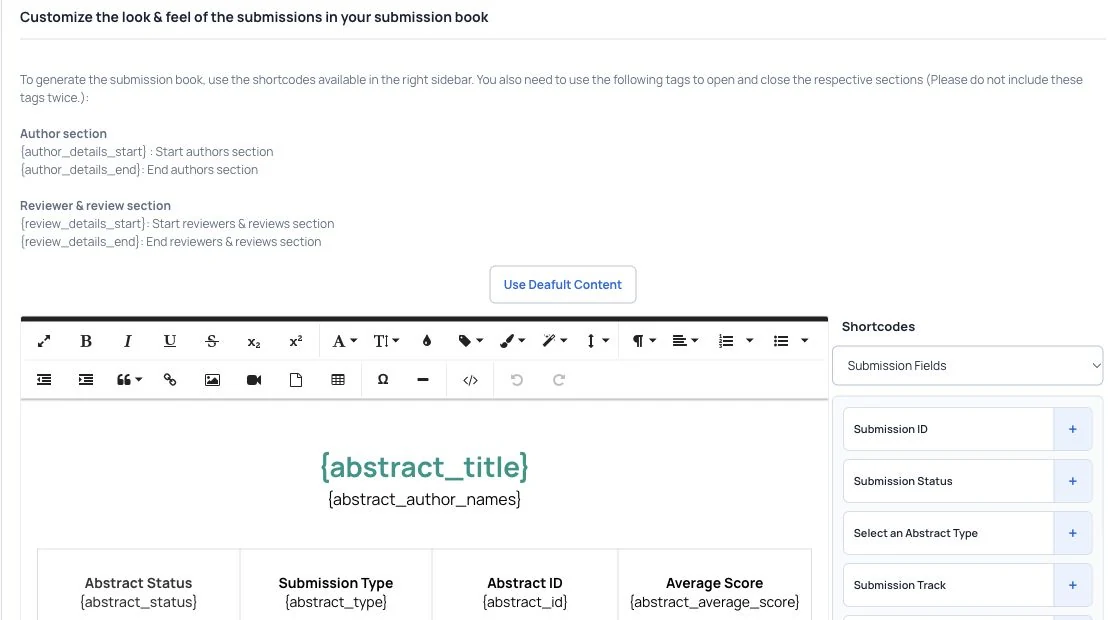
Choose fields and layout for the abstract book.
  • Choose the abstracts and information to include.
  • Create an abstract book in PDF format.
  • Export abstract information for further work when needed.
Explore this tool

Tools & features

Tools for every part of your event.

Explore the full set of tools from the existing product overview.

See each person’s event information.

Keep tickets, abstracts, interests, personal details, travel, accommodation, speaking roles and attended sessions in one contact record.

Help your team answer questions with the person’s event history in view, from registration to their role in the program.

Search and organize attendee records in Manage Attendees.
  • Find profile details and event roles in the same record.
  • Review tickets, submissions, speaking roles and attended sessions.
  • Keep relevant travel and accommodation information alongside the contact.
Explore this tool

Set up your event and tickets.

Choose the basic event details, ticket options and ways to pay.

Bring the event’s practical details and ticket choices together before opening registration, so attendees have a clear path to booking.

Attendees choose tickets and follow the registration steps on the event website.
  • Add the event name, venue and dates.
  • Create ticket types, prices and sale dates.
  • Offer card payments through a supported provider and choose your offline payment methods.
Explore this tool

Build your event schedule.

Arrange sessions and give attendees a program they can use.

Connect accepted work, speakers and session details with a program that attendees can search and save to their own schedule.
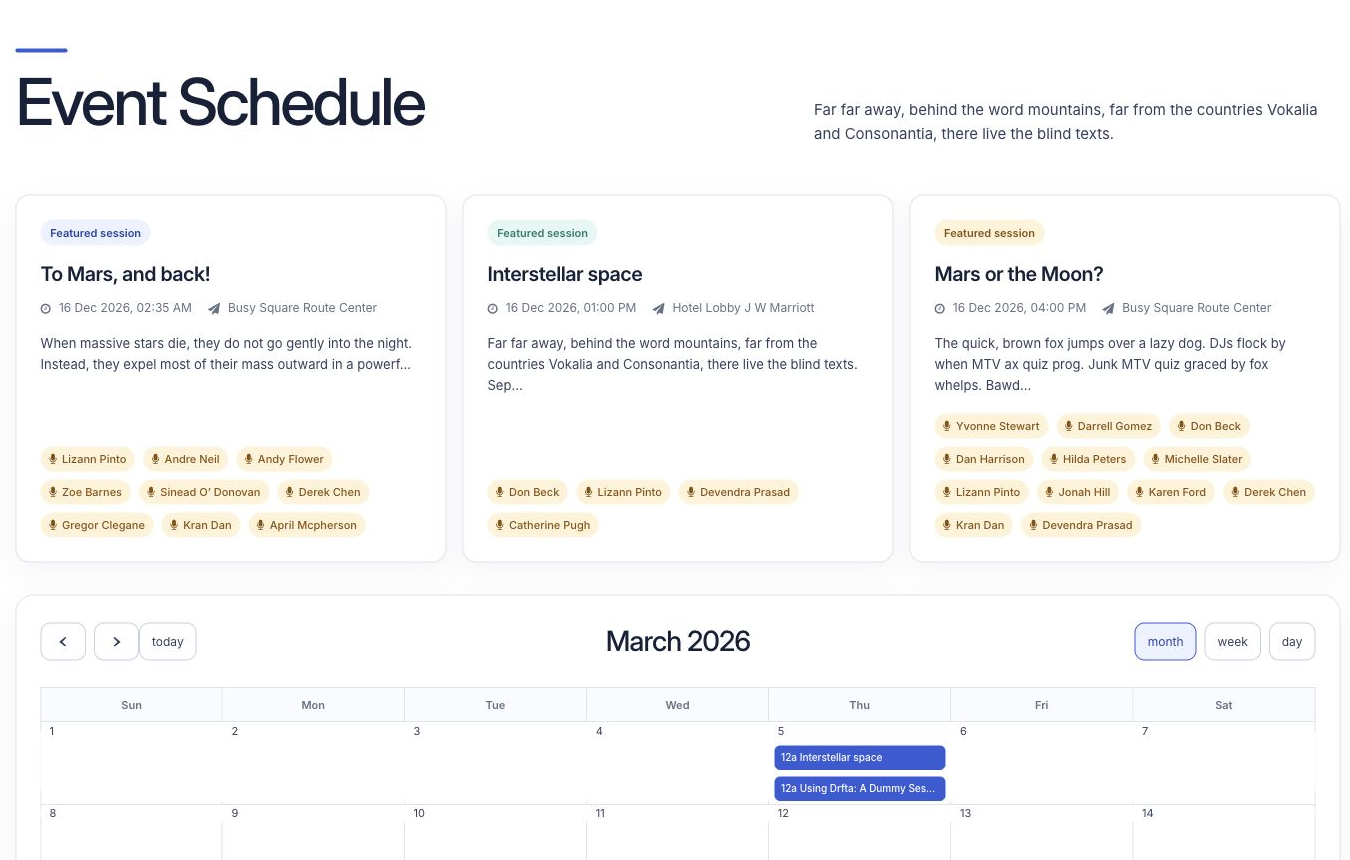
Attendees browse session cards and the event calendar on the event website.
  • Add accepted abstracts to sessions automatically.
  • Drag presentations, speakers and moderators into their sessions.
  • Manage session capacity, check-in, speakers and moderators.
  • Let attendees filter sessions.
  • Let attendees save sessions to their personal schedule.
Explore this tool

Connect your other tools.

Use Dryfta add-ons and supported connections with tools such as Mailchimp and HubSpot.

Choose from supported connections and add-ons so event work fits more easily with the other tools your team uses.
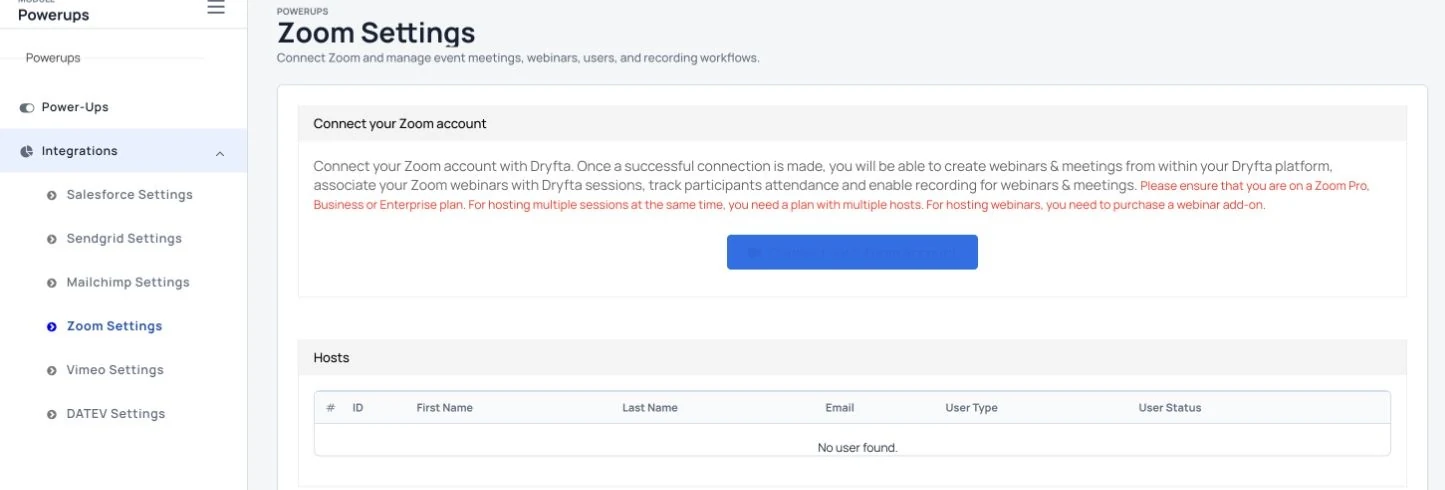
Connect Zoom from Dryfta’s integration settings.
  • Review the available connections for your existing tools.
  • Use supported integrations such as Mailchimp and HubSpot.
  • Check the setup and account requirements for each connection.
Explore this tool

Ask the questions your event needs.

Build forms for registration, abstract submissions and other tasks.

Use clear questions to collect useful details from attendees and authors instead of relying on a separate follow-up form.

Build registration forms with attendee questions and a choice of field types.
  • Add your own registration questions.
  • Choose dates, selection lists, multiple-choice answers, text fields and other supported question types.
  • Keep the answers with the relevant contact or submission record.
Explore this tool

Manage orders, invoices and tickets.

Keep free and paid orders together.

Give your team one place to review a purchase and help an attendee with payment, cancellation or document questions.
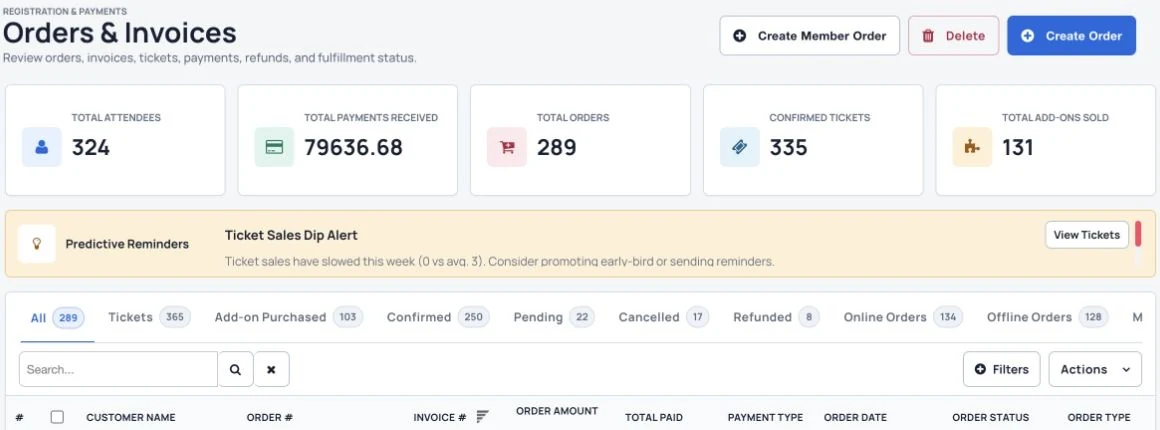
Order management tools and filters in the Dryfta demo event.
  • See every free or paid transaction as an order.
  • Remind attendees to pay outstanding orders.
  • Manage cancellations and refunds.
  • Resend invoices and tickets when someone needs another copy.
Explore this tool

Collect abstracts and organize reviews.

Give authors and reviewers clear places to do their work.

Keep the author’s submission journey connected with the review process, feedback and final decision, using dedicated dashboards for each role.

Submission status and review progress.
  • Let authors save and submit abstracts and PDFs, and add co-authors.
  • Let reviewers read abstracts and submit feedback from their dashboard.
  • Export abstracts as PDF files or spreadsheets.
  • Accept or reject abstracts and notify authors automatically.
Explore this tool

Create and export an abstract book.

Choose the information you want to share.

Prepare a useful research publication by choosing which submission information appears in the version you share with readers.

Choose fields and layout for the abstract book.
  • Export abstracts to a spreadsheet or PDF.
  • Create a PDF abstract book and choose the fields to include.
  • Use the exported information when preparing conference publications and reports.
Explore this tool

See how your event is doing.

Follow activity as event information changes.

Bring key event totals into view so your team can review registration, sales and recorded participation using clearly labelled figures.
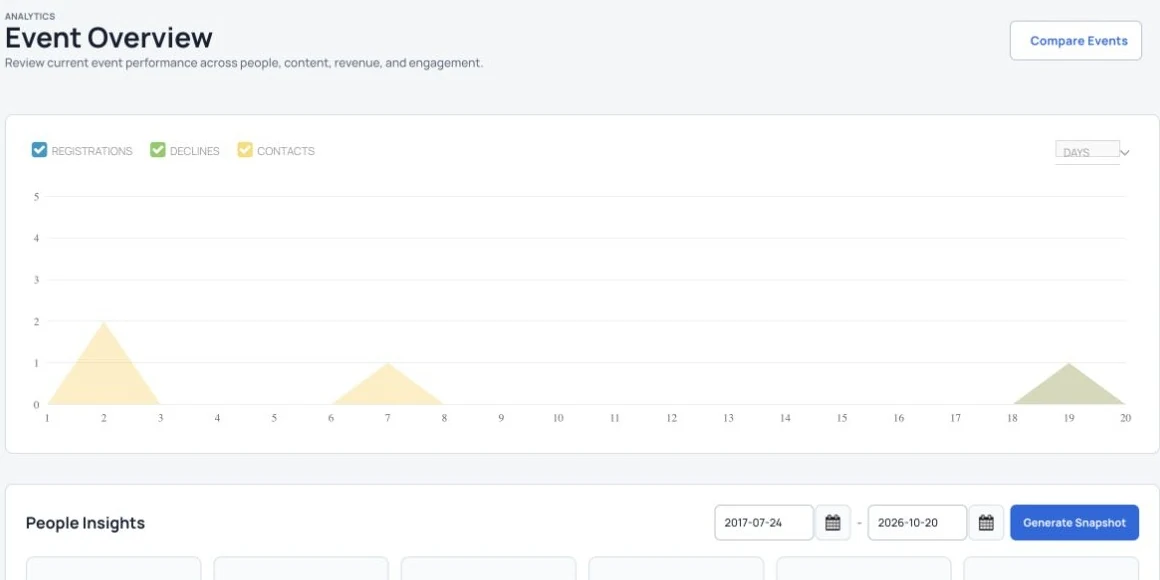
Charts summarizing registration and submission activity.
  • View current event totals and activity.
  • See popular tickets, busy sales days, payments, cancellations, registrations and check-ins.
  • Use separate measures for registrations, payments and check-ins.
Explore this tool

Build your event website.

Use a visual editor to publish useful pages.

Give visitors a clear place to learn about the event, explore its program and find the next step without building separate websites.

An event homepage, with navigation, an event banner and countdown.
  • Create pages with text, images and other media.
  • Add links to other websites.
  • Choose from the available website designs.
Explore this tool

Make email messages your own.

Keep event emails clear and consistent.

Prepare consistent invitations and notifications while using saved event and contact details to make each message more relevant.
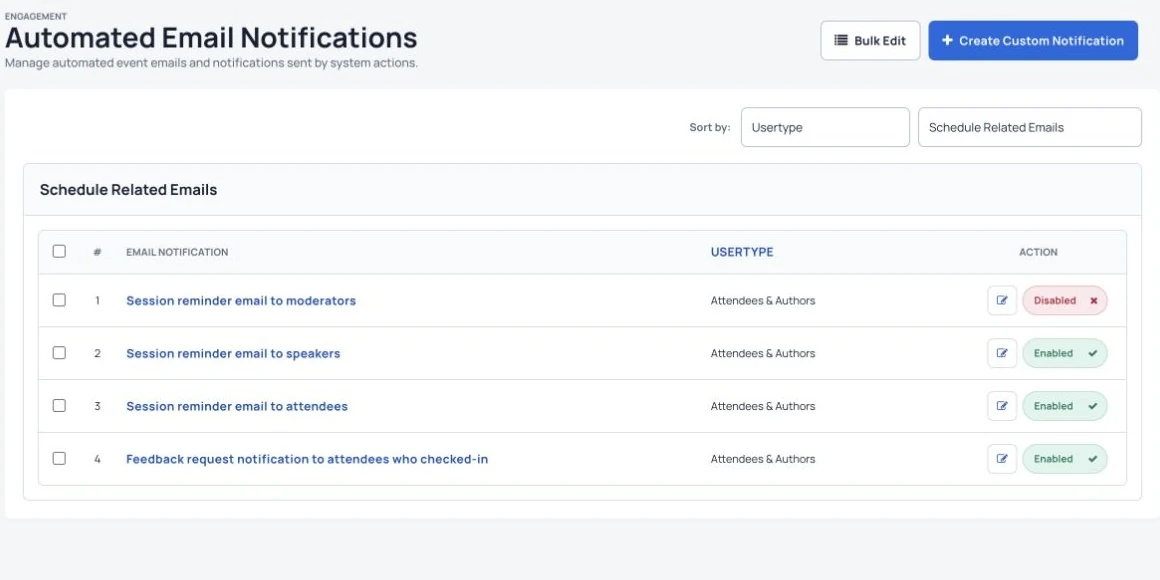
Automated event messages for registration, orders and submissions.
  • Use your own message text and design.
  • Insert saved contact and event details with ready-made placeholders.
  • Include clear instructions and useful event links in your messages.
Explore this tool

Design and print attendee badges.

Create badges together instead of preparing each one by hand.

Use a consistent design for your event badges and prepare attendee details together, with QR codes and sponsor space where needed.

A badge layout in the badge designer.
  • Create badges for all attendees at once.
  • Add a QR code with attendee details and space for a sponsor.
  • Choose a layout that keeps the important attendee information easy to read.
Explore this tool

Send messages to the right people.

Create contact groups for more useful updates.

Send useful updates to the people they concern, such as a location group, event role or another group your team creates.

Create and schedule email campaigns for your event.
  • Group attendees by details such as location or other information you collect.
  • Email those groups using the campaign tool.
  • Keep each campaign focused on the information that group needs.
Explore this tool

Keep attendees informed.

Send an urgent update to everyone, share event information with a selected group, or thank your authors and reviewers after the event.

Use one campaign tool for important announcements, group updates and follow-up messages, with wording that fits the audience.
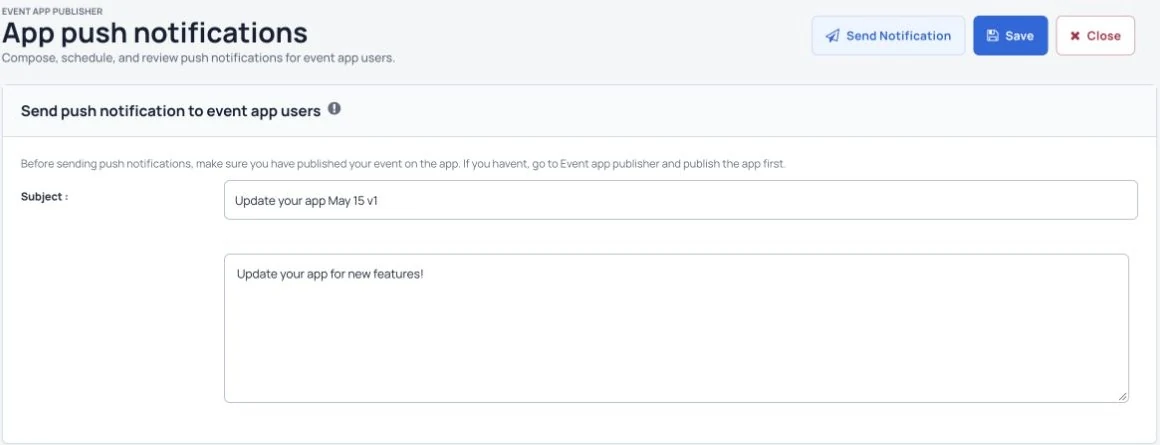
Compose and schedule a push notification for event app users.
  • Send event-wide announcements when everyone needs the information.
  • Choose a smaller contact group for a specific update.
  • Reuse and adapt your event email templates.
Explore this tool

Share reports with your teams.

Keep people informed using current event information.

Help different teams follow the event using reports that keep attendee information and current activity together.
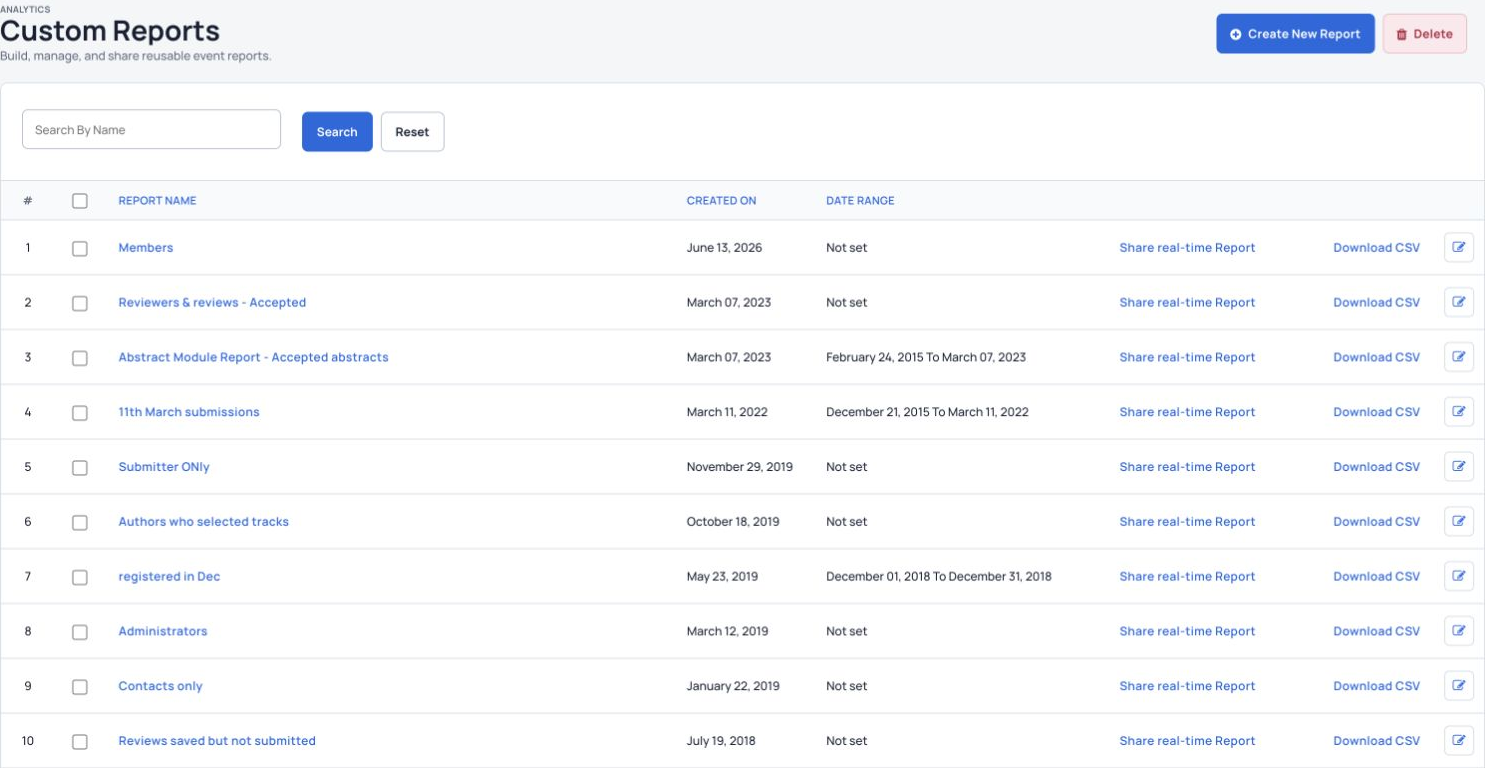
Saved reports and reporting tools in the Custom Reports view.
  • Build reports to understand who is attending, where they come from and the feedback they provide.
  • Share current attendee updates with different teams.
  • Use the report to answer a clear planning or follow-up question.
Explore this tool

Give sponsors a place on your website.

Make sponsor details easy to find.

Give each sponsor a clear presence in the event website so attendees can understand the organization and find its representatives.
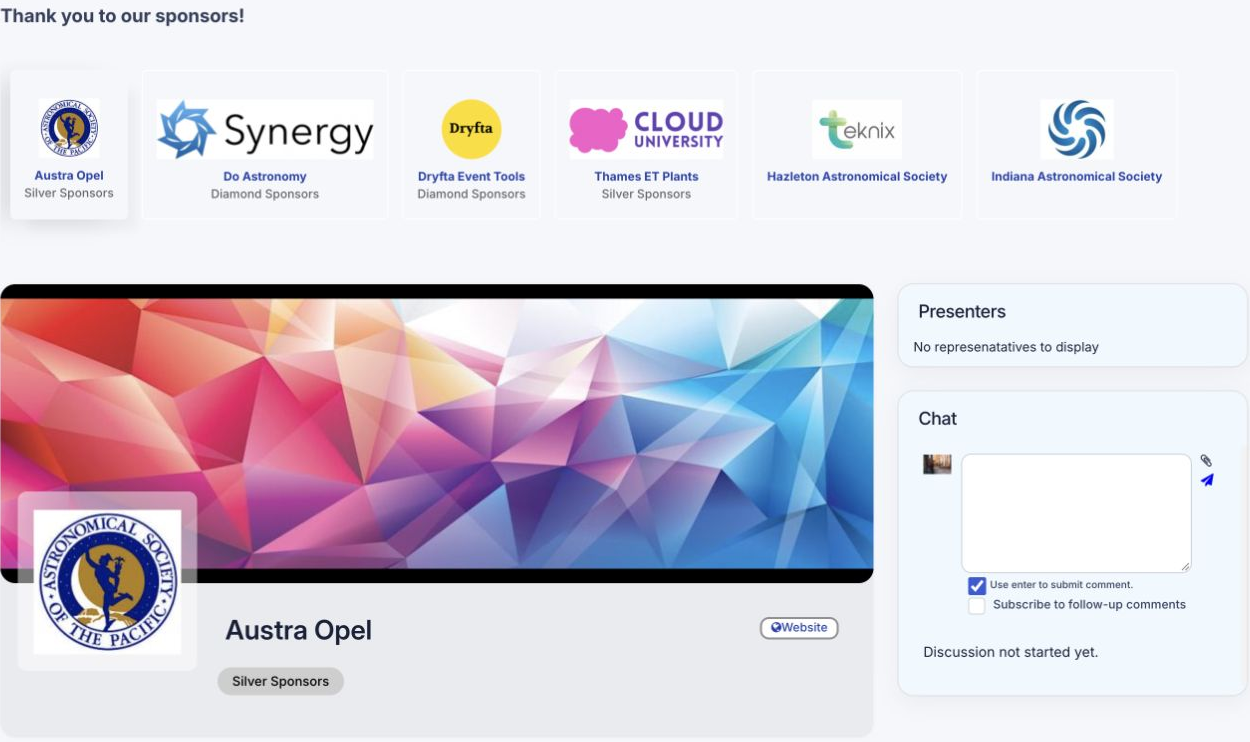
Sponsor discovery and an empty discussion area in the sponsor lounge.
  • Add sponsors and their representatives.
  • Show each sponsor’s website, description and contact people.
  • Include a recognizable logo alongside the sponsor’s information.
Explore this tool

Help people find exhibitors.

Publish useful company and representative details.

Help attendees discover companies that are relevant to their work and identify the people available to speak with them.
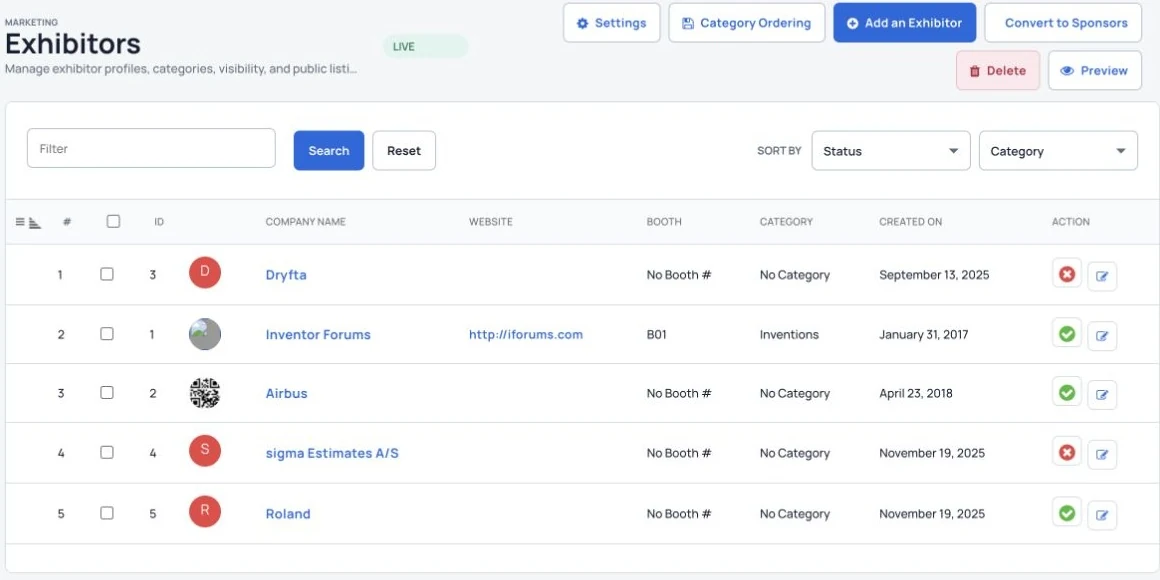
Exhibitor records with booths, websites and categories.
  • Add exhibitors and their representatives.
  • Show each exhibitor’s website, description and contact people.
  • Make company branding and representative details easy to browse.
Explore this tool

Give attendees a website that works on phones.

Keep useful event information available across devices.

Give visitors a practical way to register, check the program and manage their participation from the device they are using.

Dryfta’s iOS event home, as shown on the App Store.
  • Include registration, an attendee dashboard, social sharing, the program, attendee lists and a contact page.
  • Start with ready-made pages, then change or replace them to suit your event.
  • Keep navigation and essential event information clear on smaller screens.
Explore this tool

Help attendees find each other.

Let people choose how they share their profile.

Support useful connections while giving attendees control over their public profile and the contact information they choose to share.
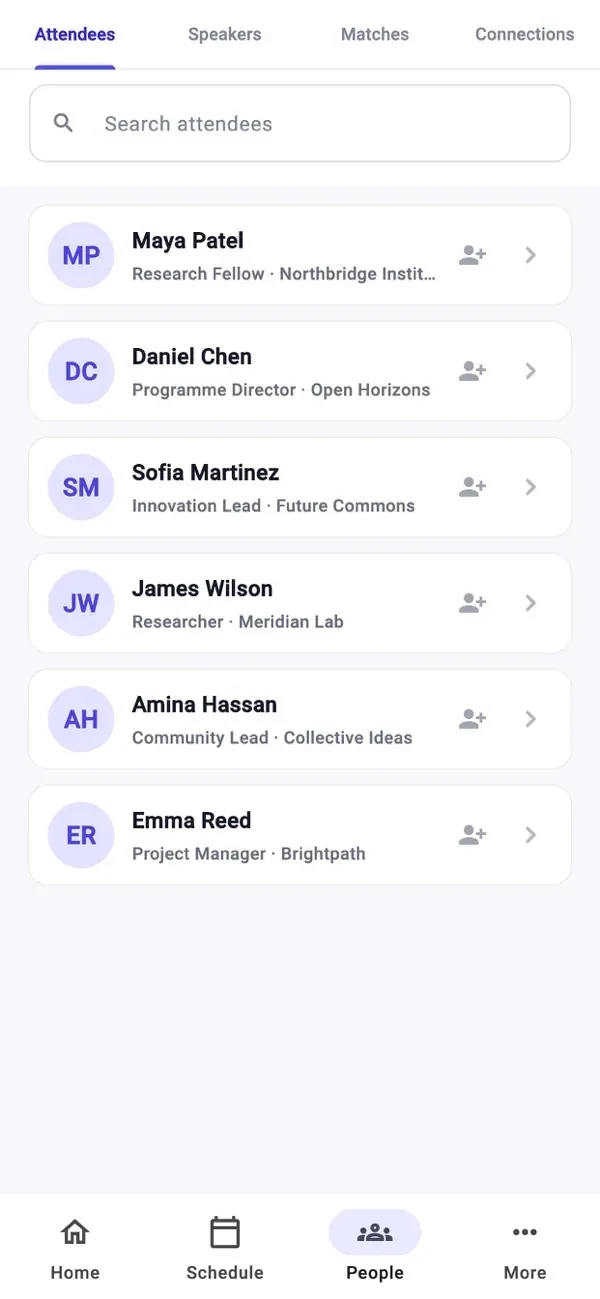
Discover attendees and connections in Dryfta’s iOS app.
  • Browse attendees and speakers on the event website.
  • Let attendees turn their public profile on or off.
  • Request contact details and arrange meetings from the dashboard.
Explore this tool

Give attendees their own dashboard.

Keep each person’s event activity together.

Let participants handle common tasks themselves and return to the same place for tickets, submissions, meetings and personal plans.
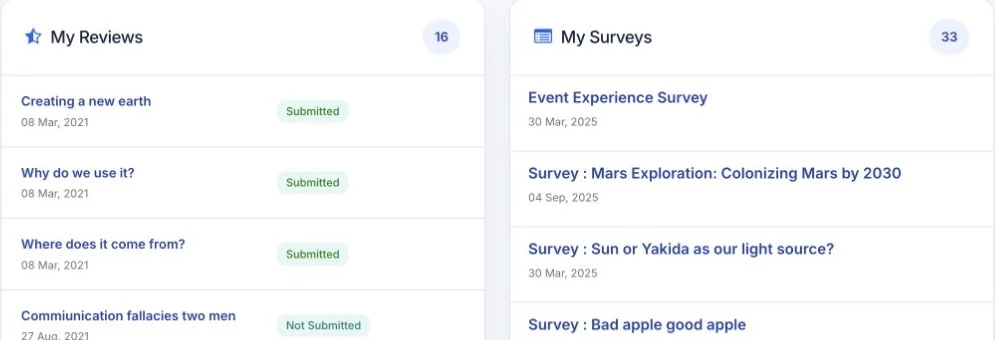
Attendees can track review status and event surveys from their dashboard.
  • Manage ticket purchases and print invoices.
  • Save sessions to a personal schedule.
  • Manage contact requests, meetings, profile details and abstract submissions.
Explore this tool

Make sessions easy to explore.

Publish an interactive event program.

Help attendees move from the full conference program to a manageable set of sessions that match their interests and available time.

Attendees browse session cards and the event calendar on the event website.
  • Browse sessions and save favorites to a personal schedule.
  • Filter by track, format, venue, speaker and time.
  • Leave feedback for a session.
  • Check in and see who else has checked in.
Explore this tool

Give authors a place for their abstracts.

Let authors find their submissions without searching through email.

Give authors a direct route back to their work, with a dedicated area to manage submissions throughout the event’s process.
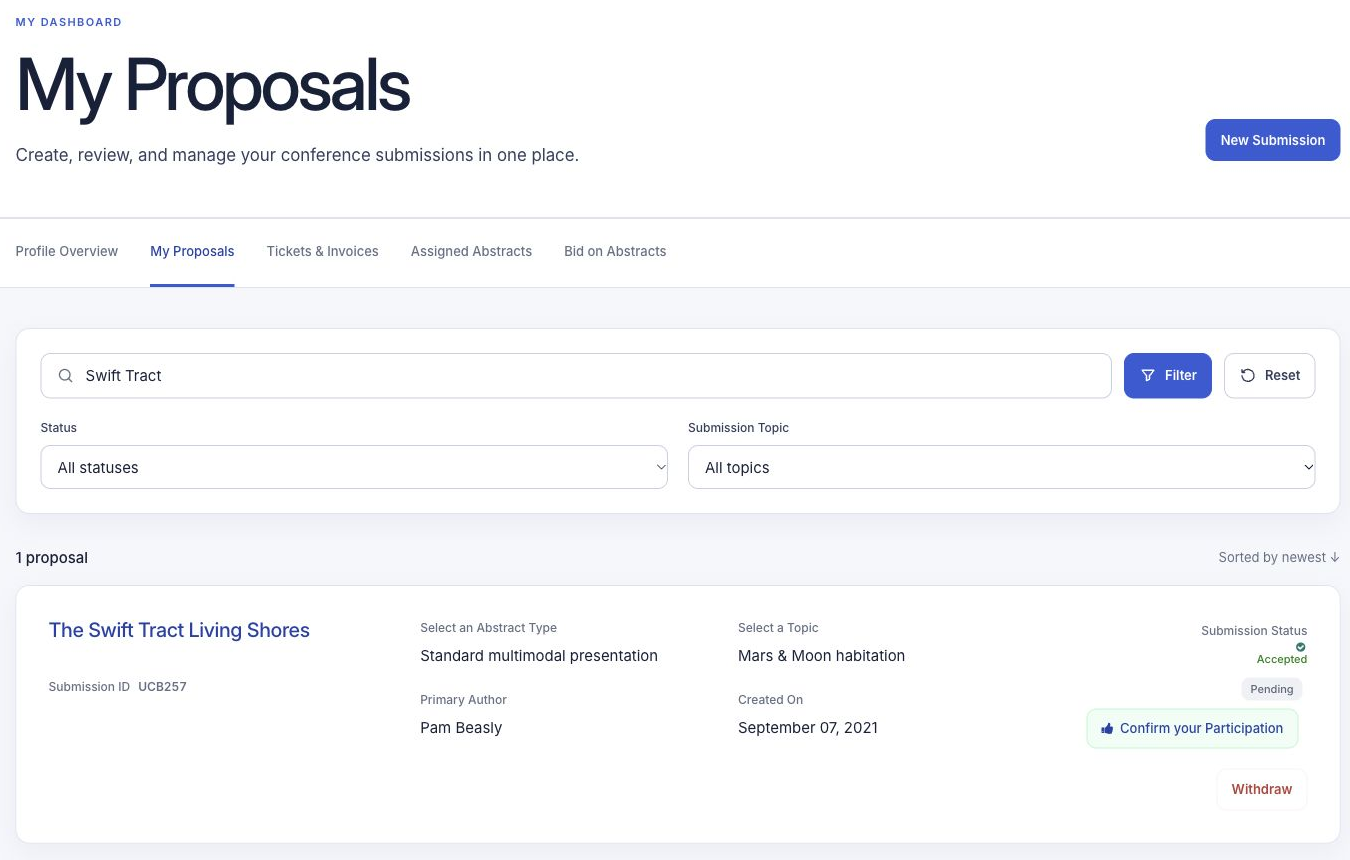
Authors manage their abstracts and see decisions in My Proposals.
  • Authors sign in to their dashboard to submit work.
  • Each author has a dedicated area to submit and manage abstracts.
  • Keep an author’s submission work together in one dashboard.
Explore this tool

Connect personal schedules and attendance.

Keep session information close to each attendee.

Keep personal planning and recorded session participation connected while making the session’s practical details easy to find.
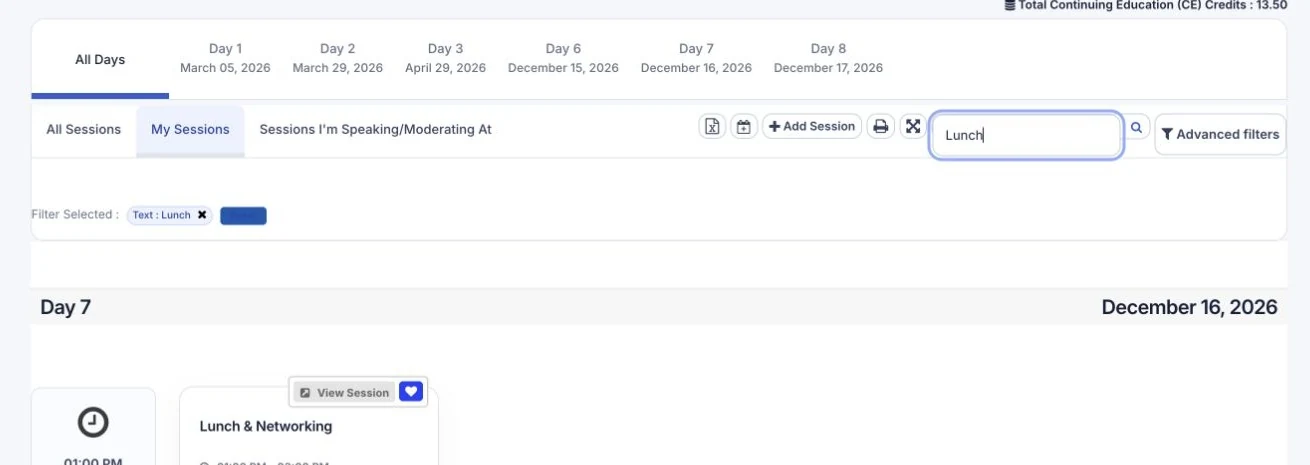
An attendee’s saved session on the event website.
  • Save sessions, check in and show attended sessions on a public profile.
  • Show program details, checked-in attendees, speakers and moderators on the session page.
  • Keep saved sessions and recorded attendance clearly distinguished.
Explore this tool

Help people discover your event.

Use the available event directory listing service.

Give people who discover your listing a clear event summary and a useful link to learn more or register.
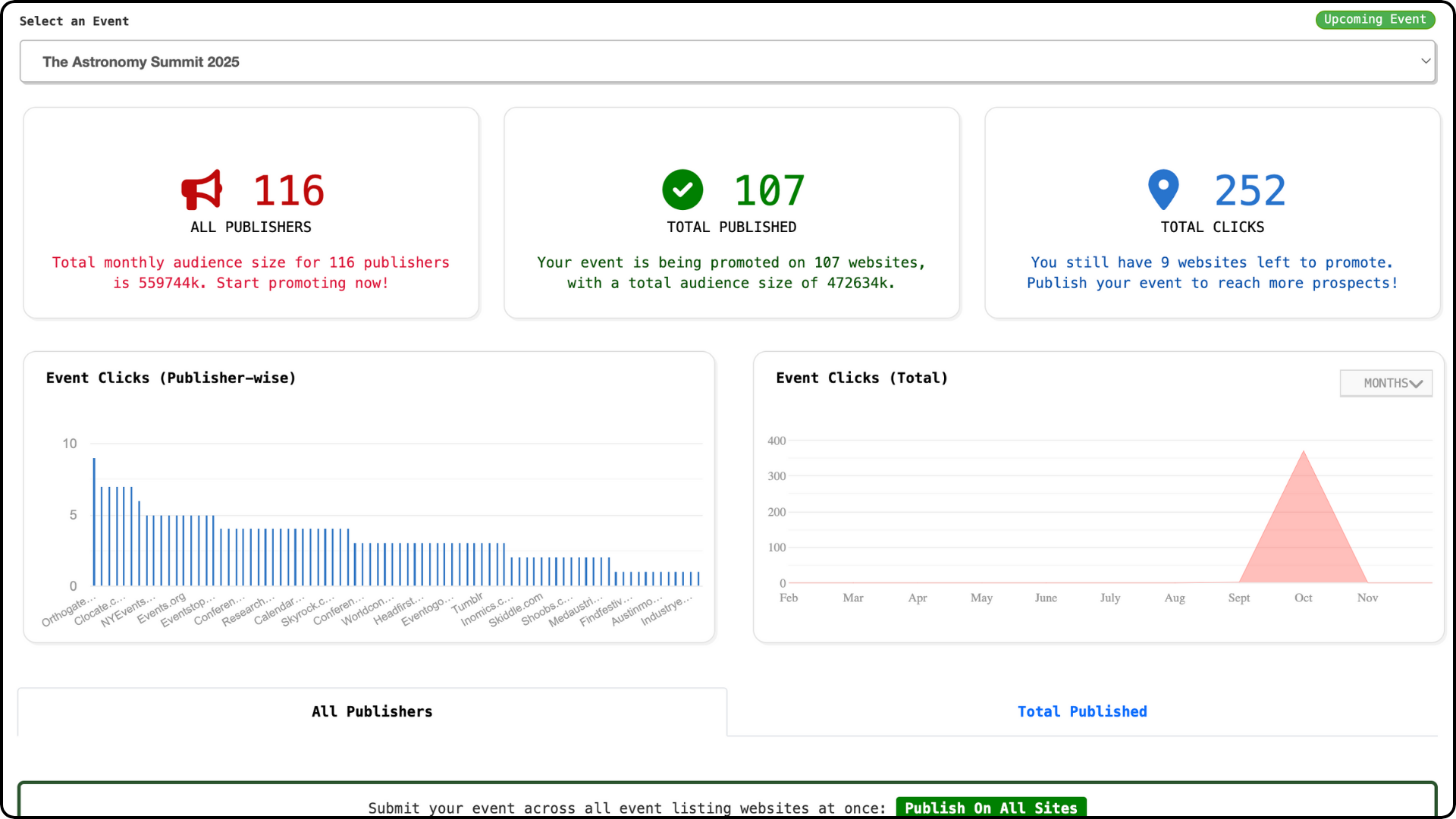
Publisher coverage and event clicks in the EventBoost dashboard.
  • List your event for free in the linked directories, where events can be found through search and social sharing.
  • Reach people browsing the event directory from different countries.
  • Use the free listing offered to Dryfta event organizers.
Explore this tool

More useful tools

More ways to manage event details.

Submission settings

Set limits per author and across the event. Choose whether abstracts appear on public profiles and set an abstract number prefix.

Set clear submission rules before opening the call for abstracts so authors and your team know what to expect.
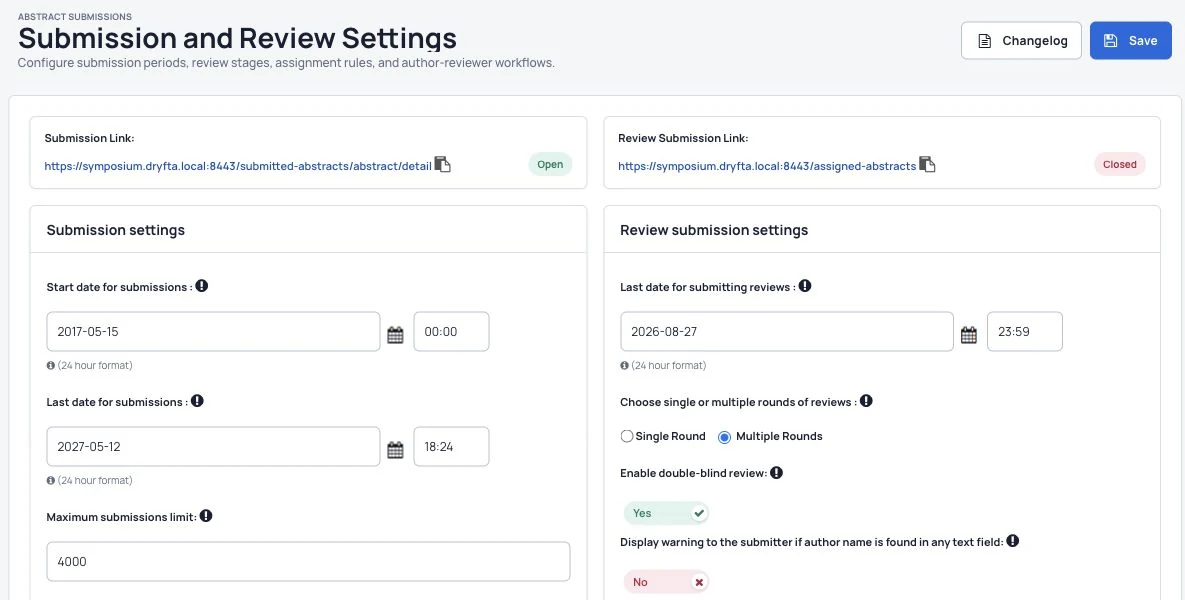
Submission deadlines, author options and review settings.
  • Choose limits for each author and for the event.
  • Control whether abstracts appear on public profiles.
  • Set an abstract number prefix for your records.

Session attendance controls

Set session capacity, check-in and check-out, invitation-only access and the displayed attendee list.

Choose how people can join a session and which attendance details appear in its public view.
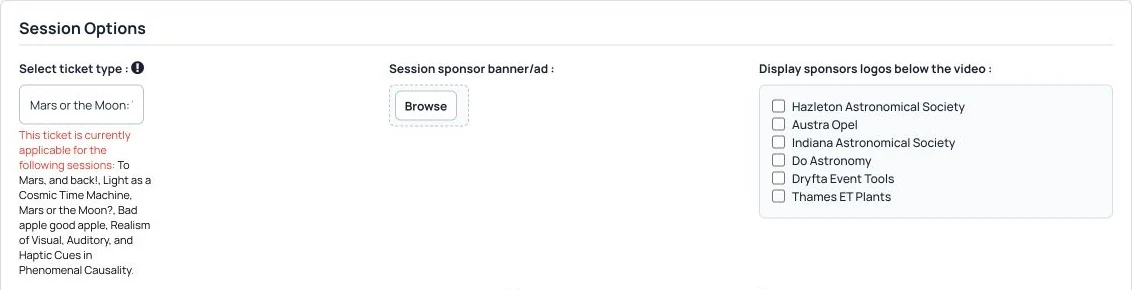
Session access, attendance and capacity controls in the Dryfta demo event.
  • Set the number of attendees a session can hold.
  • Choose check-in, check-out and invitation-only settings.
  • Control the attendee list displayed for the session.

Exhibitor details

Add each exhibitor’s logo, description, website and event representatives.

Keep the company’s information and its event representatives together so attendees know who to contact.

Exhibitor records with booths, websites and categories.
  • Add the exhibitor’s logo and description.
  • Include its website link.
  • Connect the people representing the organization.

Sponsor details

Add each sponsor’s logo, description, website and event representatives.

Present each sponsor consistently and make its role in the event easy for visitors to recognize.

Sponsor discovery and an empty discussion area in the sponsor lounge.
  • Add the sponsor’s logo and description.
  • Include its website link.
  • Show the sponsor’s event representatives.

Meeting requests

Let attendees request a meeting. Email the other person the request and the requester’s details.

Give attendees a direct way to start a meeting conversation with another person at the event.
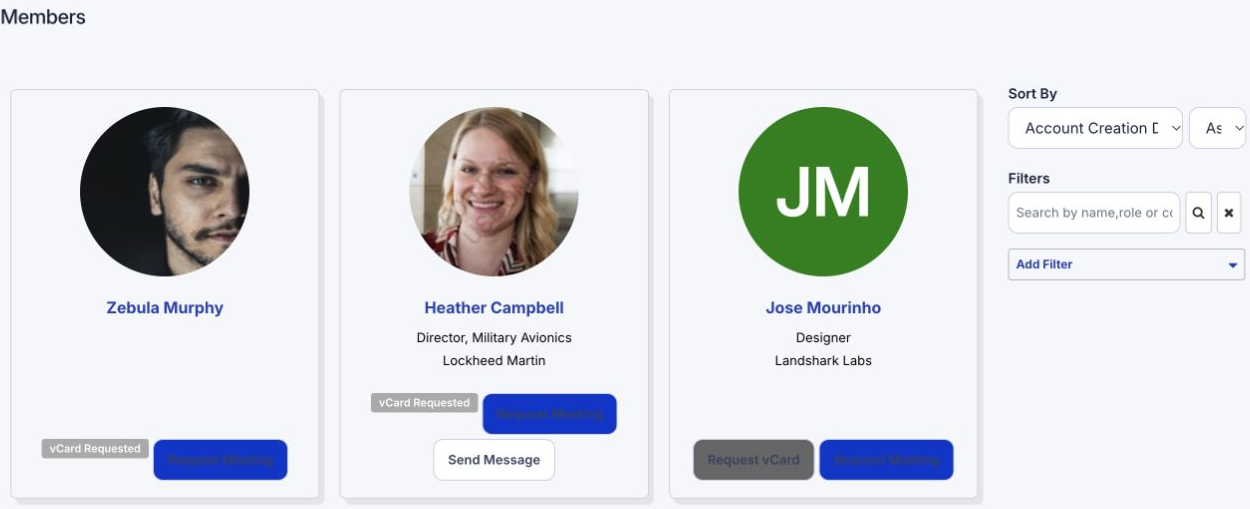
Member profiles, search and filters on the event website.
  • Send a meeting request from the attendee’s dashboard.
  • Notify the other person by email.
  • Include the requester’s details with the request.

Digital contact card requests

Let people request and share contact cards on the website and app, with email updates and a request-management tab.

Let people exchange details through a request they can manage instead of making every contact detail public.

Search and organize attendee records in Manage Attendees.
  • Request contact cards on the website or app.
  • Use the request-management area to follow the exchange.
  • Receive email updates about contact card requests.

Save collected contacts

Download or import collected digital contact cards into a phone address book or Google Contacts.

Make it easier to continue event conversations by moving shared contact details into the address book you use.
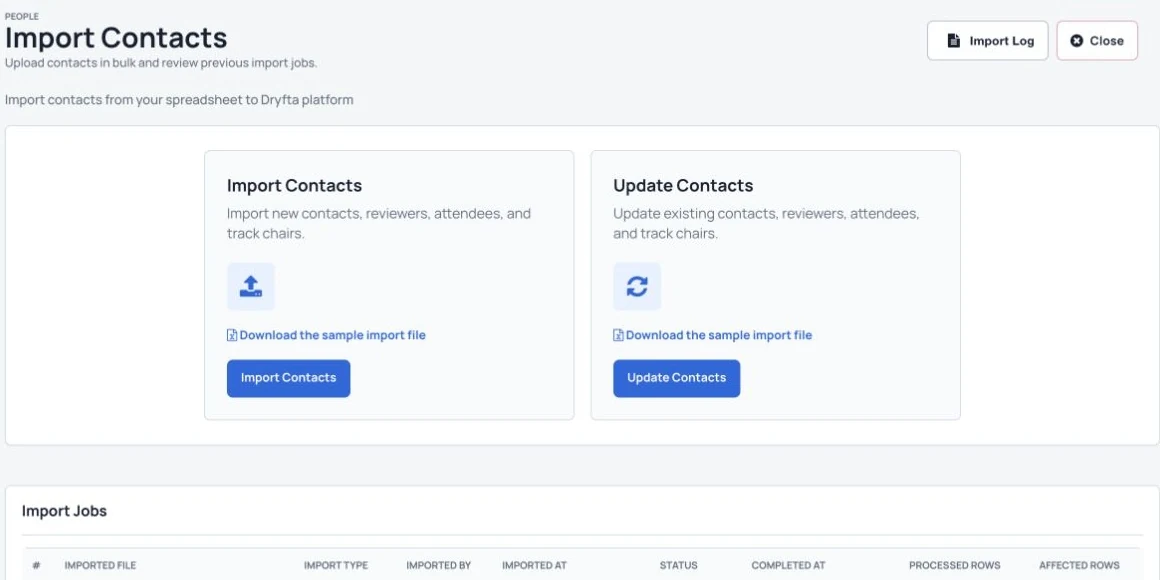
Import contact information from a spreadsheet file.
  • Download collected digital contact cards.
  • Import them into a phone address book where supported.
  • Use the Google Contacts import option for follow-up.

Group email updates

Send selected groups program changes, venue updates, newsletters or other event messages.

Keep each message relevant by choosing the group before sharing an announcement or follow-up update.

Create and schedule email campaigns for your event.
  • Send program and venue changes to the right people.
  • Share event newsletters and useful links.
  • Prepare separate messages for different contact groups.

Form field permissions

Choose whether each registration or submission question is public, shared with the attendee and staff, or for staff only.

Collect information without showing every answer publicly, using the access settings that suit each question.

Build registration forms with attendee questions and a choice of field types.
  • Choose public access for information visitors may see.
  • Share selected answers with the attendee and staff.
  • Keep internal questions available to staff only.

A practical planning guide

Plan your academic conference.

Download the guide to planning and running an academic conference. Enter your name and email to open the PDF.

We’ll use these details for your guide request. Read our privacy policy.

See Dryfta for yourself

See how Dryfta can help your team.

Tell us about your event and the tasks you want help with. We’ll show you how to do them in Dryfta.

Request a demo