Building a seminar program means knowing more than how many sessions exist. Organizers and moderators need to see how many proposals belong to each session, whether the session has reached its minimum, and how much room remains before its maximum.
Dryfta brings those details into session proposal management through configured limits, the Seminar Enrollment view for moderators, and additional Program Builder columns and filters. The result is a clearer way to review developing sessions without maintaining a parallel spreadsheet. This guide explains the counts, the distinction between authors and proposals, and how to prepare the views your organizing team needs.
See whether each session has enough proposals
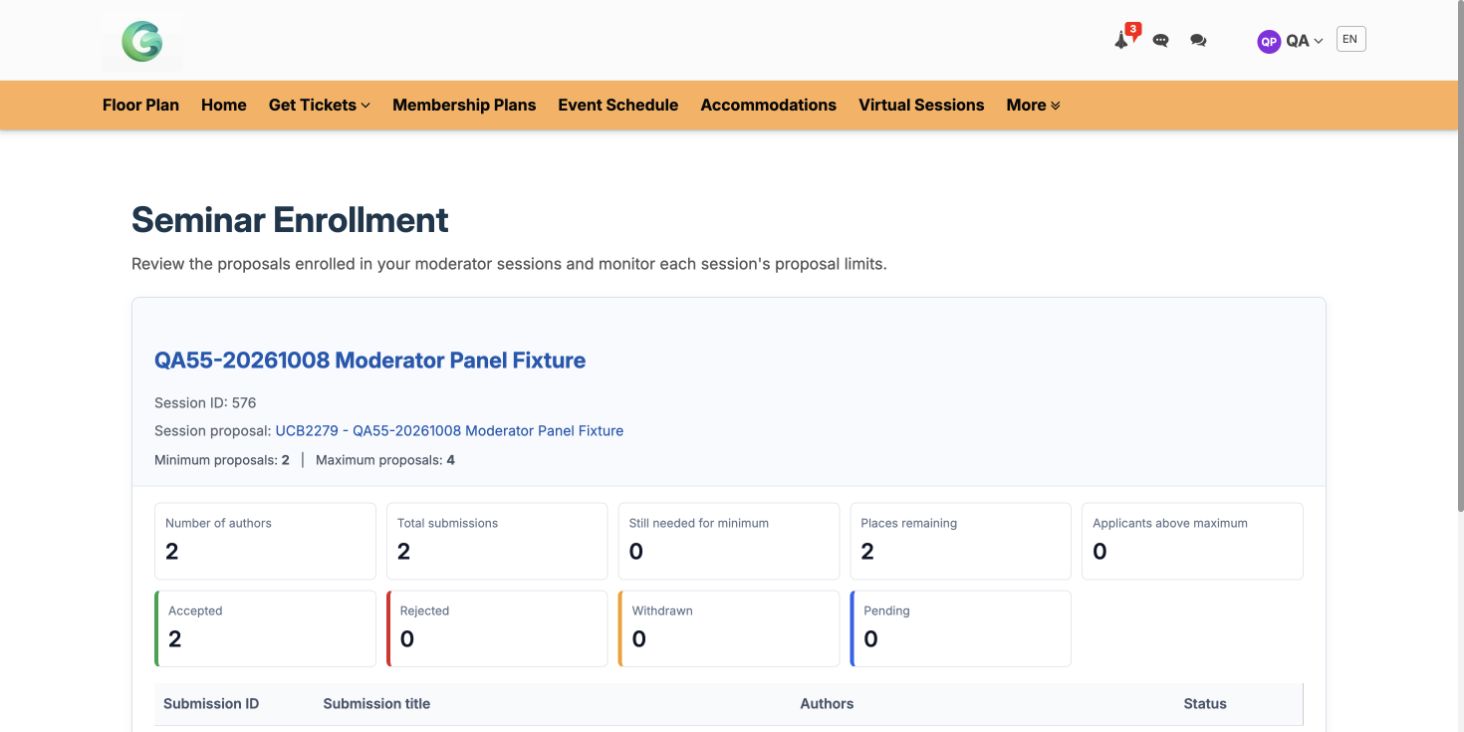
A minimum and maximum give a session a defined proposal range. The enrollment view turns that range into information an organizer can act on: total submissions, distinct authors, proposals still needed for the minimum, places remaining and applicants above the maximum.
The actual demonstration dashboard shown above has two proposals from two distinct authors, a minimum of two and a maximum of four. It therefore shows zero still needed for the minimum and two places remaining. The source proposal introduction is displayed separately and is excluded from the child proposal count.
These figures answer different questions. A proposal count describes the submissions attached to the session; an author count describes distinct people. They should not be treated as interchangeable measures of participation.
- Total submissions: the proposals counted for the session, excluding its source introduction.
- Number of authors: distinct authors represented in those proposals.
- Still needed for minimum: the gap before the configured minimum is reached.
- Places remaining: room before a configured maximum is reached.
- Applicants above maximum: a signal that the session needs attention against its configured range.
Give moderators a view of the sessions they own
The Seminar Enrollment page lets a session moderator review proposals enrolled in their sessions and monitor the proposal limits. Counts and submission status summaries appear together, giving the moderator a clearer starting point for follow-up.
Moderator ownership is central to this view. Assign the intended moderator to the session and verify the person’s access using the appropriate account. A Speaker role alone does not grant the same moderator enrollment access.
The page separates the source session proposal from the individual proposals counted toward enrollment. That distinction is particularly useful for panels or seminars created from a parent proposal and its linked contributions: the introduction should provide context without being mistaken for another contributor.
Put the information your program team needs into the list
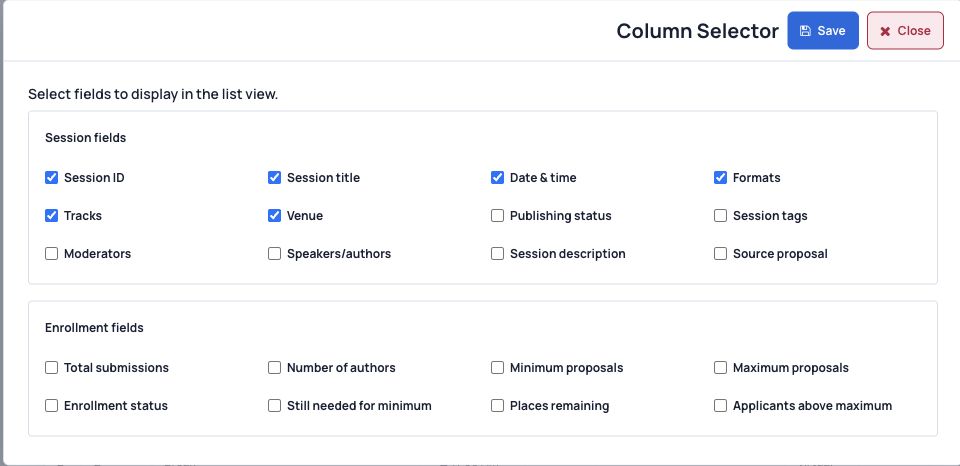
Program Builder’s Column Selector lets the organizing team choose additional session and enrollment fields. Session fields include publishing status, tags, moderators and source proposal. Enrollment fields include total submissions, number of authors, minimum and maximum proposals, enrollment status and the remaining-place measures.
Choose the columns that answer the current review question. A program planning meeting may need proposal counts and limits; a publication review may need publishing status and moderators. Showing everything at once can make the list harder to use.
Related filters help the team focus on sessions with particular publication or enrollment states. Where no minimum or maximum applies, the session is treated as No limit rather than incorrectly being classified as within a defined range. Use the appropriate filter for the question you are asking.
Prepare a reliable session proposal workflow
Agree on what the limits mean operationally before sharing the view. A count can identify a session that needs attention, but the committee still decides how to handle missing, withdrawn or excess proposals under the event’s policy.
Keep changes deliberate. A session’s proposal range, publication status and moderator assignment affect different parts of the workflow. Reviewing them together is useful; treating them as the same setting can lead to confusing instructions.
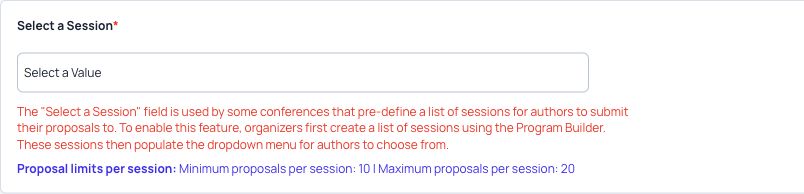
- Review the proposal form’s session selection settings and configure the intended minimum and maximum proposals per session.
- Keep the range valid: the minimum must not exceed a configured maximum. Use an unlimited configuration only when that is the intended policy.
- Check the session’s source proposal, linked contributions and moderator ownership.
- Open Seminar Enrollment using a representative moderator account and compare the displayed proposals with the session’s actual records.
- In Program Builder, open Tools, then Column Selector. Select the enrollment fields useful to your team and save that view when ready.
- Use the relevant filters and review any session below its minimum or above its maximum before making program decisions.
Three practical uses for event teams
A moderator assembling a seminar
The moderator can see how many proposals have arrived, whether the minimum is met and how many places remain. This provides a concrete basis for follow-up with contributors instead of repeatedly asking the central program team for a spreadsheet extract.
A scientific committee reviewing the program
The committee can display proposal limits and enrollment status alongside session details, then focus its review on sessions needing attention. Distinct-author counts help it understand participation without confusing several submissions from one person with several different contributors.
An organizer preparing a targeted report
Related report and segment filters can help the organizer review relevant session and enrollment information for a defined audience. Check the selected roles, dates and range criteria, then inspect the resulting records before using an export or communicating with that audience.
Questions about counts and access
Does the introduction count as another proposal?
The source introduction is shown separately from the linked child proposals counted for the session. This keeps the session overview from inflating the contribution total.
Does being a speaker grant moderator access?
No. The moderator enrollment view depends on the appropriate role and session ownership. Review the actual account assignment when a person cannot see the session they are expected to manage.
What happens when there is no proposal limit?
An unlimited session is identified as No limit. It should not be interpreted as within a configured minimum and maximum range simply because its current count is non-negative.
Start with the sessions that need attention
Choose the enrollment columns your committee needs, check one known session and give moderators a short explanation of the counts. A shared understanding of proposals, authors and limits makes the review more useful.
For help reviewing your event’s session selection field or moderator access, contact Dryfta support.