🚀 Join our Live Demo every Friday at 11:00AM EST and see Dryfta in action!
Skip to content
Dryfta
Products Community & Networking

Community & Networking

Keep the research conversation going.

Give your conference community a place to ask questions, share resources and discuss research. Help participants meet around sessions and shared interests before, during and after the event.

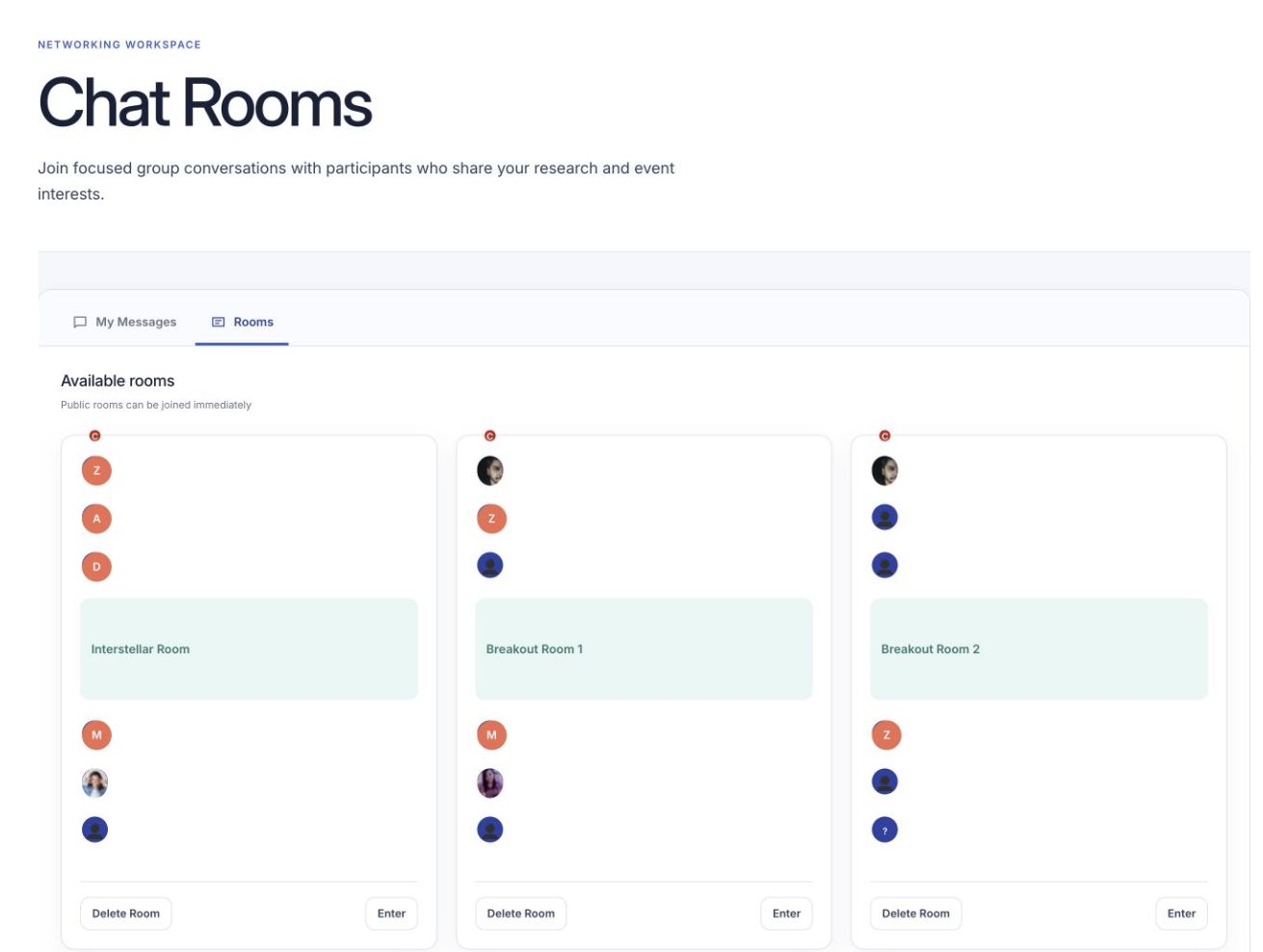
Attendees find public topic rooms on the event website.

Find the right research conversation

Create discussion rooms for topics, tracks and shared interests.
Continue a useful introduction

Let participants follow up through private messages and meetings.

Support a useful community

Moderate comments and keep important conference updates visible.

Teams who have used Dryfta

University of Berkeley
University of Amsterdam
Universitat Jena
Montreat College
East Carolina University
UNT Health Center
UPenn
University of Calgary

How it works

Three steps to get started.

  1. 1

    Create discussion spaces

    Set up rooms for research topics, conference tracks, sessions or shared interests.

  2. 2

    Invite participants to contribute

    Let people ask questions, share resources and start conversations.

  3. 3

    Keep the discussion useful

    Moderate comments, highlight ideas and send relevant updates.

All features

Explore the features.

Find the tools your team needs and see how they fit your event.

Give attendees a place to share ideas.

Connect useful conversations with scientific sessions, research topics and shared interests.

Attendees find public topic rooms on the event website.
  • Create spaces for ideas, questions, notes and useful resources.
  • Keep conversations available after a live session ends.
  • Help attendees learn from each other as well as from speakers.
  • Keep feedback and discussion together so people can find it later.

Create a room for each topic.

Create clear discussion spaces so participants can find relevant research conversations.
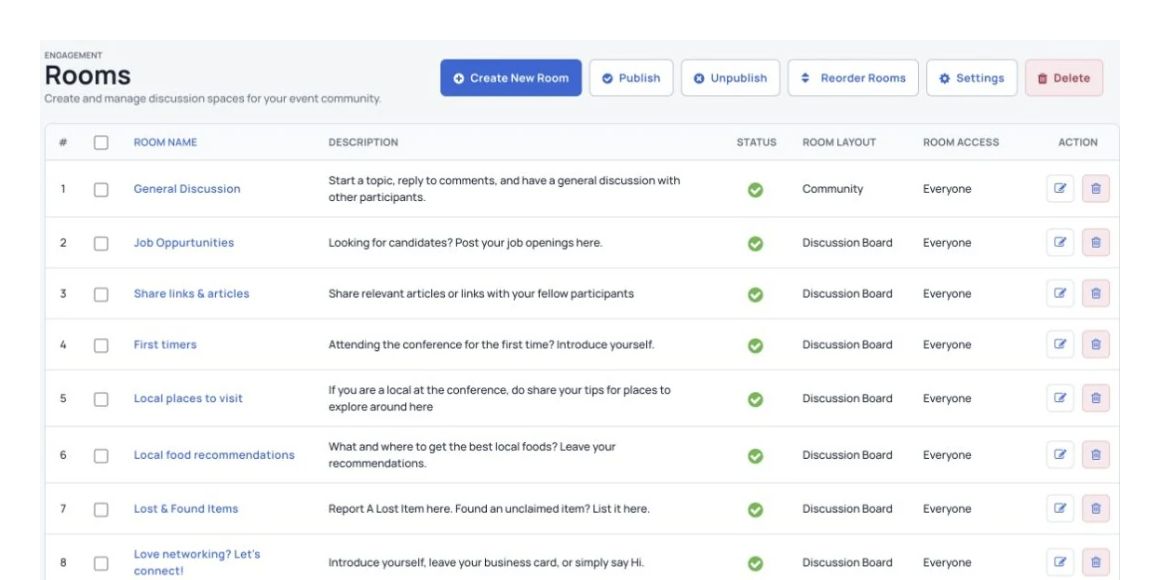
Organize the event community into discussion rooms.
  • Create rooms for tracks, committees, groups, sponsors, workshops or members.
  • Give different topics their own space instead of putting everything in one feed.
  • Explain what each room is for and how to take part.
  • Support focused groups within a large conference or year-round program.

Show where the conversation is happening.

Show active conversations so people know where others are sharing ideas.
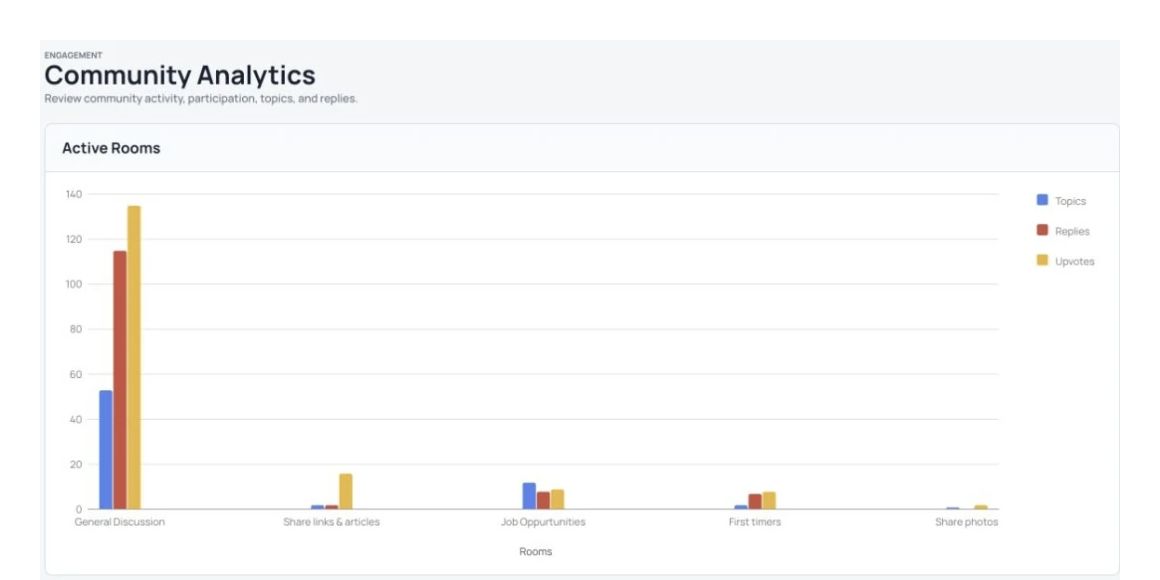
Charts summarizing discussion activity.
  • Recognize people who contribute most often.
  • Highlight the most active rooms.
  • Show comments with the most upvotes so useful ideas are easier to find.
  • Use activity patterns to spot topics worth exploring further.

Let attendees recognize helpful comments.

Let participants recognize useful questions, resources and contributions.
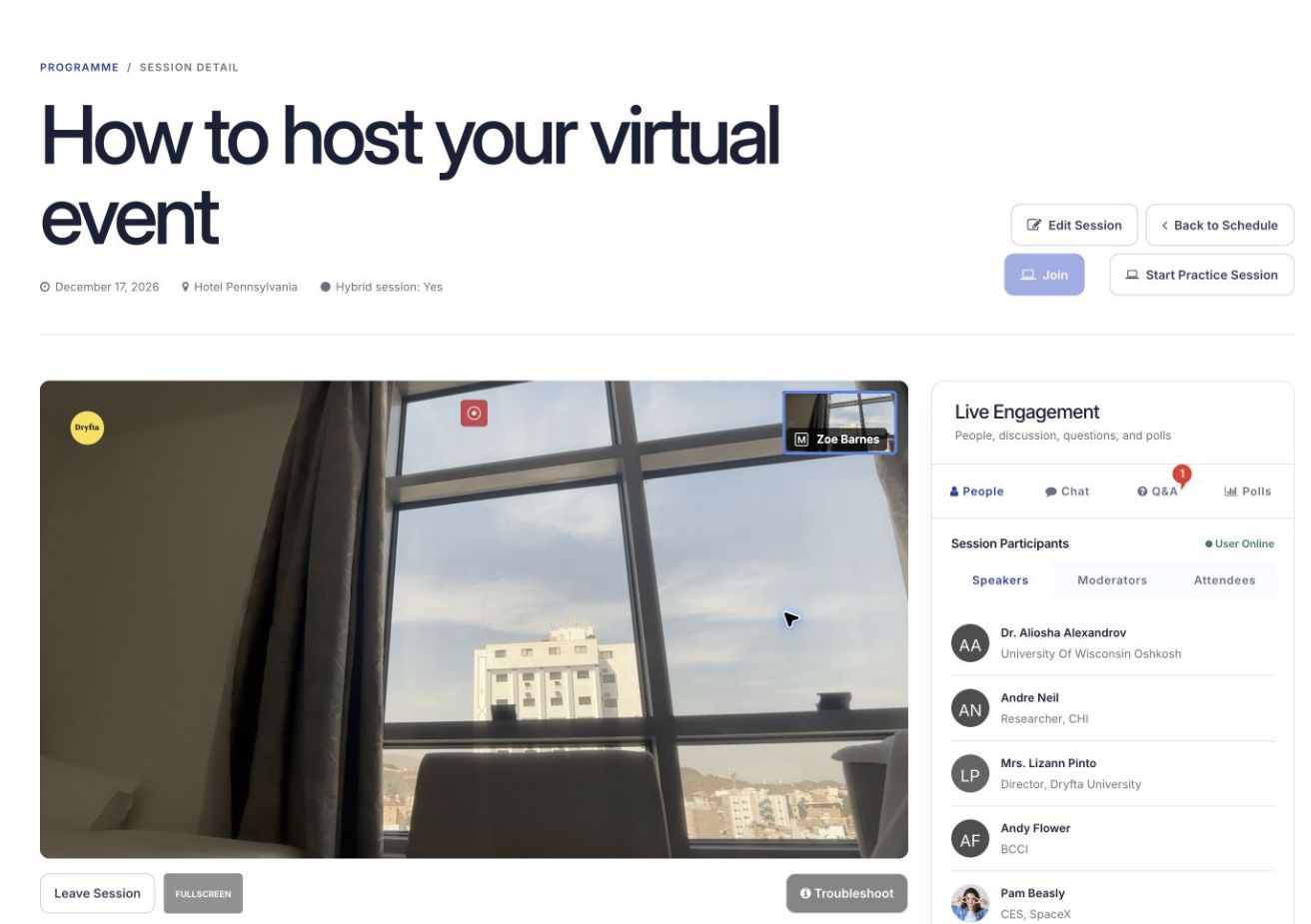
An open virtual session, with the presentation area and live engagement tools.
  • Let attendees upvote comments that help the discussion.
  • Make useful comments easier to find among repeated or less relevant posts.
  • Let attendees see which of their comments received upvotes.
  • Use upvotes to see what interests the community and deserves follow-up.

Turn discussions into new connections.

Help researchers and other participants continue a useful discussion directly.
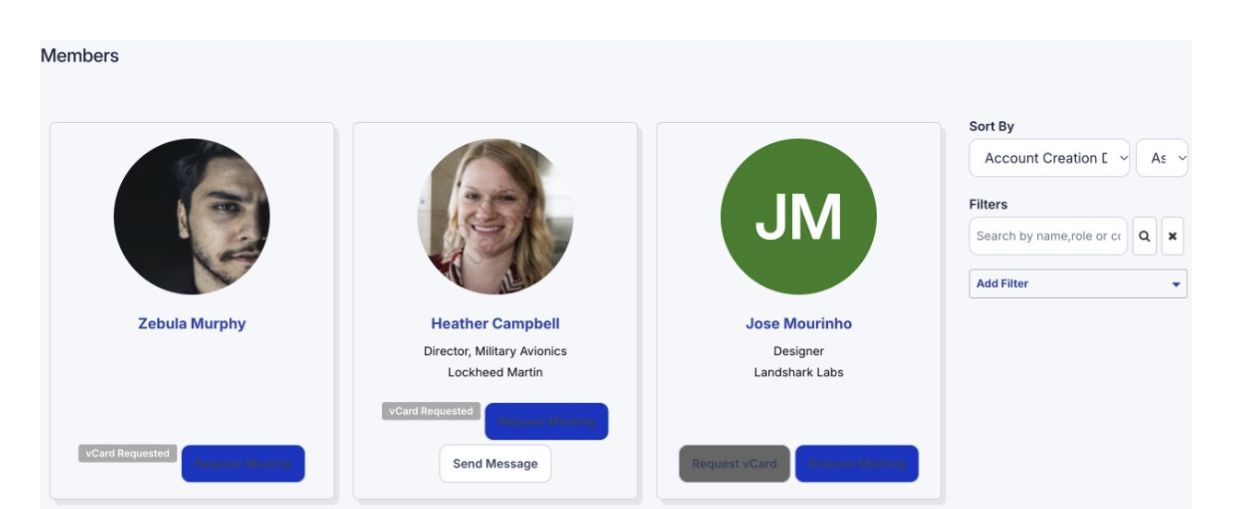
Member profiles, search and filters on the event website.
  • Let attendees send connection requests to people they meet in discussions.
  • Support one-to-one meeting arrangements.
  • Allow private messages for questions, introductions and shared work.
  • Give attendees clear ways to move from a public discussion to a personal connection.

Notify people about comments and replies.

Help people return when someone responds to a question or research conversation.
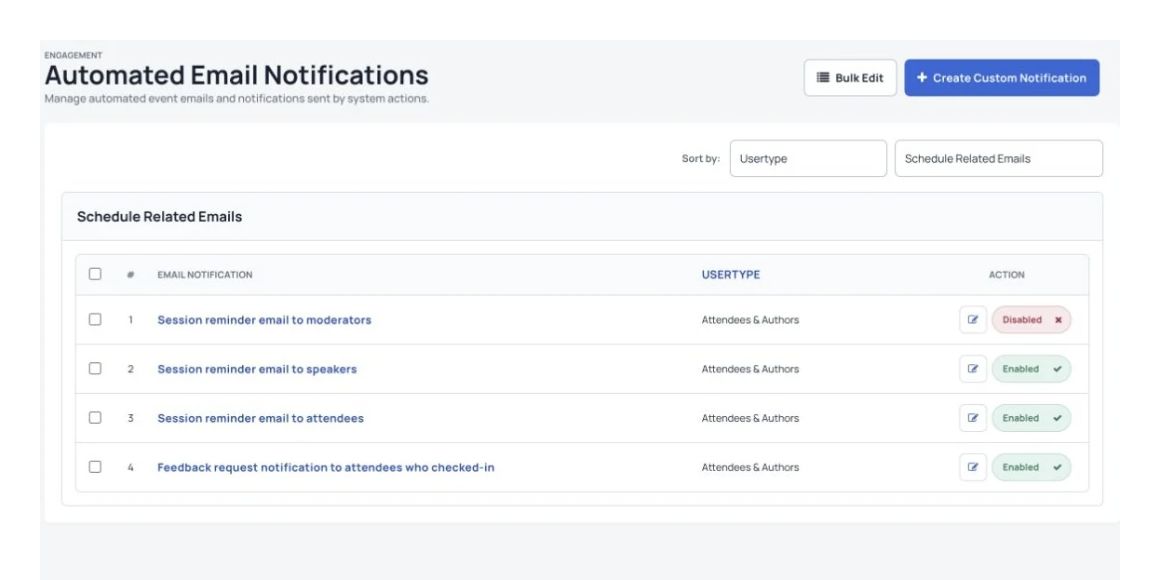
Automated event messages for registration, orders and submissions.
  • Send email notifications when new comments or replies are posted.
  • Help people notice replies even when they are away from the platform.
  • Keep discussions going between sessions, event days and follow-up activities.
  • Encourage people to return without sending every reminder manually.

Keep important room updates visible.

Keep room instructions and important conference announcements easy to find.
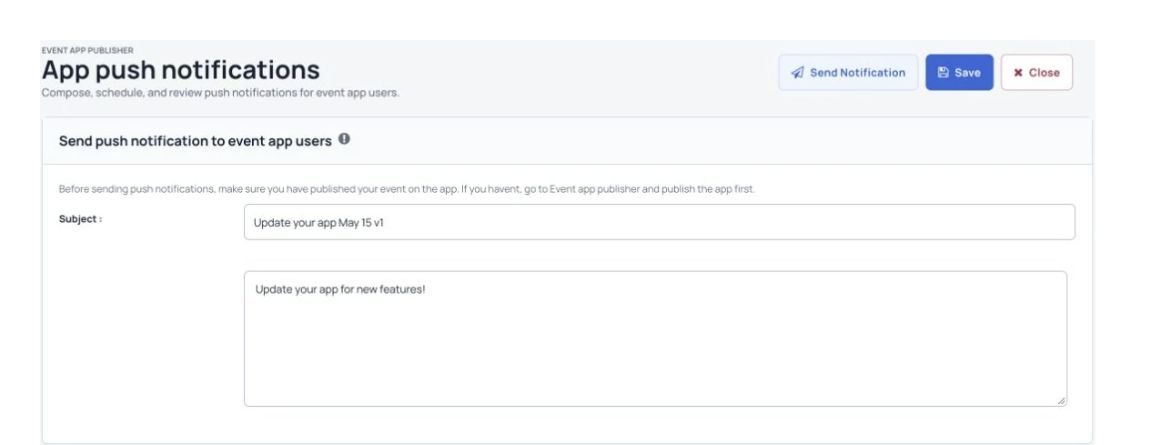
Compose and schedule a push notification for event app users.
  • Add room banners for deadlines, instructions, sponsor notes or featured discussions.
  • Place important announcements above the discussion feed.
  • Share different announcements in different rooms.
  • Use banners to explain next steps or highlight useful content.

Keep discussions useful and respectful.

Give the organizing team tools to moderate conference discussions.
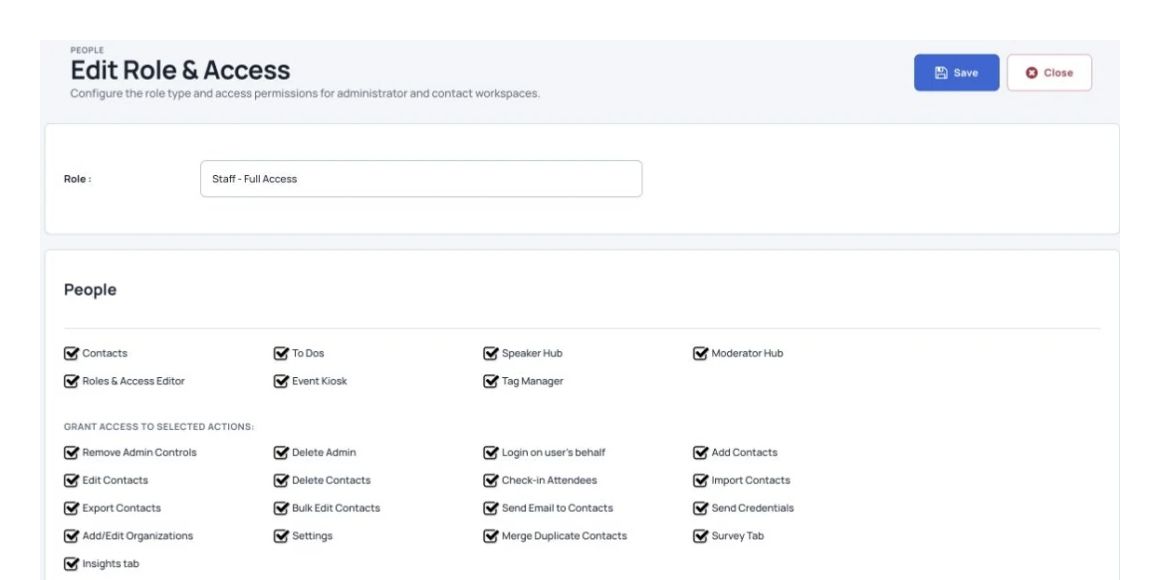
Choose the organizer tools a staff role can access.
  • Approve or disapprove comments and replies.
  • Reduce spam, unrelated posts and low-quality activity.
  • Keep academic and professional discussions focused on their topic.
  • Open discussion spaces with a clear moderation process.

Keep the community under your event brand.

Keep the community connected to your official conference identity.
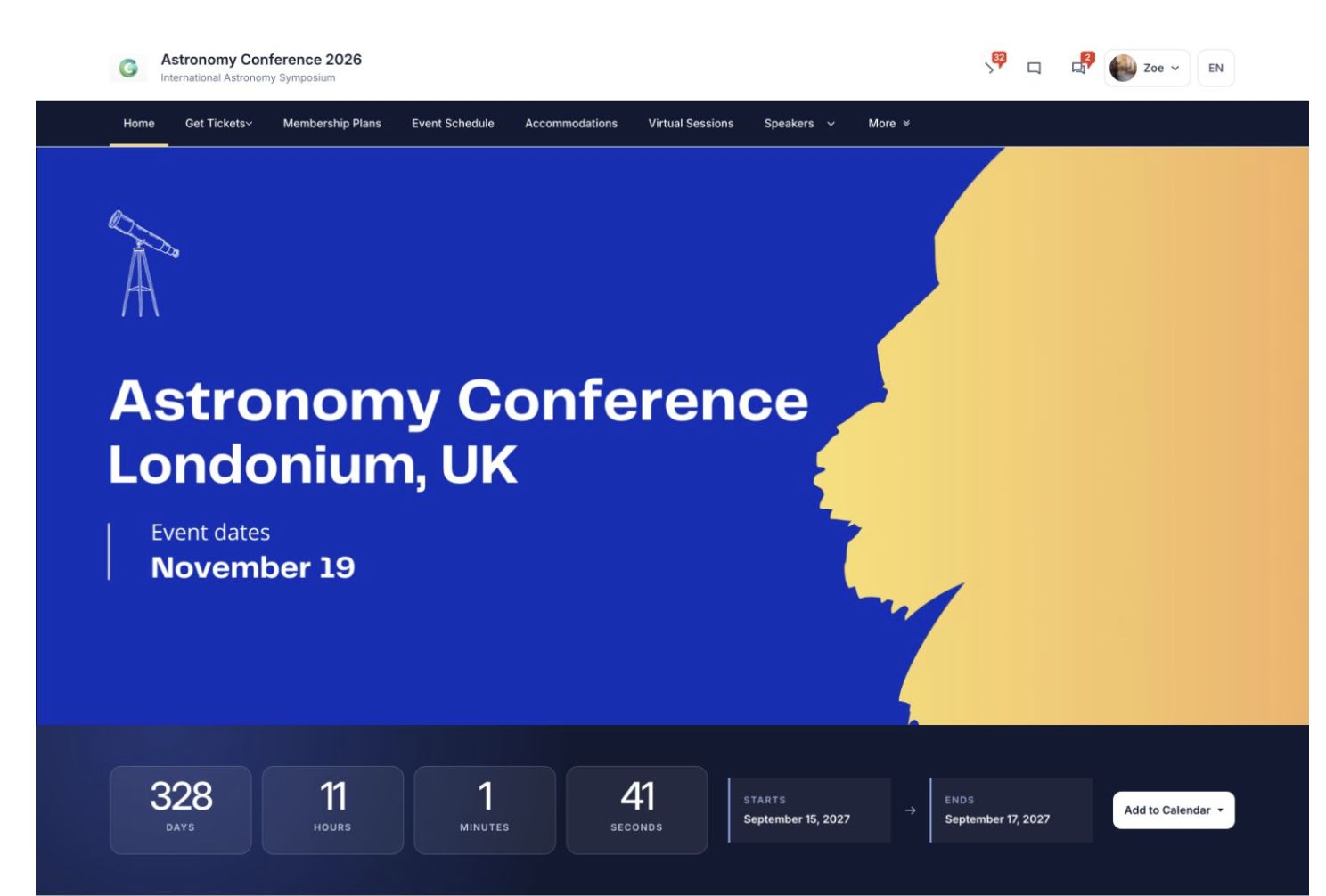
An event homepage, with navigation, an event banner and countdown.
  • Use your own branded domain for the community.
  • Keep the website, registration, program and community consistent.
  • Help people recognize that they are still in your event’s online space.
  • Make the community part of your event platform.

Make signing in easier.

Use an existing organization login where single sign-on is configured.
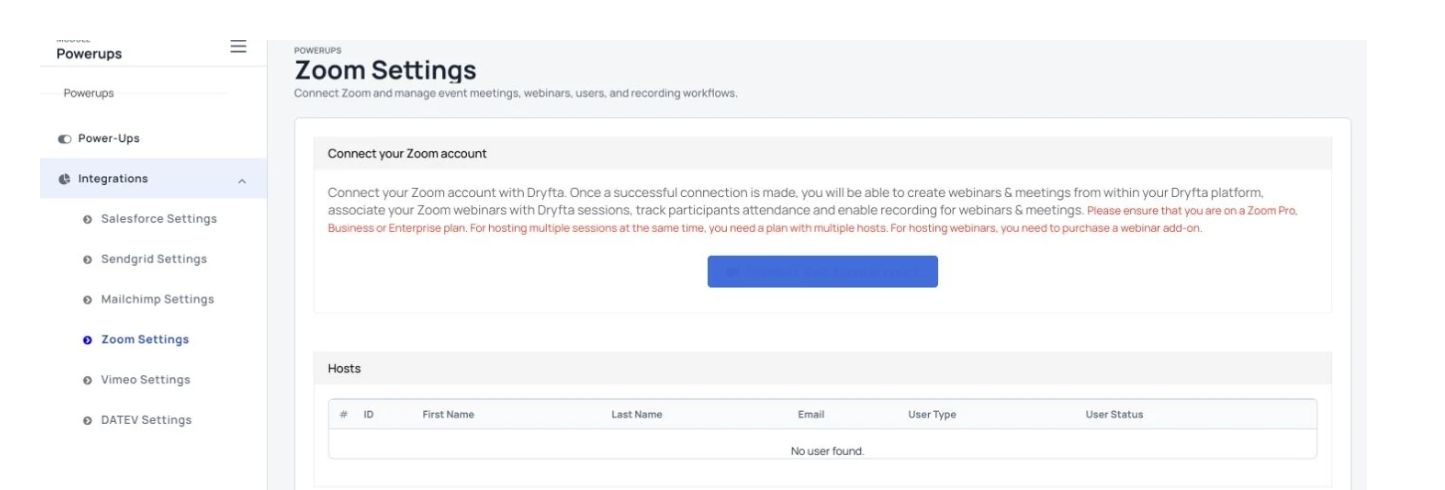
Connect Zoom from Dryfta’s integration settings.
  • Use the same sign-in process as your organization.
  • Make access easier for universities, associations and enterprise programs.
  • Support controlled access for private or invitation-only communities.
  • Keep community access in line with your wider event rules.

More useful tools

More ways to manage the details.

Community and networking together

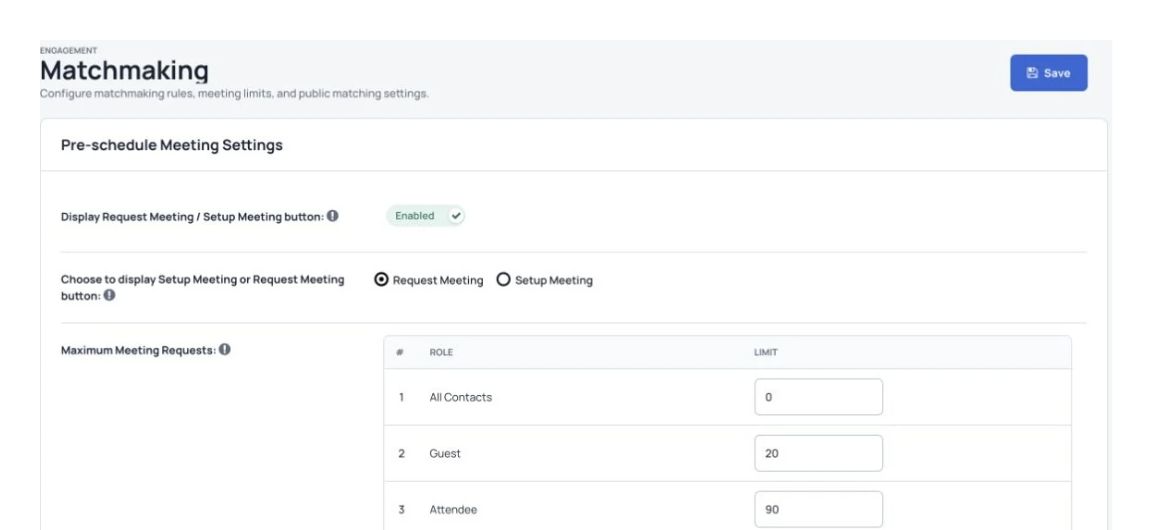
Set up attendee matchmaking with matching criteria.
  • Bring attendees, speakers, reviewers, sponsors and members into one discussion space.
  • Keep your event community available before, during and after the conference.
  • Connect discussions with attendee profiles and event activity.
  • Create rooms for tracks, committees, workshops and shared interests.
  • Help attendees find active discussions and useful comments.
  • Use organizer moderation and room controls to maintain quality.
  • Highlight announcements, featured content and next steps in each room.
  • Combine public discussions with private messages and meeting arrangements.
  • Offer branded domains and single sign-on when configured.
  • Use the community for academic, business, nonprofit, association and member events.

See Dryfta for yourself

See community & networking in action.

Tell us about your event and the tasks you want help with. We’ll show you how to do them in Dryfta.

Request a demo