

Finding an exhibitor should not require switching between a printed map, a company list and a separate set of booth numbers. Dryfta connects the published event floor plan with exhibitor information, giving visitors a route from a company they want to meet to its location.
The event app provides a Floor Plan destination under More when Exhibitors is enabled. Visitors can explore the map, select a booth and open the associated exhibitor profile. Company details can also offer a route back to an assigned booth. Here is how those connections work and what organizers should prepare before sharing the map.
Move between the map and company information
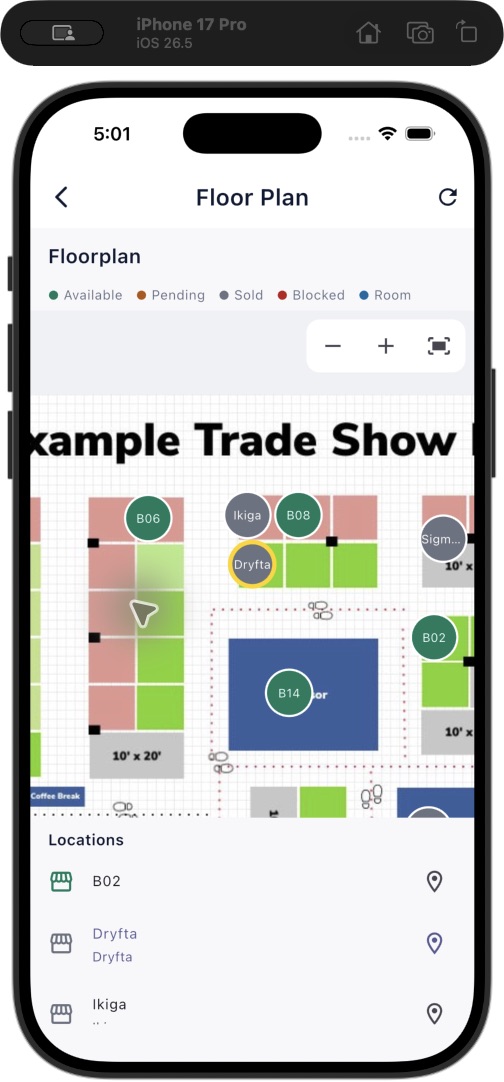
The app’s Floor Plan screen brings a published event map together with zoom controls, a status legend and a Locations list. Attendees can explore the layout and select a location without needing to remember a booth number from another screen.
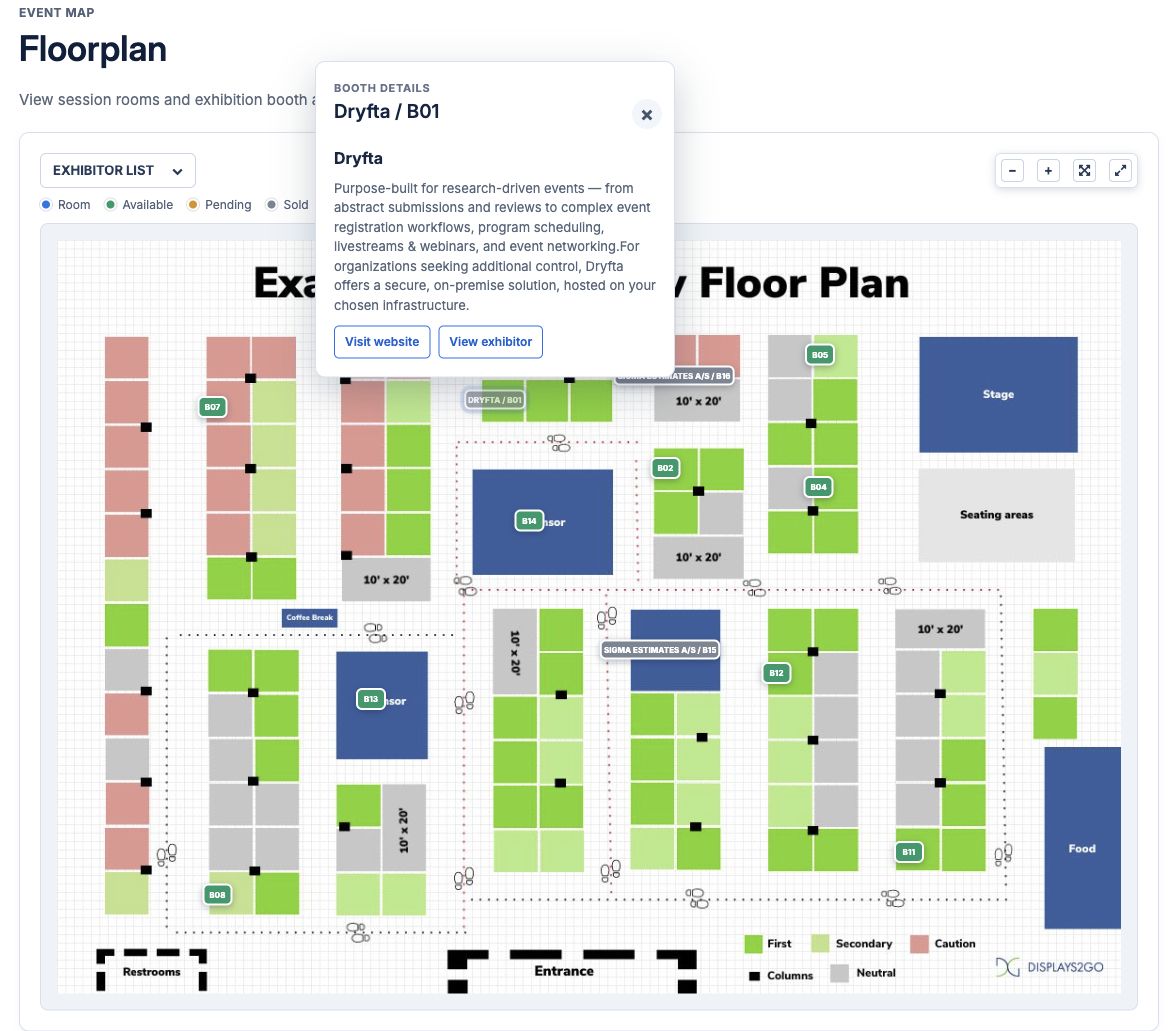
An assigned booth can connect to its exhibitor. A booth detail view provides a clear View exhibitor action, while an exhibitor profile can provide View on floor plan when there is an appropriate published booth assignment. These links make the map and directory useful together.
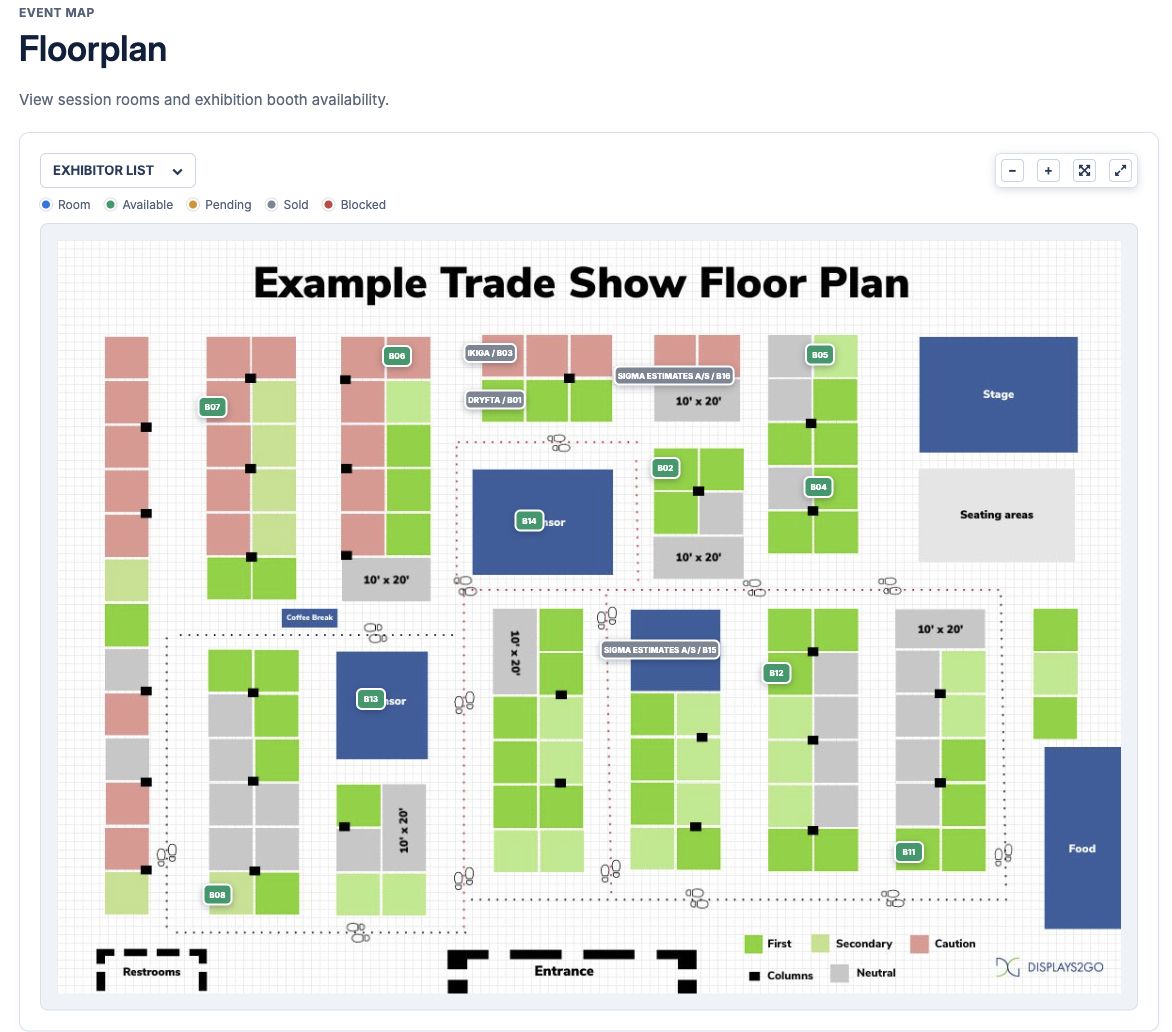
The first image shows the actual app map. The second shows a booth selected on a published demonstration website map, illustrating the same relationship between a location and company information. A map must be prepared and published for the event; enabling a directory alone does not create the venue layout.
- Explore the layout: use the map and its zoom controls to understand the event space.
- Identify a location: select a booth or use the available location information.
- Learn about the company: open the exhibitor associated with an assigned booth.
- Return to the map: use View on floor plan where an exhibitor has an available published assignment.
Prepare one consistent source of venue information
Organizers manage event floor plans in Dryfta, placing session room and exhibitor booth pins on the uploaded layout. The published map then gives visitors a visual reference for those locations.
Keep room names, booth labels and company assignments consistent with the information in your program and exhibitor directory. If the directory calls a company by one name and the map uses an unrelated abbreviation, visitors still have to solve the connection themselves.
Check which map is published and which locations have a valid company association. A booth without an assigned exhibitor should not be presented in attendee instructions as though it will open a company profile. Likewise, an exhibitor without a published booth should not be promised a map link.
Check the visitor journey before the event
Include both a known assigned booth and an unassigned location in your review. That gives your team a more realistic understanding of the map than checking only its initial appearance. Check long company names and the layout on the devices your visitors are likely to use.
Recheck the map after late exhibitor or room changes. A useful map is current as well as attractive; a moved company or renamed room should be reflected in the connected information before visitors arrive.
- Review the event’s Floor Plans area and confirm that the intended layout is ready for public use.
- Check the placement and labels of session rooms and exhibitor booths against the venue plan.
- Confirm that participating companies are associated with the correct booths and have useful published profile information.
- Open the event in the current Dryfta app, then use More and Floor Plan when available.
- Select a representative assigned booth and open View exhibitor. From the exhibitor details, check View on floor plan where available.
- Review the published website map as well, then give attendees a short instruction using the same location names they will see on site.
Three practical uses for event teams
An exhibition with a busy company directory
A visitor finds a relevant exhibitor in the directory, reviews its company information and uses the available map link to locate the assigned booth. The company’s profile and physical location support one visit rather than becoming separate pieces of information the visitor must reconcile.
A conference spread across several rooms
An attendee can consult the published map to understand the event layout and its marked rooms. Consistent room names across the map, program and on-site signs help the attendee interpret that reference. The organizer should verify the actual room pins rather than assuming that a program location automatically creates a complete map.
A support team answering visitor questions
Staff can point visitors to the same published map used in the app and website. A simple instruction such as “open More, then Floor Plan” gives visitors a repeatable starting point. Staff should also know when a company has no assigned booth or a map has not been enabled.
Set realistic expectations for maps and booth status
The map is a visual reference with interactive locations. It does not provide a turn-by-turn indoor positioning service or determine where a visitor is standing. Clear venue signs and an accessible help point remain useful parts of the event experience.
Status colors help explain the displayed map, but this article concerns navigation and company discovery. Do not treat a visible booth or a status label as a guarantee that a particular ticket purchase, reservation or payment has completed. Those are separate organizer workflows.
A published floor plan is also part of the app’s defined offline event reference download. Attendees who need saved reference material should prepare the event while connected and check completion. Live company information and later map changes still require an appropriate connection and refresh.
Questions about connected floor plans
Why is a company missing a View on floor plan link?
Check the company’s booth association and whether that booth belongs to the map available to visitors. The link depends on usable published event information, not simply the existence of a company record.
Should we test the app and website separately?
Yes. They present the map in different layouts. Review a representative booth and its company destination on both so your team can give accurate instructions for each audience.
Make the map part of your attendee orientation
Choose a recognizable exhibitor and walk through its company details and assigned booth with your event team. Then add a short map instruction to your welcome information and keep the published layout aligned with on-site signage.
For help reviewing map availability or connecting exhibitor information with the published layout, contact Dryfta support.