
body.single-post #post-37350 .post-thumbnail{display:none!important}body:not(.single-post) #post-37350 .dryfta-feature-banner{display:none!important}

A structured form often needs more than one kind of answer. A background section may benefit from emphasis and lists, while a short methods note works best as plain text. Dryfta now lets organizers enable rich-text editing for every box in a Multiple Text Box field, or only the boxes they select.
The choice stays with the existing field, alongside its labels, visibility and word or character limits. Participants see formatting tools where they are useful and a plain text area elsewhere. This guide explains the three modes, how to configure them, and practical ways to design clearer conference forms.
Choose formatting separately from the structure of the question
A Multiple Text Box field groups several labelled answer areas under one question. That existing structure is useful when you want contributors to answer the same set of prompts in a consistent order. The new editor choice adds control over how people write within those areas: all can have a formatting toolbar, or selected areas can have one while the others remain plain.
For example, a question can contain Background, Methods and Conclusions boxes. You might allow formatting for Background and Conclusions, while retaining a plain Methods box. The field remains one grouped question. You do not need to recreate it as three separate questions just to give its parts different editing experiences.
| Editor mode | What the participant sees | Useful when |
|---|---|---|
| Disabled | Plain text areas throughout the field. | Every answer should use straightforward text. |
| All text boxes | A rich-text editor for each box. | Every part may need formatting. |
| Selected text boxes | Editors only for the boxes you tick. | The question needs a mixture of formatted and plain answers. |
Set up All or Selected mode in Form Builder
Use an administrator account with permission to manage the relevant form. Open it in Form Builder and find the existing Multiple Text Box field, or add that field type. Review the question name, the individual box labels and the number of boxes before choosing the editor mode.
- Open the field’s Edit controls.
- Find Enable WYSIWYG editor. WYSIWYG is the visual rich-text editor.
- Choose All text boxes to provide an editor for every box, or Selected text boxes for a mixed field.
- For Selected mode, tick Enable WYSIWYG editor for this text box beside each box that needs formatting. Leave the other boxes unticked.
- Review the per-box limits, the combined limit, Mandatory Field, Publishing Status and Field visibility.
- Save the field, let the save finish, then reopen it to confirm the mode and individual selections.
- Open the form preview and check the experience before inviting participants to use it.
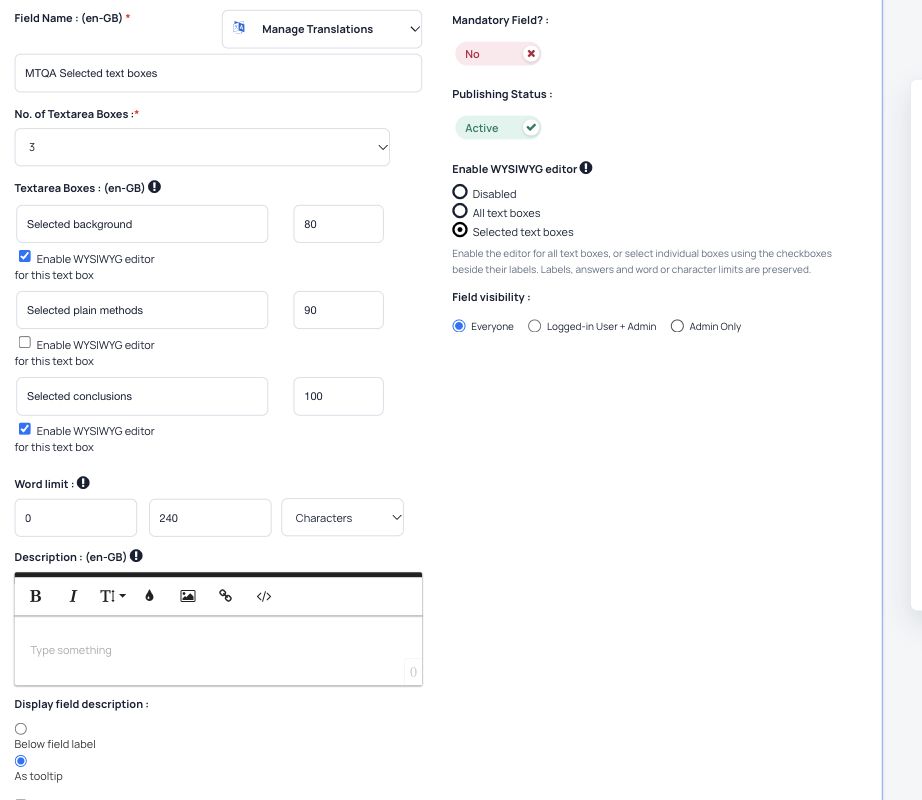
The screenshot uses a demonstration field. Its short character limits make the settings easy to inspect; they are examples, rather than recommended limits for your conference. Choose limits that fit the information you actually need.
Use All mode when every section needs the same tools
All text boxes provides the visual editor in every answer area. Contributors can use the available formatting controls while moving through a consistent set of prompts. This can suit a structured proposal whose sections each need short paragraphs, emphasis or lists.
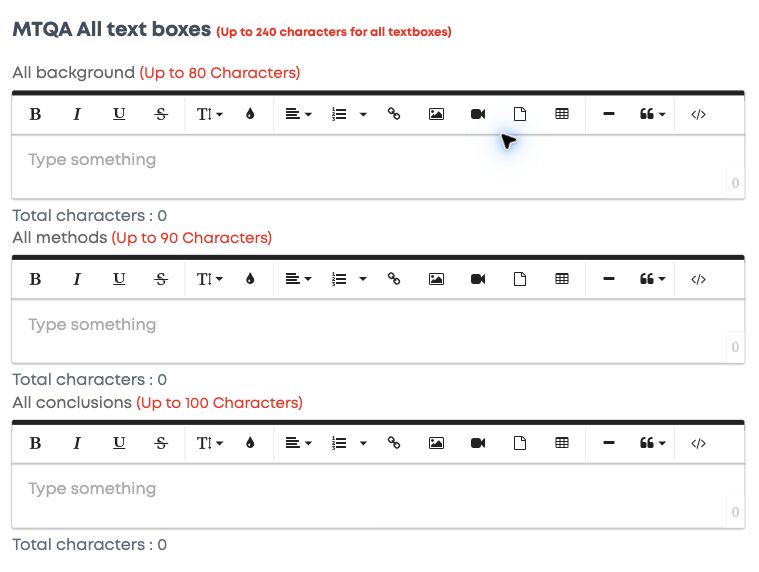
Keep the prompts specific even when formatting is available. A toolbar helps people express an answer; the label and instructions still explain what the organizer expects. Preview the complete group so a contributor can distinguish the question’s overall limit from each box’s own allowance.
Keep Selected mode focused on the answers that benefit
Selected text boxes lets you mix rich and plain writing within the same question. In the example below, Background and Conclusions have toolbars, while Methods remains a plain text area. The choice is visible directly in the form, so contributors do not need to switch editing modes themselves.
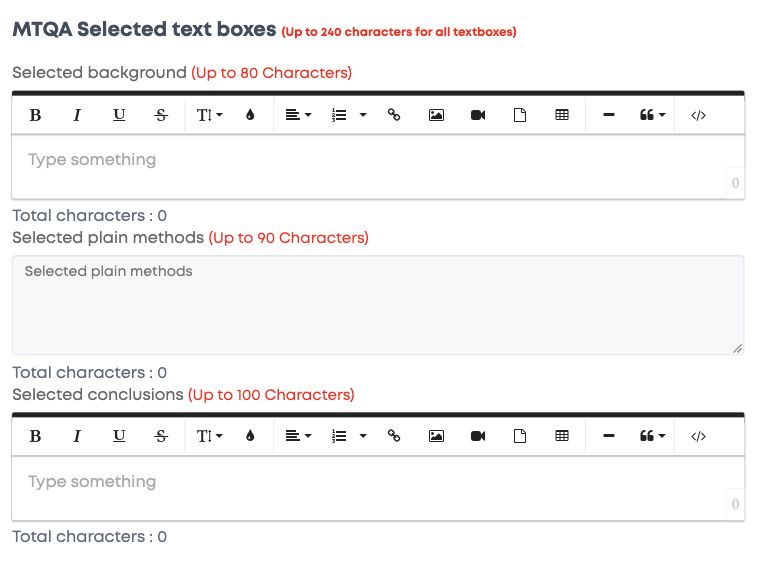
Use this selectively. A short reference, identifier or concise factual response may be easier to review without additional formatting. Longer explanations can benefit from paragraph structure and emphasis. Giving every box an editor is an option, rather than a requirement.
Keep limits, access and saved content in the review
Editor selection sits alongside the existing field settings. Check the labels and per-box word or character limits, then check the field’s combined limit. A single box can fit its own allowance while the whole response exceeds the combined allowance. Try realistic short and near-limit answers in a suitable test form before opening submissions.
Existing Multiple Text Box fields are not automatically enabled for rich text. The administrator chooses the mode for each field. The change does not run a bulk conversion of existing answers. When updating an established form, review a saved example as well as a new entry so the configuration suits the content you already collect.
Three practical ways to use the editor choices
Structured research proposals
Keep a proposal organized around Background, Methods and Conclusions. Enable formatting where contributors need to explain a rationale or present a short list, and leave concise technical notes plain. Review the resulting answers together so formatting supports the structure you asked for.
Speaker and workshop information
A grouped question can ask for a biography, learning objectives and preparation notes. Rich text may help with the biography and objectives, while a short preparation note stays plain. Give each area its own clear label and an appropriate allowance instead of relying on one long open question.
Association programme contributions
For a session or working-group proposal, ask separately for the purpose, planned activities and expected outcomes. Use All mode when each part needs similar formatting, or Selected mode when one part should remain concise. The organizer can make that choice without changing the question’s grouped structure.
Check the participant experience before opening the form
- Confirm the saved mode and, for Selected mode, every intended checkbox.
- Preview all boxes, including the ones that should remain plain.
- Check labels, instructions, individual limits and the combined limit together.
- Review visibility and required-answer settings for the intended audience.
- Use a suitable test entry to check saving and reopening through the workflow your participants will use.
Begin with one well-defined question. The aim is to give contributors the tools each answer needs while keeping the form easy to follow. For help checking your field configuration or a particular form workflow, contact the Dryfta team.