Some event forms need a signature as well as a typed answer. Attendees can now draw that signature directly in supported Dryfta app forms on iPhone and Android, keeping the task within the event experience they are using.
The signature field provides a drawing area with Undo and Clear controls. It works with the event’s form configuration and saves through the normal form workflow. This addition supports account creation, general forms and surveys, including session survey routes. Here is how to prepare a useful signature field, guide attendees through it, and understand the limits before adding one to your event.
Use a drawing control instead of asking for a separate file
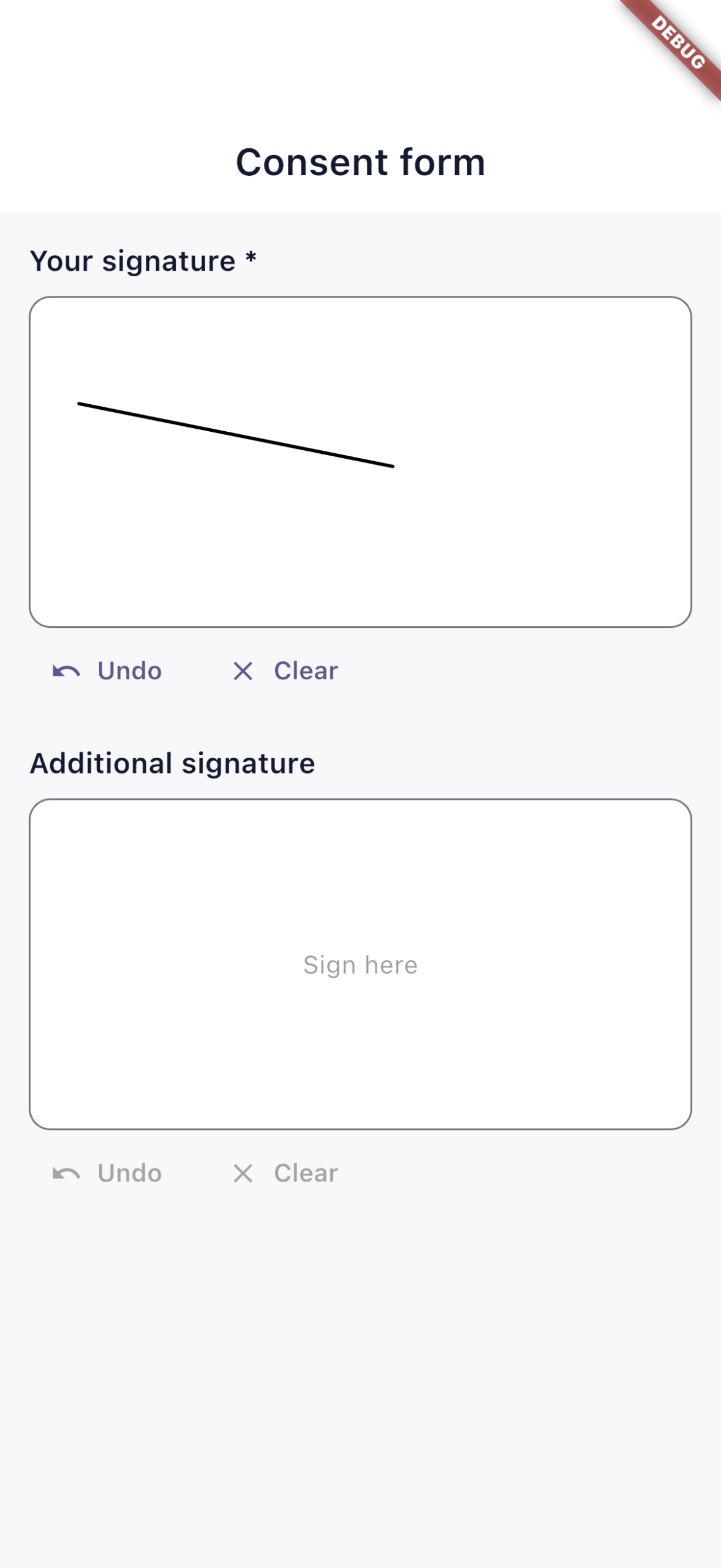
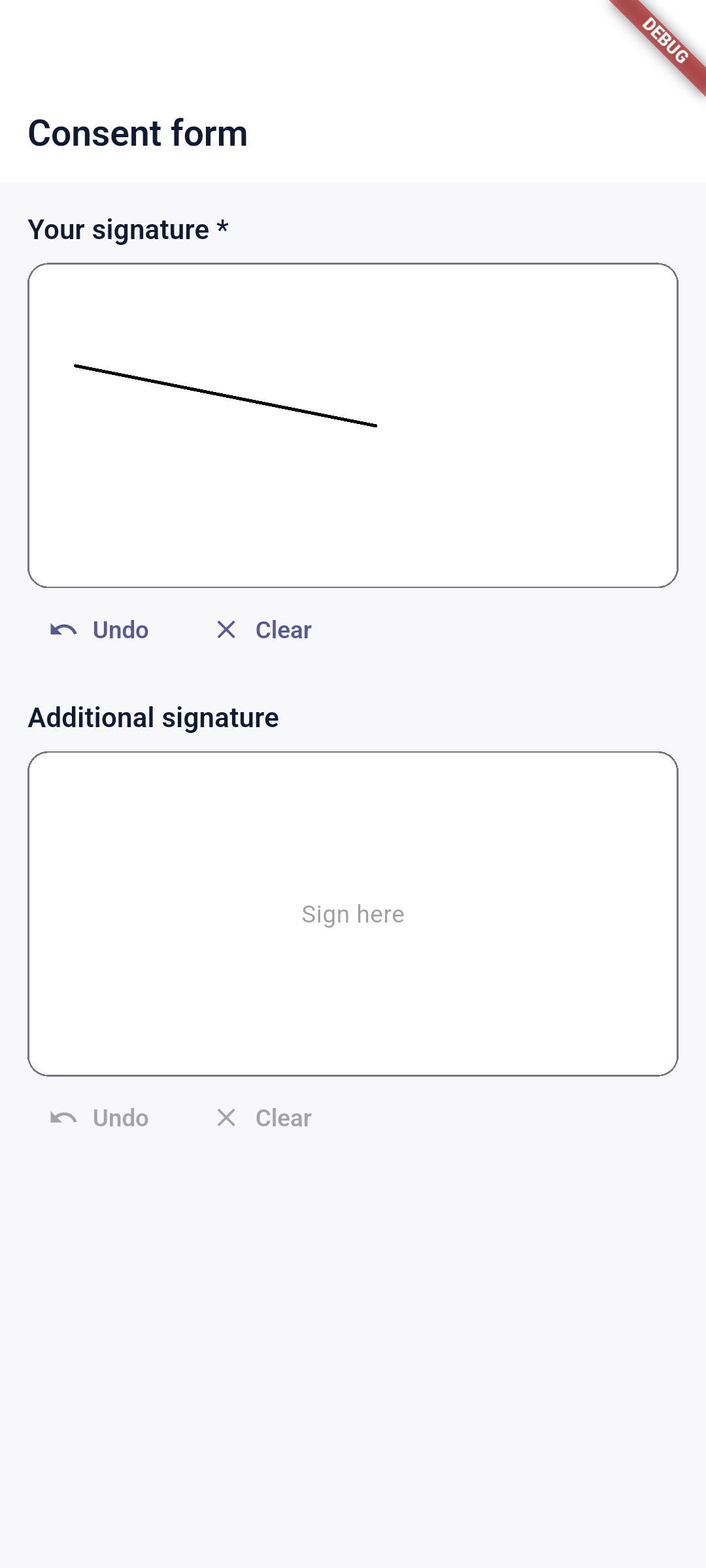
A signature field gives the attendee an area to draw with a finger or compatible stylus. Undo removes the latest stroke, while Clear resets the drawing so the attendee can start again. This is a more direct mobile task than asking someone to create a separate image and find it on their phone.
The screenshots show the actual native signature control on iOS and Android using demonstration form data. The sample mark is illustrative; it is not a customer’s signature or a record of someone accepting an agreement.
This release extends signature entry to the native app. Dryfta’s website form tools already support signature fields, so organizers can build on the established field configuration instead of treating the mobile drawing area as an unrelated collection process.
- Draw directly: enter the signature in the form’s drawing area.
- Correct a stroke: use Undo without abandoning the form.
- Start again: use Clear to reset the drawing.
- Keep the form together: submit the signature with the other configured answers.
Place signatures in the right form workflow
Native signature entry supports account creation, general forms and surveys, including forms reached through a session survey route. Existing profile editing is outside this addition. Choose the form route that matches the task rather than assuming every screen that edits a person’s information has the same controls.
A required signature field rejects a blank drawing. An optional signature field can remain empty. Conditional visibility also matters: a signature field hidden by the form’s conditions is excluded rather than demanding an invisible answer.
The app uses a website-compatible signature image and the normal answer records. That keeps the signature associated with the submitted form. Organizers should still check the completed record through the intended event workflow before inviting a large audience to use it.

Prepare and test the field before opening the form
Keep test entries separate from genuine attendee records and use a clearly designated demonstration response. A visible drawing on a phone is useful, but the complete task also includes submitting and reading the resulting record.
Check the surrounding copy as carefully as the field. A signature without a clear statement leaves the attendee unsure what they are confirming. Put that statement close to the drawing area and make any required action easy to understand.
- Choose the supported form used for the task: account creation, a general form or a survey.
- Add or review the signature field in the event’s form configuration, with a clear label and an explanation of what the attendee is confirming.
- Set required or optional status deliberately. If the form uses conditions, check when the signature should appear.
- Open the form in the current Dryfta app on the platforms your attendees use.
- Try a sample stroke, Undo and Clear. Check a blank required field as well as a completed signature.
- Submit an authorized demonstration response while connected, then verify that the signature and other answers appear together in the intended record.
Three practical uses for event teams
An acknowledgement during account creation
Where an event has a reviewed acknowledgement that needs a drawn signature, the attendee can complete it during the supported account creation flow. The organizer should explain the purpose clearly and confirm that the record is stored where the team expects to review it. Do not add signatures simply because the control is available.
A workshop participation form
An organizer can include a signature alongside other questions in a general form used for a workshop acknowledgement. Attendees complete one form rather than switching to a separate upload task. Required status and any conditions should match the organizer’s approved process.
A session survey with a confirmation
A session survey can include a signature when the event has a specific, explained reason to request one. The attendee reaches the form through the session route, answers its questions and draws the requested mark. Keep feedback questions and confirmation wording distinct so the purpose of each is clear.
Keep mobile completion practical
Write a short field label, place essential instructions before the drawing area and avoid requiring more information than the task needs. On a phone, a concise form with a clear finish point is easier to complete than a long page of unexplained requirements.
The drawing remains available through supported resizing and validation within the form, helping attendees correct an answer without unnecessarily repeating the signature. Undo and Clear provide deliberate control over the mark itself.
Form submission still needs an internet connection. Do not ask attendees to rely on an offline event download for signature submission. If a venue has weak reception, include an appropriate connected completion point in the event’s instructions.
Questions about native signature fields
Can attendees leave an optional signature blank?
Yes. Optional fields can remain blank, while a required visible signature must contain a drawing. Review the required setting and conditional behavior together when preparing the form.
Does this replace advice about consent or agreements?
No. The feature provides a way to enter and store a drawn signature in a supported form. Your team remains responsible for deciding whether a signature is appropriate and for reviewing the wording and process used for its purpose.
Start with one clearly explained form
Choose a real form requirement, review its wording and verify one complete demonstration submission on the platforms your audience uses. That gives your team a concrete process to explain before the form is opened widely.
Use the current app through Dryfta for iPhone or Dryfta for Android. If you need help finding the supported form route or checking a signature field, contact Dryfta support.