Sponsor and exhibitor visibility is more useful when it appears in the places your audience visits. Dryfta’s category banner placements let organizers choose where eligible company banners appear across the event website and app, instead of treating every page as the same advertising space.
The controls offer choices for destinations such as the homepage, people lists, sponsor and exhibitor lists, documents and sessions. Each placement can be disabled, limited to the website, limited to the app, or used on both. Here is how to plan those choices, connect banners with company information, and check the experience before promoting the event.
Control visibility by company category and destination
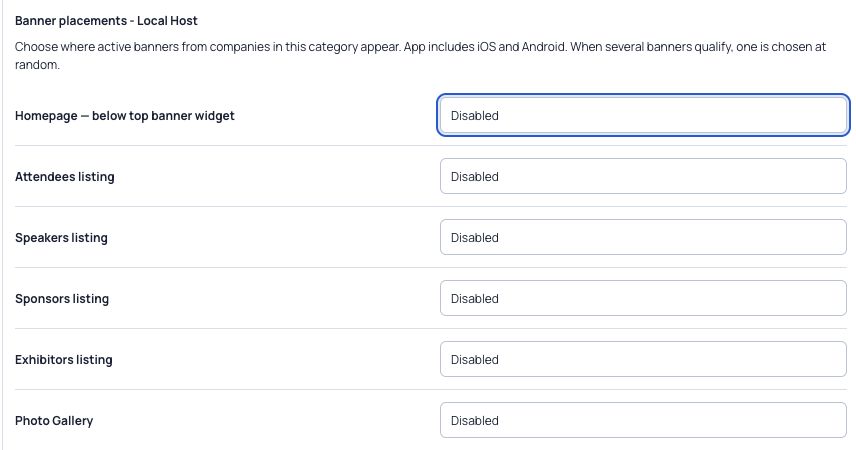
Banner placements are managed from the sponsor or exhibitor category ordering controls. Open Banner placements for the relevant category to choose the surfaces where active banners from eligible companies may appear. The app option includes iOS and Android.
The actual controls above show example settings in their disabled state. They illustrate where organizers make the choices; they do not mean those placements have already been activated for every event.
Available destinations include the homepage below the top banner widget; attendee, speaker, sponsor and exhibitor lists; the Photo Gallery; Documents Gallery; Forums; Abstract Archive; and the session listing across displayed dates. Choose the placements that support the event’s own visibility plan.
| Choice | Where an eligible banner may appear |
|---|---|
| Disabled | The placement is not enabled for that category. |
| Website only | The corresponding event website destination. |
| App only | The corresponding destination in the event app. |
| Both | The website and app destinations. |
Connect the artwork with a useful company destination
A displayed banner links to the associated company profile. That gives the visitor somewhere useful to go after noticing the artwork, rather than leaving the banner as an isolated image.
When several banners qualify for a page, one is selected at random. The placement does not promise that every eligible company will appear at once or that a particular company will always be selected. If there is no eligible active banner, the optional slot stays hidden.
Prepare the destination as carefully as the artwork. A company profile should explain what the organization does, show the appropriate public information and provide a clear next step. A visually strong banner leading to incomplete information leaves the visitor with little to do.
Review the placement choices before activating them
Review both an eligible page and a page with no eligible banner. The hidden-slot behavior matters because it keeps an empty advertising space from interrupting the event content.
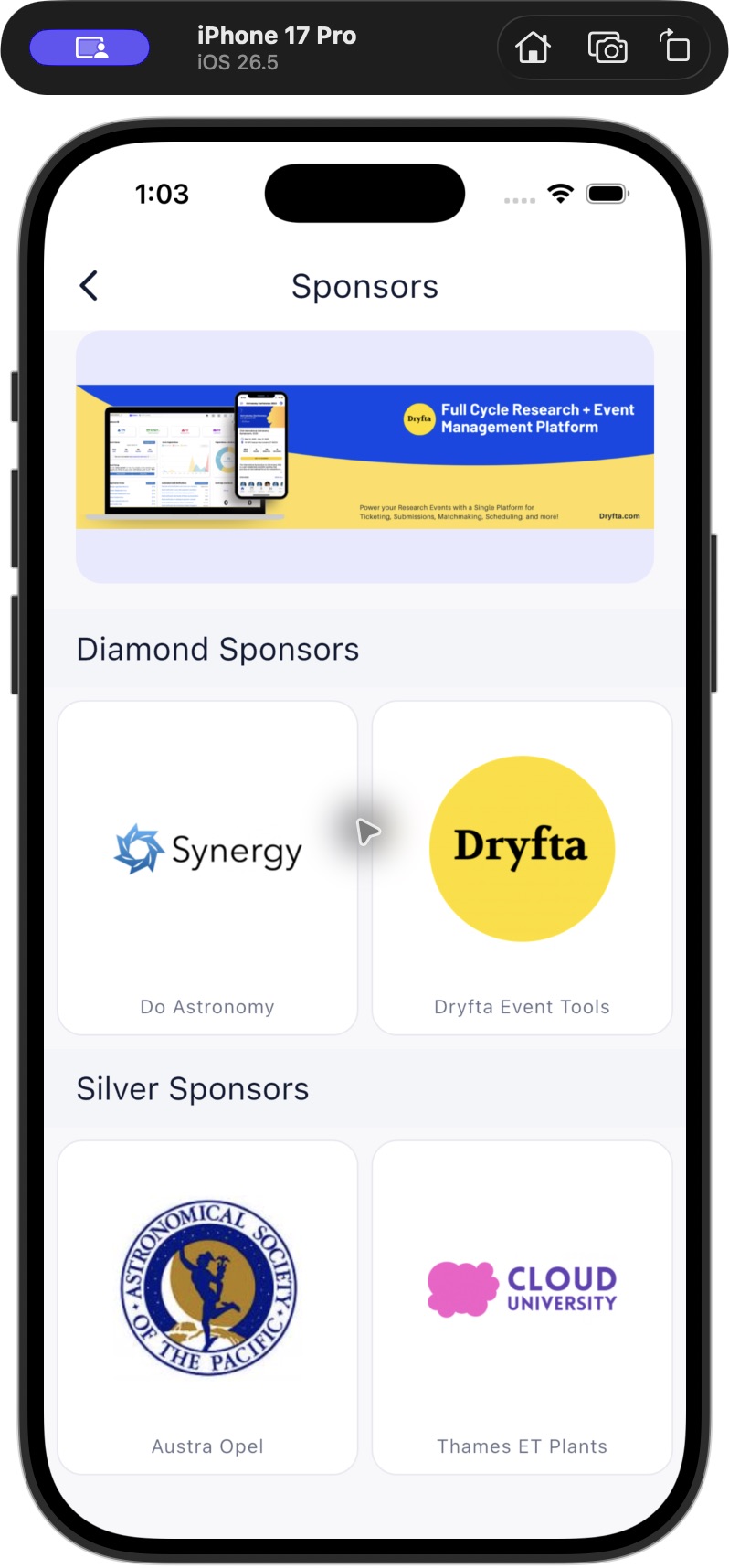
The app example in this article shows a banner above a categorized sponsor directory. Actual appearance depends on the saved category placements, active artwork, enabled sections and the event content available to that viewer.
- Agree on the destinations included in your event’s sponsor and exhibitor visibility plan.
- Open the relevant Sponsor Hub or Exhibitor Hub area, then Category Ordering and Banner placements for the intended category.
- Review each destination and choose Disabled, Website only, App only or Both as appropriate.
- Confirm that the intended company banners are active and that the related public profiles contain useful information.
- Save the reviewed placements when your event team is ready to apply them.
- Check representative website pages and the current iOS and Android app using the access levels your audience will have.
Three practical uses for event teams
A sponsor package focused on mobile discovery
An organizer can make selected category banners eligible on relevant app destinations while leaving the corresponding website placements disabled. Review the app experience and the company profile together so the visitor can move from seeing the banner to understanding the sponsor’s involvement.
An exhibition with a strong website audience
A team can use website placements for eligible exhibitor banners on selected destinations and keep unrelated pages free of those banners. The category controls make the intended surface explicit, which is more useful than assuming one banner upload should appear everywhere.
A conference preparing a coordinated visibility plan
An organizer can use Both where a category should be eligible across the website and app, then review the same company destination from each surface. A documented placement plan gives the event team a clearer basis for checking the setup before opening attendee access.
Read banner activity in context
The release also records banner load and click activity with page and platform context in the supported company detail analytics. This can help an authorized organizer inspect where activity was recorded, rather than treating all exposure as one undifferentiated number.
A load record is not proof that a person studied the artwork, and a click is not a purchase or a qualified lead. Use those records to understand observed activity alongside the event’s actual objectives. Do not describe them as guaranteed attention or return on investment.
Review the analytics view available to the intended account before promising a particular reporting workflow to a sponsor or exhibitor. Access and the event’s configuration matter, and an organizer view should not be assumed to establish every company-owner reporting route.
Check the exact page and the actual active state
Website Forums coverage currently varies by layout. The supported discussion layout can display a banner, while the General Discussion/community layout does not currently show the same placement. Check the exact page included in your event’s visibility plan before offering it to a company.
Company publication labels can also be misleading in the existing editors. Confirm the actual company and banner active state and the resulting public display, rather than relying on a Yes or No label alone. If the control appears inconsistent, ask Dryfta support to help verify it before changing a live company’s status.
Prepare artwork and content for the visitor
Use clear artwork that remains understandable on a phone. Keep the main message short and avoid relying on tiny text inside the image. Review the complete banner frame on both platforms and check that the company profile gives the visitor enough context to continue.
A banner should support the event experience without making navigation harder. Choose a small set of useful destinations, review the result and adjust the saved plan deliberately. More enabled placements do not automatically produce a more useful experience.
Questions about category banner placements
Why is a banner absent from an enabled destination?
Check the company’s category, active banner state, the destination setting and the event sections available to that viewer. An enabled placement still needs eligible artwork; an empty eligible pool leaves the optional slot hidden.
Will several eligible banners appear together?
One qualifying banner is selected for a page. Do not promise that all eligible companies will be visible simultaneously or in a fixed rotation.
Begin with a reviewed placement plan
List the categories, destinations and surfaces your event intends to use. Verify a representative banner and its destination profile on the website and app, then use the saved plan when answering company questions about visibility.
For help locating category placements or reviewing the available analytics view, contact Dryfta support.