

Conference days move quickly. Attendees opening an event app need to see what comes next, while organisers need schedule changes to reach people who already saved the programme. Dryfta now brings these needs together with automatic positioning at the next upcoming session during an ongoing event and a refresh that discovers updated event days.
The schedule keeps the upcoming session card and its time heading visible below the fixed controls. Attendees can still choose another day, browse sessions and use My Schedule. This guide explains the updated experience, practical ways to use it, and the event information it depends on.
Open an ongoing event closer to the next session
At a conference with several days and parallel sessions, opening the programme at its beginning can leave an attendee searching through earlier activities. The updated Dryfta app uses the event’s time zone and schedule to find the next session that has not started yet. During an ongoing event, All sessions can select the relevant day and bring that session into view.
If today’s remaining programme contains no upcoming session, the initial search can continue to a later event day. Breaks and intervals are excluded from that search. The result gives attendees a useful starting point for browsing, while the time and room shown on each card still need to be checked before heading to a session.
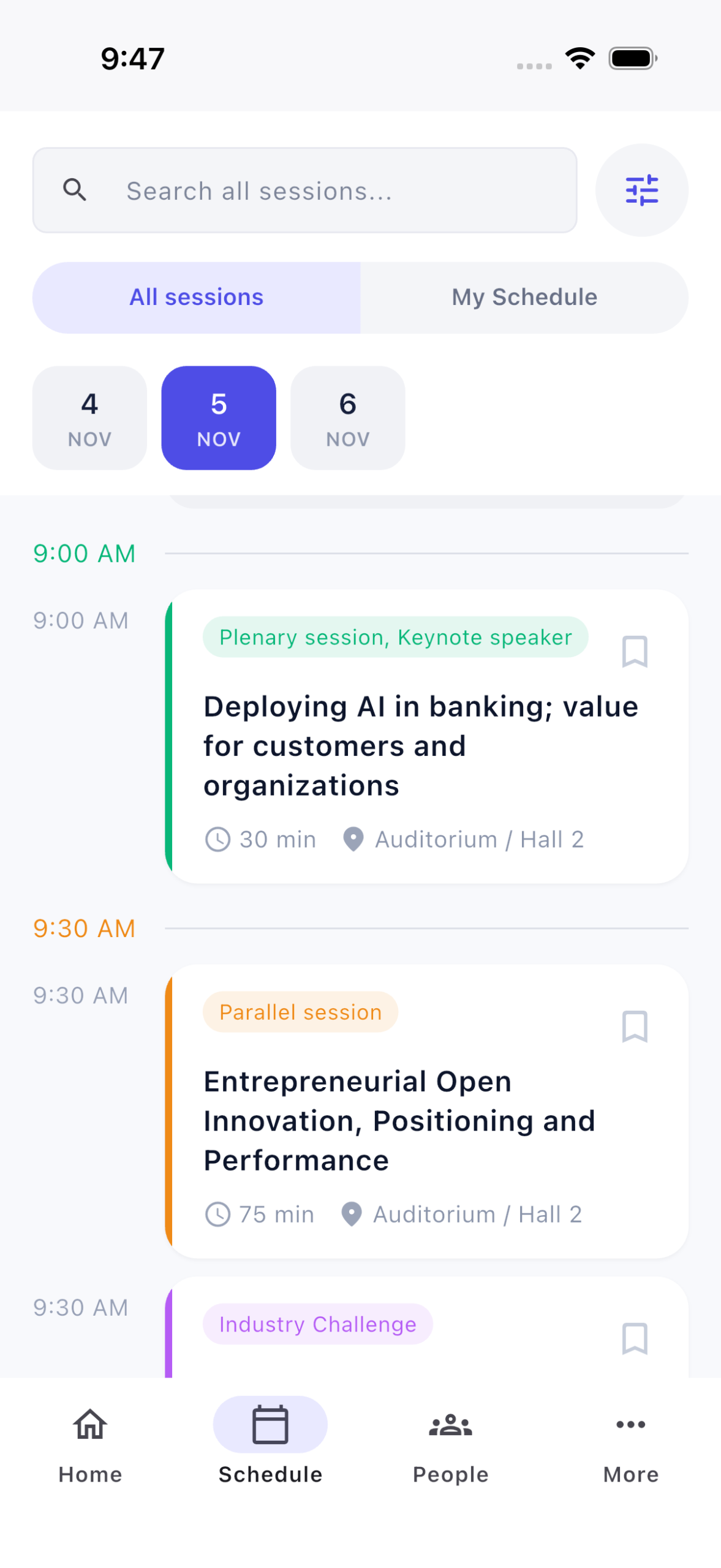
The fixed search, schedule mode and day controls stay above the timeline. The upcoming card is positioned below them with space for its separate time heading. Attendees can read the session title, duration and location without first dragging a partly hidden card out from under the header.
Refresh the event days as well as the selected day
A saved programme can become outdated when organisers add another event day. Refreshing only the sessions for a known date would leave that new day missing. The updated refresh retrieves the schedule overview as well, allowing the app to discover the current published day list before loading the relevant sessions.
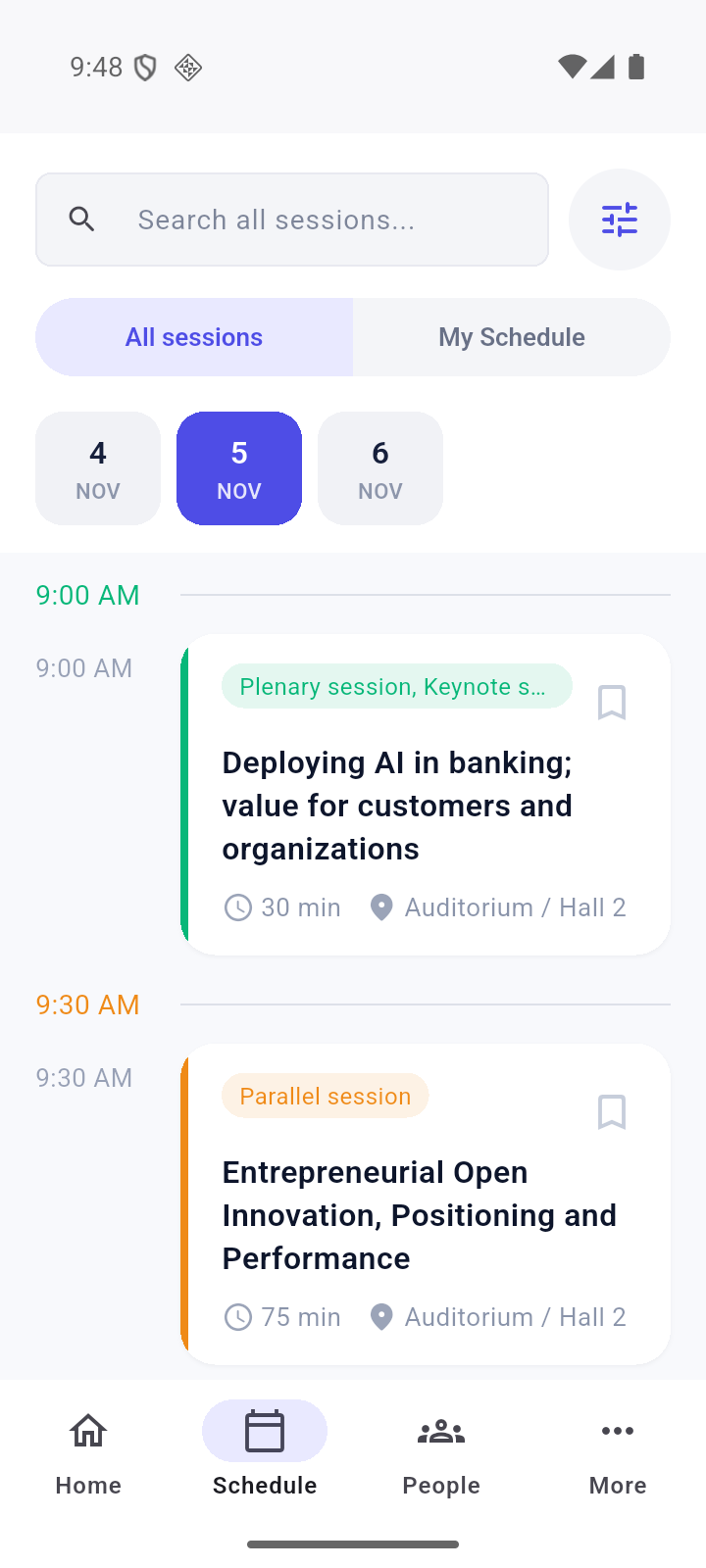
This matters to people who opened or downloaded the event earlier. With a network connection, they can refresh their existing schedule to retrieve changes. A day they deliberately selected remains selected when it is still present in the refreshed programme. They can therefore inspect tomorrow’s activities without a refresh automatically returning them to today.
Use the updated schedule in a few steps
- Update Dryfta to version 5.11.17 or a later version from your device’s app store.
- Open the intended event and tap Schedule in the bottom navigation.
- Use All sessions during the event to browse the programme from the next upcoming session. Allow the schedule to finish loading or refreshing.
- Read the selected date, time heading and full session card. Tap a session to review its available details.
- Choose another day when planning ahead. Pull down to refresh when you need the latest published programme.
- Use the existing My Schedule mode to review your saved sessions. Sign in through the event’s supported method when personal schedule actions require it.
Automatic positioning is an initial convenience in All sessions. Choosing a day or deliberately scrolling gives the attendee control of their browsing. The app does not keep pulling the list back to an automatically chosen session. My Schedule remains a separate view of the attendee’s saved choices.
Three practical uses for conference teams
Help an attendee returning after a break
At a research congress, an attendee may return to Schedule after lunch to choose the next presentation. An initial view near the next session gives them a relevant place to begin. They can compare parallel sessions using their titles, times and locations, then open the one they want to explore.
Keep an added conference day discoverable
An association may publish a final workshop day after delegates have already saved the event. Ask attendees to connect and refresh the programme. The refreshed overview can reveal that published day, while the team’s normal event communications explain what was added and who should attend.
Let delegates plan tomorrow without losing their place
At a university conference, delegates often compare the following day’s workshops during an evening break. They can select that day, refresh for current details and continue browsing it. Preserving a valid manual date selection makes this a predictable planning task.
Check the event information behind the experience
Automatic positioning depends on the programme the event makes available. Organisers should check the event’s start and end dates, configured time zone, session dates and start times. Publish the intended sessions and confirm that attendees with the appropriate access can see them. An app update cannot correct an inaccurate session time or an unpublished programme.
- Review the schedule using the same event and access level as your participants.
- Check the date tabs after adding or changing published event days.
- Keep session titles and rooms clear enough to distinguish parallel choices.
- Ask attendees to refresh while connected before relying on recent changes.
- Test your own event’s personal schedule and access arrangements separately.
Understand the boundaries before relying on the shortcut
The automatic search applies while the event is ongoing according to its configured dates and time zone. It looks for a session that has not started yet, rather than treating every session already in progress as upcoming. If there is no later eligible session, attendees can continue using the day tabs and normal browsing controls.
Searches, filters, event permissions and the published programme affect what a participant can see. The shortcut does not reserve a seat, register attendance or replace any check-in requirements. Saving a session to My Schedule continues through its existing controls and access rules.
If the displayed programme still looks old
Check that you opened the correct event and are using the current app. Connect to the network and pull down to refresh. Confirm that the organiser has actually published the expected date or session, and review any active filter. If the discrepancy remains, report the event, selected date and missing session to support using a screenshot that excludes personal information.
To prepare your next event, review its dates, time zone and published programme, then try the updated schedule from an attendee’s perspective. Visit Dryfta support for help with your event’s setup.