
Conference apps work best when attendees have a clear reason to return throughout the day. Daily Three gives participants three focused invitations: answer a poll, share session feedback and make one new connection. Eligible actions contribute points and collectible badges, helping people see their progress.
For organizers, the feature offers a simple way to introduce participation without creating an overwhelming checklist. Attendees can open the event homepage, follow the available missions and review their rewards under My Points. Availability depends on the event’s settings and eligible activities. Here is how to explain the experience and prepare your event for it.
Three useful invitations on the event homepage
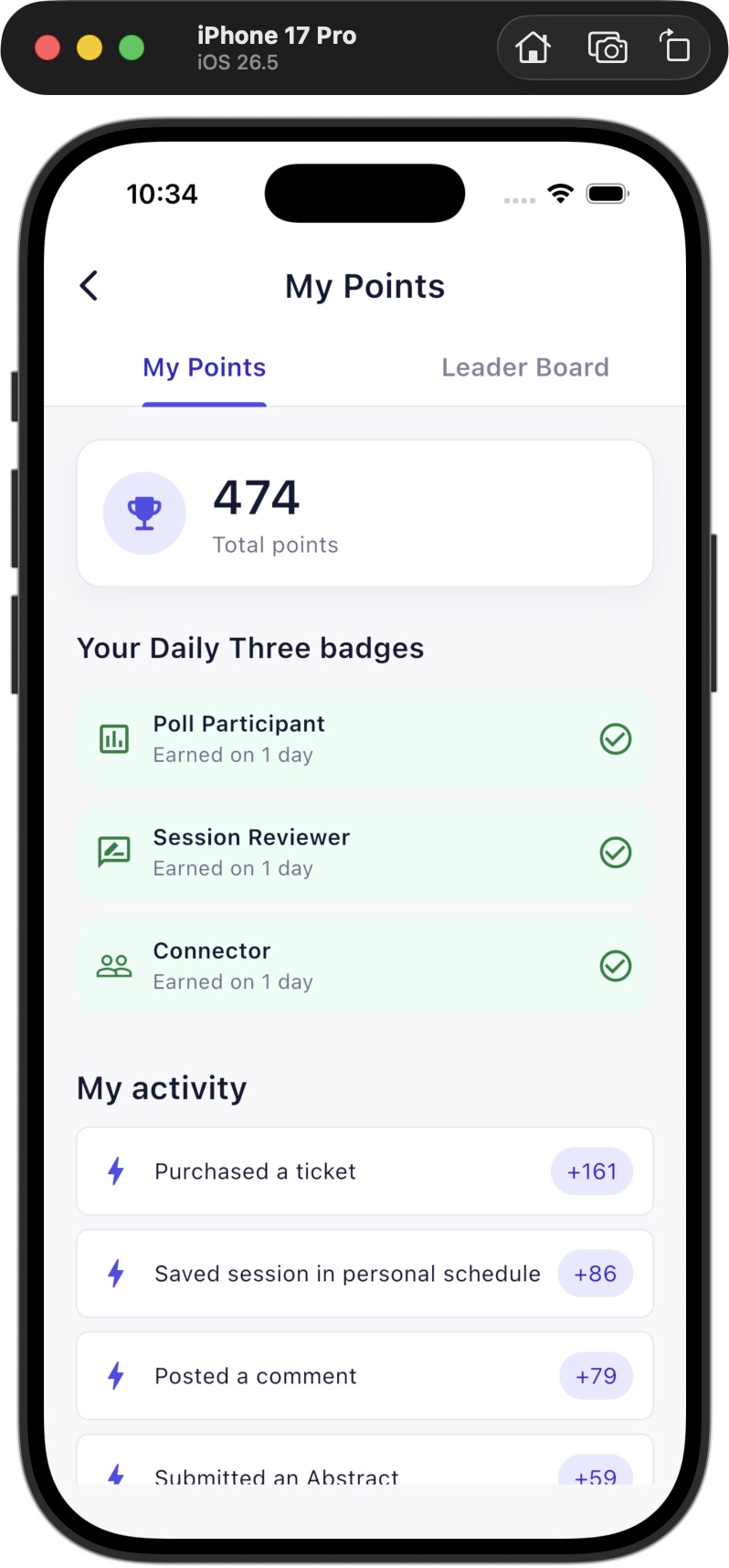
The Daily Three card brings three participation activities together in one place. An attendee can follow an available mission, complete an eligible action and return to see the result. This gives the day a simple structure without asking people to learn a separate rewards system before they can begin.
- Answer a poll: participate in an available poll that your account is permitted to answer.
- Share session feedback: use an eligible session’s feedback activity.
- Make one new connection: complete a new, accepted connection rather than only sending a request.
The card reflects the activities available in that event. A conference with no eligible poll or feedback opportunity cannot create a meaningful mission journey merely by displaying a progress card. Prepare the underlying activities first, and keep attendee guidance consistent with the event’s actual configuration.
Reward eligible participation once per mission each day
Each of the three missions can contribute one point in an event day. Completing all three therefore adds three Daily Three points for that day. Repeating the same type of activity does not turn the card into an unlimited points generator. For example, accepting another connection after that day’s connection mission is complete does not award another point for that mission.
Sending a connection request alone is not the completed relationship. The request needs acceptance before the connection can qualify. Existing accepted relationships are also different from making a new connection. Explain these distinctions early so participants understand why their progress may remain unchanged.
Daily Three works alongside the event’s existing points history. Earlier activity totals are retained. The daily card is a focused participation guide, so it should not be presented as proof of learning, a certificate, a financial reward or a complete measure of someone’s contribution to the conference.
Collect badges and review progress in My Points
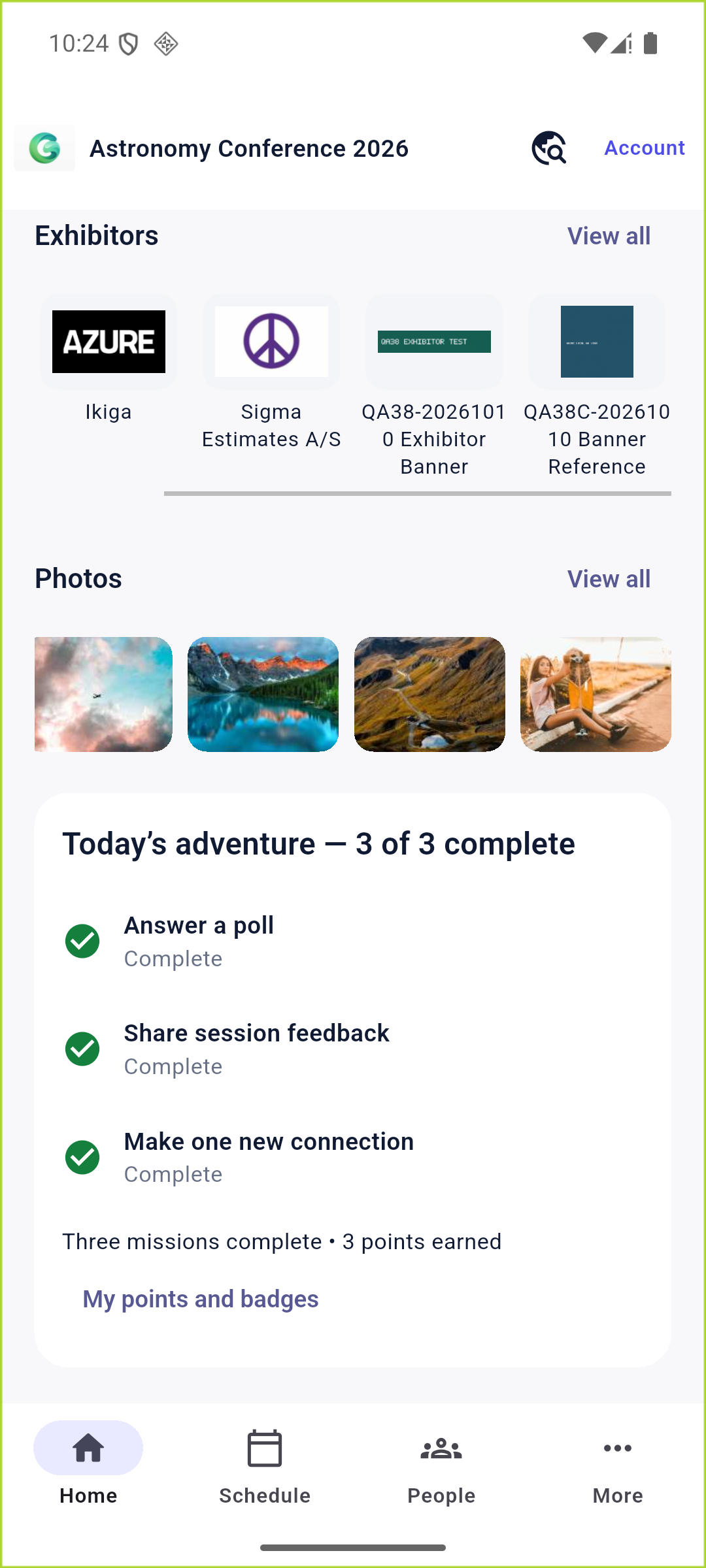
The app’s My Points area includes three Daily Three badge types: Poll Participant, Session Reviewer and Connector. Their earned-day information helps participants review which missions they have completed across their event participation. The homepage card and the points view serve different purposes: one suggests the next action, while the other provides a view of accumulated progress.
Completing the day is recorded so revisiting the card does not repeatedly award the same completion. Attendees can check the existing result without having to manufacture another action. Organizers should describe the badges as acknowledgements of eligible participation and keep any separate awards or conference policies clearly explained.
Prepare the event before promoting the missions
- Confirm that the event is eligible for Daily Three and that the relevant feature and homepage widget are enabled.
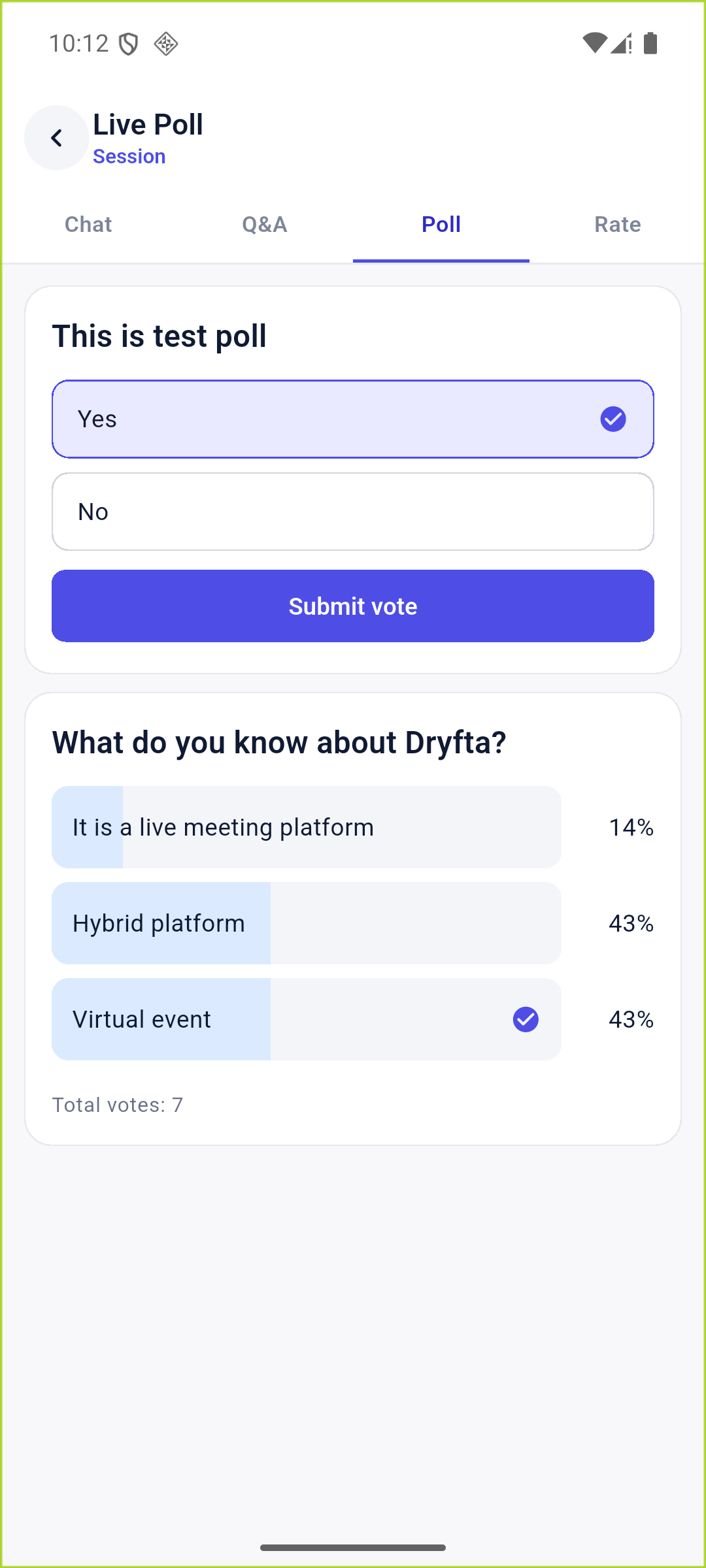
- Provide at least one suitable poll and session feedback opportunity that the intended audience can access.
- Check representative attendee permissions. An organizer or moderator may have different participation rights from a delegate.
- Ask participants to use the current app and sign in to the correct event account before looking for personal progress.
- Explain where the daily card and My Points appear, what makes an action eligible and why connection acceptance matters.
- Provide a support route for missing activities, unexpected progress or access questions.
Three practical uses for conference teams
A scientific congress with a busy program
A delegate may move between several tracks and miss a long list of app activities. Three concise prompts can point them toward a relevant session poll, useful feedback and a new professional introduction. Prepare real participation opportunities in the program, then explain the card during the app welcome. The missions support those opportunities rather than replacing scientific content or discussion.
An association meeting welcoming new members
New members may appreciate a clear invitation to meet somebody. Explain that a connection request needs acceptance and that existing contacts do not automatically satisfy a new-connection mission. Keep networking voluntary and respectful. The app provides a prompt and a progress indicator; it does not guarantee that every attendee will find a suitable person or receive a reply.
A conference team introducing session feedback
When feedback forms are easy to overlook, the daily card offers a visible route back to eligible session feedback. Tell attendees what feedback is useful and when they should complete it. A reward should acknowledge participation, while the substantive value comes from thoughtful responses that the organizing team can actually use.
Help attendees understand an incomplete mission
Start with the event, account and available activity. A person may be signed in to another event, have no eligible session feedback available, be restricted from a poll, or still be waiting for a connection request to be accepted. These are different situations and deserve a specific explanation instead of asking everyone to repeat an action.
If the app reports a connection problem, confirm the result after connectivity returns before promising that the mission has completed. An offline event download is a useful reference tool, but it should not be presented as a guarantee that new votes, feedback or connection rewards can be completed without a working connection.
Introduce a clear next step
A short welcome instruction is enough to start: open your event, look for the daily card, choose an available mission and review your progress under My Points. Match that guidance to the event’s actual settings and available activities, and let people participate at a pace that suits them.
Find the current app on the Apple App Store or Google Play. To confirm event availability or get help preparing the experience, contact Dryfta support.