
A panel proposal contains an introduction followed by several linked presentations. Exporting those records separately can leave the organizer or submitter assembling files by hand and checking whether the introduction and contributions are still in the right order.
Dryfta’s combined panel PDF keeps the saved introduction and the contributions a viewer is authorized to access together in one document. The panel structure determines the order, with each record beginning on a new page. This makes the export easier to follow as a proposal. Here is what the document includes, who can generate it, and what to check before sharing it.
Export the panel as a connected proposal
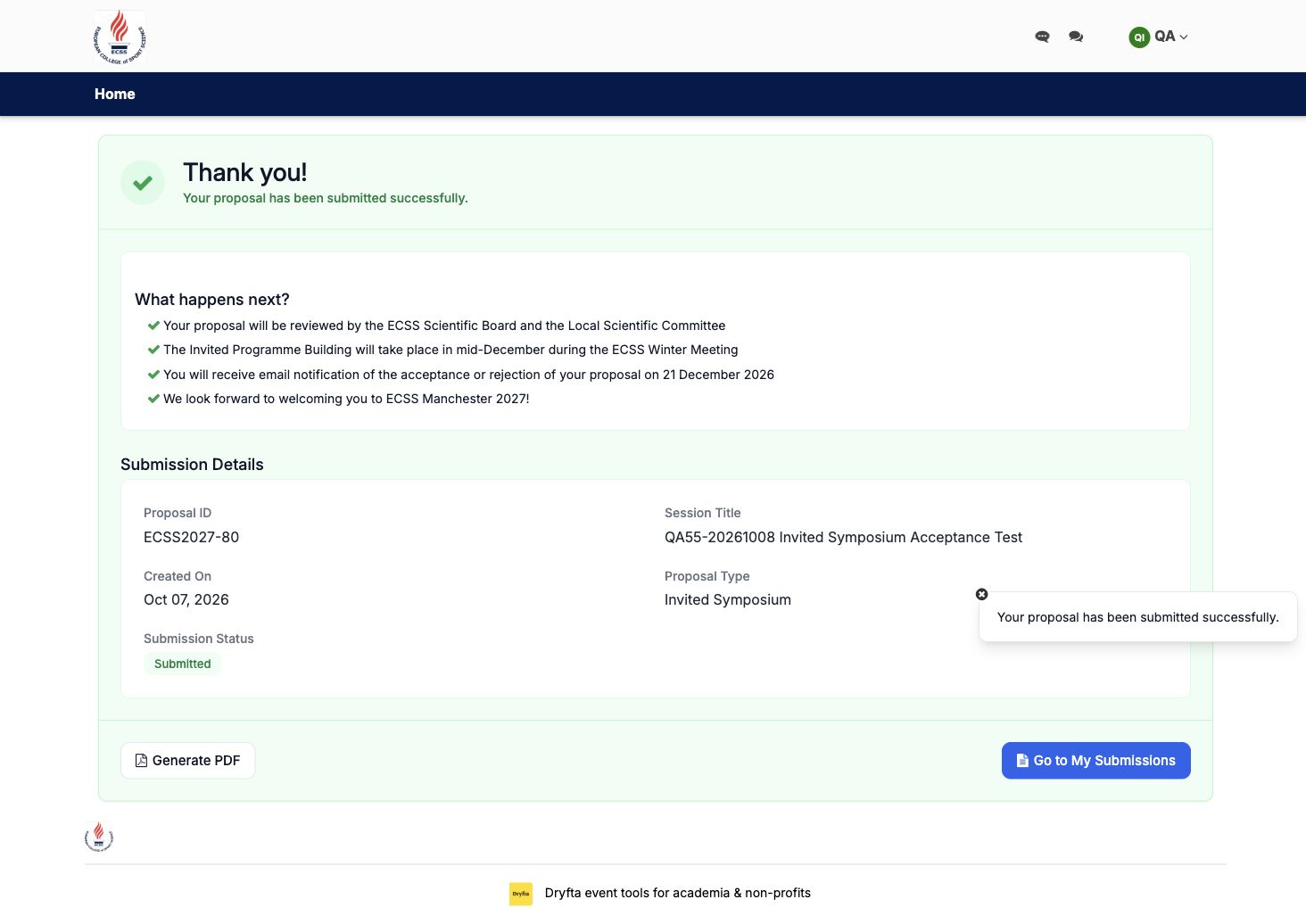
From the author submission workflow, Generate PDF produces a combined document for a supported panel proposal. The saved introduction comes first, followed by the linked contributions the viewer is authorized to access, in the same order used by the panel’s tabs.
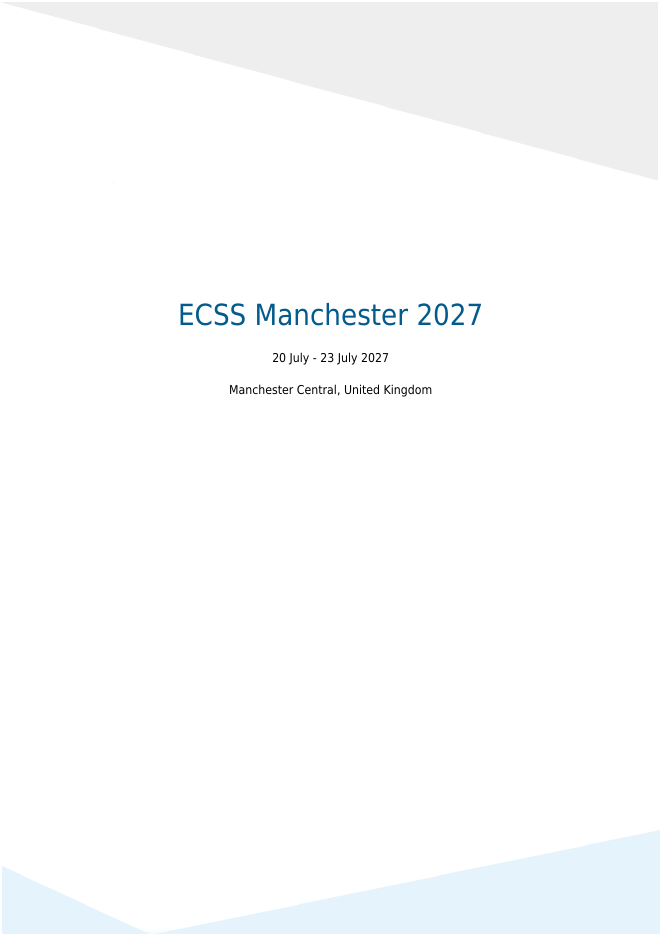
The export uses the event cover once and starts each proposal record on a new page. This gives readers a clearer boundary between the session overview and the individual presentations while retaining one file for the panel.
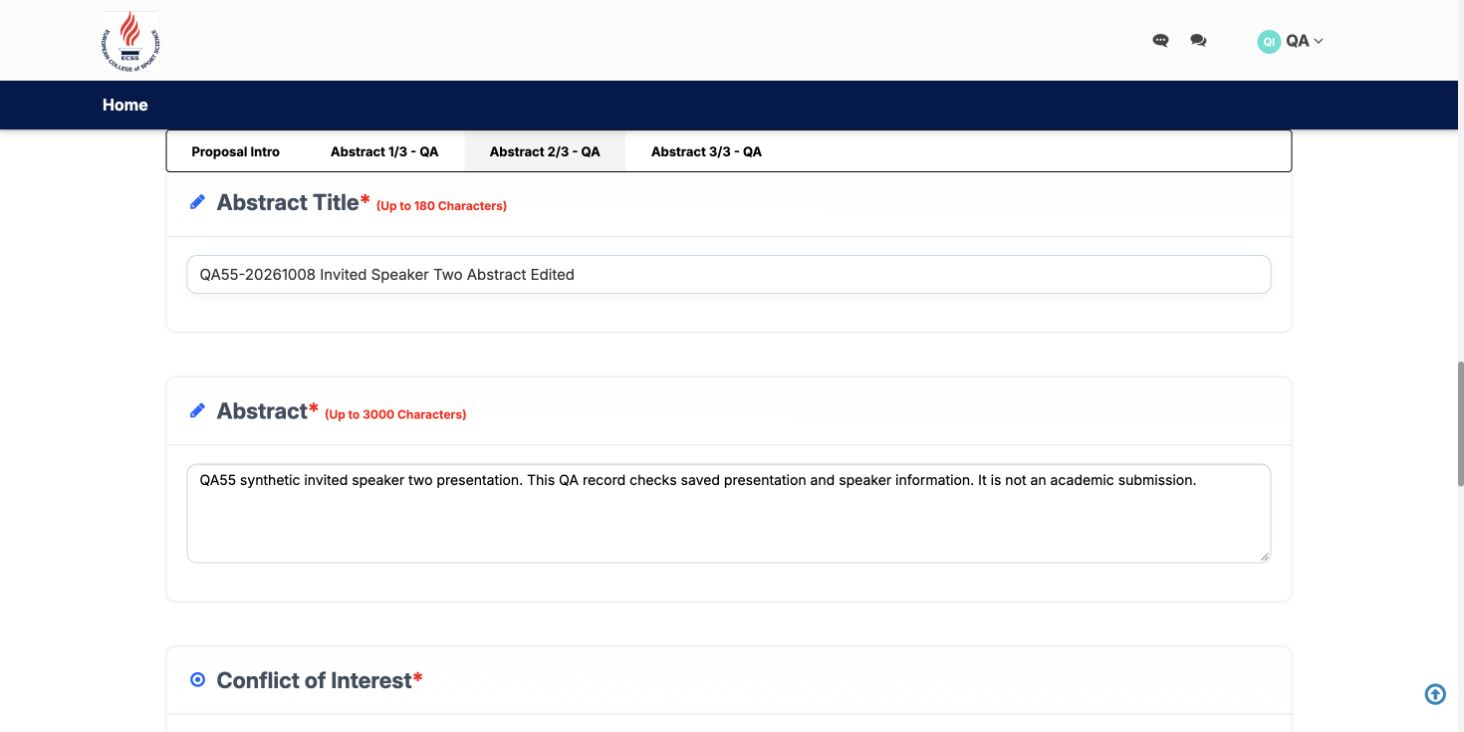
The screenshots show an actual demonstration proposal: the Generate PDF entry point after submission, and the linked introduction and abstract tabs. They illustrate the workflow using synthetic test content rather than exposing a genuine unpublished scientific submission.
- Introduction first: begin with the panel’s saved overview.
- Linked contributions next: keep authorized presentation records in panel order.
- Clear page boundaries: start each record on a new page.
- One cover: avoid repeating the event cover before every linked record.
- One document: reduce the need to assemble the panel from separate exports.
Use the panel structure already present in the form
A panel’s Proposal Intro and linked abstract tabs describe one connected submission structure. The combined export follows that structure rather than depending on whichever child tab happens to be open when the viewer generates the file.
Each record is rendered using its own saved values and applicable field definitions. A presentation can therefore retain its own information rather than being forced into the introduction’s field layout. The useful result is a document that follows the actual proposal content.
This is different from manually pasting several abstracts into one text box. Keeping the records linked in Dryfta supports the panel workflow and gives the export a reliable order to follow.
Access determines which contributions are included
The panel submitter can export the panel with its linked saved contributions, including incomplete saved child records where they are part of the supported workflow. A coauthor’s export includes the introduction and the child records that person is authorized to access.
The export does not give an unrelated or anonymous viewer access to a private proposal. A combined file must follow the viewer’s permissions rather than becoming a way around them.
This means that two people associated with a panel may legitimately receive different contents. If an expected contribution is missing, check the viewer’s authorization and the saved panel relationships before assuming the export is broken.
Generate and review a combined panel PDF
An export is a copy at a point in time. If a contributor later changes a saved abstract, an earlier downloaded PDF does not update itself. Generate a new document after relevant saved changes and use clear file handling within your team.
The same principle applies when checking a draft proposal. An incomplete saved contribution may be useful to review as work in progress, but it should not be mistaken for a finalized submission simply because it appears in a PDF.
- Sign in with an account authorized to view the panel and open it through the event’s author submission workflow.
- Review the saved introduction and linked contribution tabs, including their order and current content.
- Save any intended edits through the normal proposal workflow before generating the export.
- Use Generate PDF from the supported panel view.
- Open the downloaded document and check the introduction, expected contributions, ordering and page boundaries.
- Before sharing, confirm that the document is the intended saved version and that the recipient is entitled to receive its contents.
Three practical uses for event teams
A panel submitter checking the complete proposal
The submitter can review the introduction and linked presentations as one document, making it easier to spot an inconsistent title, a missing saved answer or a contribution that needs further work. The review should lead back to corrections in the saved records, followed by a fresh export.
A coordinator preparing an authorized internal review
An authorized coordinator can keep the supported panel export together for the intended review process. The ordered document gives readers the overview before the individual contributions, reducing the need to reconstruct the panel from separately named files. Sharing still needs to follow the event’s access and confidentiality rules.
A coauthor checking their permitted contributions
A coauthor can export the introduction and the linked records they are authorized to access. This supports a focused review without assuming that coauthorship on one presentation grants access to every contribution in the panel. Explain that permission-based scope before asking several contributors to compare files.
What this export does not change
Individual submission PDFs and public archive exports remain separate workflows. The combined panel export should not be described as a replacement for every PDF generated elsewhere in Dryfta.
Reviewer, backend and invitation-token export routes also have their own access and behavior. This article concerns the supported author panel workflow; check another route directly before assuming it produces the same combined document.
The PDF is a convenient review copy, while Dryfta’s saved records remain the place to manage the proposal. Avoid circulating edited PDF text as though it had updated the original submission.
Questions about combined panel exports
Does opening a different abstract tab change the panel order?
The combined export follows the saved panel structure: introduction first, then authorized linked contributions in tab order. It does not treat the currently selected child tab as a new starting point for the panel.
Will the PDF include an edit that has not been saved?
The export uses saved values. Save the intended changes through the proposal workflow, then generate and inspect a new document rather than relying on an older download.
Check one complete panel before requesting a wider review
Choose an authorized demonstration or completed panel, compare its saved tabs with the generated document, and give contributors a clear instruction about saving before exporting. That establishes a useful review routine for the rest of the program.
For help with the supported panel export or a contribution missing because of its saved relationship or access, contact Dryfta support.