
Your event website is getting traffic and that’s a good start. But how many of those visitors actually registered? Which marketing campaign brought them there? Which page convinced someone to submit an abstract? Which sponsor page kept people interested?
Page views won’t tell you any of that. Google Analytics 4 (GA4) will.
Unlike Universal Analytics, GA4 shows you what visitors do on your website, so you can understand what’s working and what needs attention.
In this guide, you’ll learn how to set up GA4, track conversions, measure attribution, improve performance, and make better decisions using your event data.
Why Website Analytics Matter for Event Organizers
Ever wonder what people do when they land on your ticket page? If you do not track event website traffic, you are basically flying blind. Guessing what worked at your last event will only get you so far. However, event marketing analytics show you where your visitors came from, what they looked at, or why they left without registering.
Here’s why it’s worth tracking your numbers:
- Marketing ROI and budget allocation
Find out which channels bring the most registrations. Once you track event website traffic, it’s much easier to spend more on campaigns that work and stop wasting money on the ones that don’t.
- Registration conversion improvement
Check where visitors drop off during registration. Maybe your form is too long or your ticket page isn’t clear enough. Even small changes can help more people complete their registrations.
- Audience and geographic insights
Understanding your event website traffic shows who your audience is, where they’re located, which regions deserve more marketing attention, and how people are finding your event.
- Sponsor visibility and proof of value
Analytics can show how many visitors viewed sponsor pages, clicked partner banners, engaged with sponsored content, and even visited sponsor websites through your event page. That’s the kind of data sponsors love because it clearly shows the value they received.
- Content prioritization
Some pages naturally attract more attention than others. Event marketing analytics help you identify the content attendees care about most, so you can improve pages that aren’t performing as well.
- Mobile and device optimization
If most visitors are browsing on their phones, your registration experience should work just as smoothly on mobile as it does on desktop.
- Campaign timing and decision-making
Learning when people visit your website and when registrations spike helps you schedule emails and promotional content more effectively. When you know when your audience is most active, it’s much easier to reach them at the right time.
What Is Google Analytics 4?
If you’ve heard people talk about Google Analytics lately, they’re almost always talking about Google Analytics 4 for events, or GA4. It’s the latest version of Google’s analytics platform and it works very differently from the older Universal Analytics.
GA4 follows an event-based data model. Every action a visitor takes is treated as an event. Opening a page, clicking a button, downloading a brochure, starting registration, or completing a ticket purchase can all be tracked as separate events. That gives organizers a much clearer picture of how people interact with an event website.
GA4 vs. Universal Analytics
| Feature | Google Analytics 4 | Universal Analytics |
|---|---|---|
| Data model | Event-based tracking | Session and pageview-based |
| User journey | Tracks actions across websites and apps | Focuses mainly on website sessions |
| Conversions | Uses customizable key events | Uses goals |
| Reporting | More flexible and event-focused | More page and session focused |
| Future support | Current Google Analytics platform | No longer supported |
A few GA4 terms are worth knowing before you start exploring reports.
- Users measure how many people visited your website.
- Sessions show individual visits to your website.
- Engaged sessions count visits where people actively interact with your content instead of leaving almost immediately.
- Events record actions like button clicks, file downloads, page views, video plays, or registrations.
- Key events are the actions you consider most valuable, such as completing an event registration or submitting a contact form.
- Attribution helps you understand which marketing channels, like email, social media, or search, deserve credit for bringing attendees to your event.
GA4 includes features that help with consent and data collection, but that doesn’t mean you’re done. Your website should still have the right cookie notices and consent settings to meet the privacy laws that apply to your audience.
How to Connect GA4 to an Event Website
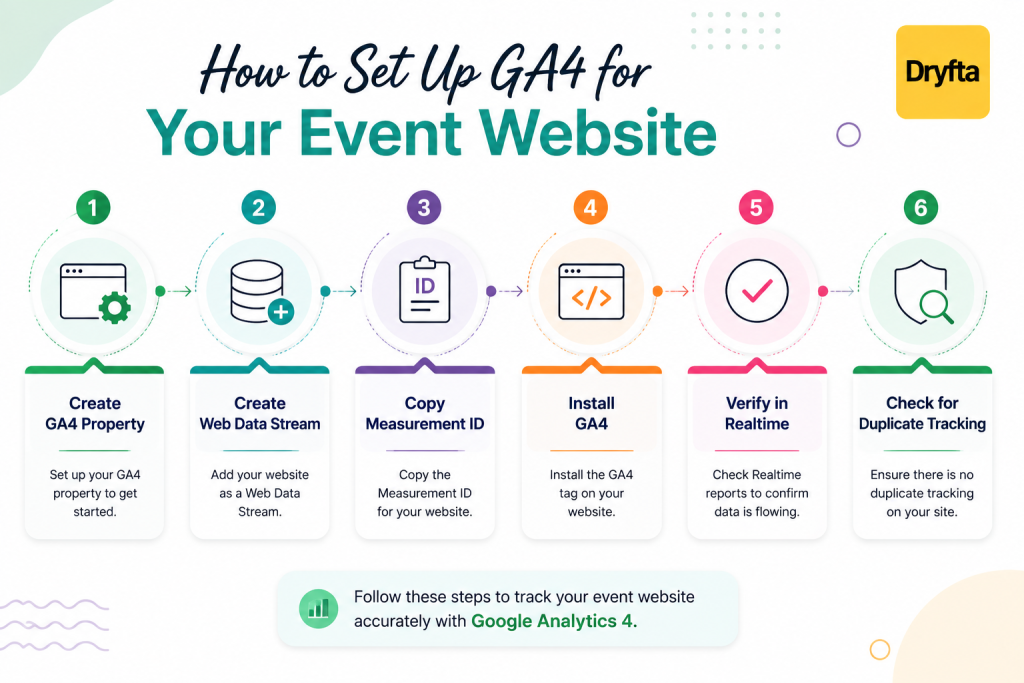
Connecting Google Analytics 4 only takes a few minutes. Once it’s set up, you can track event website traffic more accurately.
Step 1. Create a GA4 Property and Data Stream
- Sign in to your Google Analytics account.
- Click Admin.
- Create a new GA4 Property if you don’t already have one.
- Inside the property, create a Web Data Stream.
- Enter your event website URL and website name.
- Save your settings.
Step 2. Copy Your Measurement ID
- Open your Web Data Stream.
- Look for the Measurement ID.
- It will look something like G-XXXXXXXXXX.
- Copy the ID because you’ll need it in the next step.
Step 3. Install GA4 on Your Event Website
Choose the method that works best for your website.
- Add the GA4 tracking code directly to your website.
- Or install it using Google Tag Manager.
- Or use your website platform’s built-in Google Analytics integration if it offers one.
- If you’re using Dryfta, paste the Measurement ID into the Google Analytics settings inside your event dashboard.
Step 5. Verify the Connection
Before you start collecting data, make sure everything is working.
- Open your event website in a new browser tab.
- Return to Google Analytics.
- Open Realtime reports.
- You should see your visit appear within a few moments.
- You can also use DebugView to check whether events are being recorded correctly.
Step 6. Check for Duplicate Tracking
Collecting the same data twice can make your reports inaccurate.
- Visit your event website.
- Check whether one click or one page view is recorded only once.
- If events appear twice, check whether GA4 has been installed using more than one method, such as both Google Tag Manager and direct code.
- Remove the extra installation if duplicate tracking is happening.
Once everything is working correctly, you’re ready to track event website traffic and start using real visitor data to improve registrations and your marketing campaigns.
Which Event Website Metrics Should You Monitor?
- Users and new users: Track your total count of individual visitors versus brand-new people landing on your event site for the very first time.
- Sessions and engaged sessions: Monitor every full visit to your site alongside engaged visits that last over 10 seconds or complete a key action.
- Engagement rate: See the exact percentage of total website visits where people actively interact with your content instead of leaving right away.
- Average engagement time: Measure the average amount of time visitors spend actively viewing your content.
- Views and landing pages: Discover your total page views and identify which pages bring in the most website visitors.
- Traffic source and medium: Pinpoint exactly where your guests come from, whether it is organic search, direct links, social media, or paid ads.
- Geography and language: See which countries and languages your visitors use so you can tailor your event marketing and time zones.
- Device category and browser: Check whether guests use mobile phones, tablets, laptops, or desktop computers to ensure your checkout stays fast and smooth.
- Returning users: Keep tabs on interested buyers who visit your site multiple times before finally buying a ticket.
- Event count and key events: Measure total interactions like button clicks or video previews and track critical conversions like completed registrations.
Keeping a close eye on these metrics helps you optimize your promotion campaigns and continuous ticket sales whenever you track event website traffic.
Track Event Registrations as Conversions
Don’t stop at counting your website visits. You want to know when someone completes an important action.
-
- Start with registration. Set the registration completion page or event as your main conversion.
- Mark it as a key event. Use registration_complete or purchase so it gets counted properly.
- Track actions like:
Ticket purchases
Abstract submissions
Contact forms
Sponsor enquiries
Downloads
Newsletter sign-ups
Account creation - Choose how you track them. Thank-you-page tracking works well for some actions while others may need custom event tracking.
- Test everything. Check that conversions are firing correctly and look out for common issues like duplicate events or missed registrations.
Understand Where Visitors Come From
Understanding traffic sources helps you invest your dollars into channels that actually sell tickets. When you track event website traffic, keep an eye on these primary channels.
-
- Organic search: Track visitors who find your event page through search engine results like Google or Bing without paid ads.
- Email campaigns: Monitor traffic driven by your newsletter blasts and speaker update emails.
- LinkedIn, Facebook, Instagram, and X: Measure organic clicks from your social media posts and shared event links.
- Paid search and paid social: Track paid visits from Google Search ads, boosted social posts, and targeted banner campaigns.
- Referral partners and associations: See how many guests land on your page from partner websites or co-sponsoring association sites.
- QR codes on print collateral: Embed custom tracking links inside physical QR codes printed on posters, flyers, badges, or magazine ads to track offline conversion rates.
- Direct traffic caveats: Understand that direct traffic includes people typing your URL directly or clicking untagged links from messaging apps like WhatsApp or Slack.
- UTM parameter best practices:
-
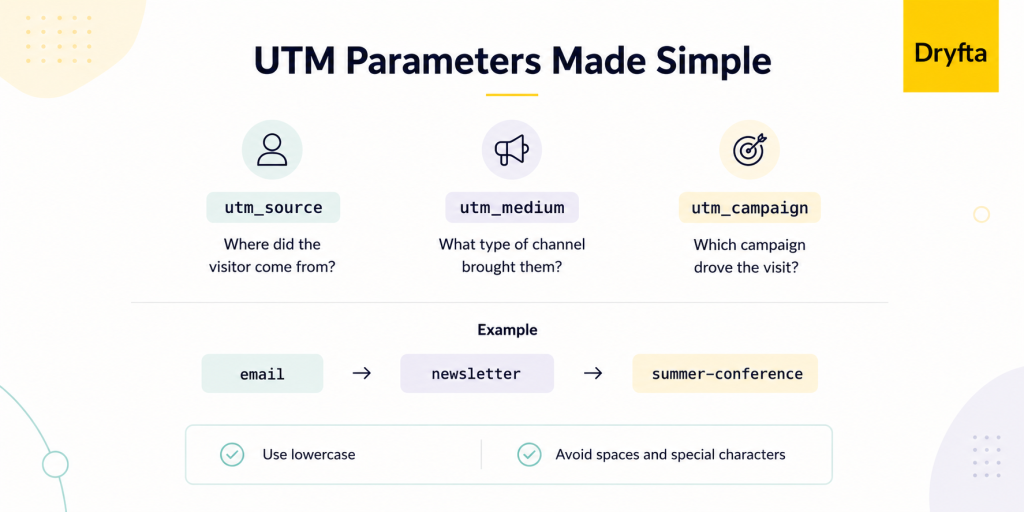
- Add UTM parameters (utm_source, utm_medium, and utm_campaign) to every promotional link so you know where your visitors are coming from.
- Use lowercase names for your UTM tags every time. For example, use email instead of Email. This keeps all your data together instead of splitting it into separate categories.
- Avoid spaces and special characters by using hyphens or underscores.
- Never use UTM tags on internal website links because they overwrite the visitor’s original traffic source.
Monitor High-Performing Event Pages
Use GA4 to identify which pages attract the most visitors and which ones help move people toward registration.
Start with your homepage, registration and pricing pages, speaker profiles, and programme or session pages. You should also monitor sponsor and exhibitor pages, venue and travel information, abstract submission pages, and FAQ or policy pages.
High traffic does not always mean a page is performing well. If a page attracts many visitors but generates few registrations or other key actions, look at the content and user journey to find what may be stopping visitors from taking the next step.
How to Use GA4 Before, During, and After Your Event
Google Analytics 4 is useful throughout your entire event. When you track event website traffic at every stage, you can make better decisions before, during, and after your event.
- Before the event
Monitor how registrations are growing over time. Check which marketing campaigns bring the most visitors and registrations. Review your landing pages to see which ones attract the most traffic and which pages need improvements to increase registrations.
- During the event
Keep an eye on Realtime reports to see how many people are visiting your website. Check whether most visitors are using mobile devices. If you’re using a mobile event app, you can also use it to keep attendees updated with session changes and event announcements.
- After the event
See how many people return to watch on-demand sessions, download certificates, complete surveys, browse photo galleries, or access presentation files. Continue to track event website traffic to see how many visitors return for future events or ongoing engagement.
Common Analytics Mistakes
- Tracking only page views while ignoring actions like registrations, ticket purchases, abstract submissions, and contact form submissions.
- Not setting up key events, which means completed registrations and other useful conversions won’t appear in your reports.
- Using different UTM parameters across campaigns, making it harder to see which marketing channels bring the best results.
- Failing to exclude internal traffic, which can increase visitor numbers and make your analytics less accurate.
- Using duplicate tracking tags, which can record the same event multiple times and lead to unreliable reports.
- Skipping cross-domain testing, which can break conversion tracking when registration or payment takes place elsewhere.
- Ignoring the mobile experience, even though many visitors browse and register using their phones.
- Comparing campaign results across different periods without considering changes in budget or audience.
- Misreading direct traffic, since missing campaign tags can also send visitors into the direct traffic category.
- Failing to document website changes, making it harder to understand why traffic or conversion numbers rise or fall over time.
Advanced Analytics Tips
Basic reports give you the “what.” Advanced analytics helps you get to the “why” and figure out what to do next. Once the basics are sorted, these features are worth a look.
- Google Tag Manager lets you change tracking codes without having to edit your website code every time.
- Custom events let you track important actions such as abstract submissions, sponsor enquiries, and brochure downloads.
- Scroll depth tracking shows how far visitors scroll down your pages.
- File download tracking helps you keep track of downloads such as brochures and event guides.
- Video engagement tracking shows how visitors interact with your event videos.
- Outbound link tracking helps you see when visitors click through sponsor or registration websites.
- Cross-domain tracking keeps a visitor’s journey connected when they move between different websites.
- Consent Mode helps you collect analytics while still respecting visitor privacy choices.
- BigQuery exports are useful when you need to analyze large amounts of event data.
- Custom explorations and funnels help you see where visitors leave during the registration process.
Best Practices Checklist
- Install Google Analytics 4 (GA4) before launch so every visitor and conversion is tracked from the very beginning.
- Verify every tracking tag after setup. Test each one to confirm it fires at the right time and records the correct event.
- Define naming conventions for campaigns and UTM parameters so reports stay organized.
- Track registrations, ticket purchases, abstract submissions, and other important actions as key conversions.
- Use UTM parameters consistently across social media campaigns.
- Exclude internal traffic from your team to keep reports free from test data.
- Document your conversions to help your team understand what each event measures.
- Review analytics every week to spot trends and improve campaign performance over time.
- Create a campaign dashboard that brings your most important metrics into one easy-to-read report.
- Archive your reports after every event to compare results year after year.
How Dryfta Works with Google Analytics
Google Analytics 4 and Dryfta work together to help you understand what visitors do before they become attendees. Once GA4 is connected to your Dryfta event website, you can measure how people move through your website, which pages they visit, and where they leave before completing a registration.
You can also track traffic to campaign landing pages, registration pages, speaker pages, sponsor pages, and other important sections of your event website. Combined with GA4 reports, those insights help you understand which marketing channels bring the most valuable visitors and which pages contribute to registrations.
Want to see how Google Analytics works with your event website? Book a free demo with Dryfta today!
Frequently Asked Questions
1. What is GA4?
GA4 stands for Google Analytics 4. It is Google’s latest analytics tool. It helps you track event website traffic by showing how people use your event website. You can learn which pages they visit. You can also see whether they complete important actions like registering for your event.
2. Is Google Analytics free?
Yes. Google Analytics 4 is free for most event organizers. You can track event website traffic without paying for the standard version. It also helps you understand how your marketing campaigns are performing.
3. Can GA4 track event registrations?
Yes. GA4 can track registrations when it is set up correctly. For example, it can record when someone submits a registration form or completes a ticket purchase. That makes it easier to track event website traffic and understand which campaigns bring the most registrations.
4. How do I exclude my own visits?
You can tell GA4 to ignore visits from your own device or office network. That keeps your reports more accurate because your testing will not affect the data.
5. What are UTM parameters?
UTM parameters are small tags added to a website link. They tell GA4 exactly where a visitor came from. For example, the visitor may have clicked a link in an email or on social media. Using UTM parameters makes it much easier to track event website traffic correctly.
6. Can I track multiple event websites?
Yes. GA4 lets you track more than one event website. You can create separate properties or use different data streams, depending on how you want to organize your reports.
7. How long does GA4 retain data?
GA4 stores your data for a period that you choose in the settings. Many organizers increase the retention period so they can compare website performance over a longer time.
8. Does Dryfta support GA4?
Yes. Dryfta supports Google Analytics 4. You can add your GA4 Measurement ID to your event website and start to track event website traffic through your GA4 reports.
9. Can I track registrations across another domain?
Yes. GA4 supports cross-domain tracking. If your event website and registration page use different domains, GA4 can connect them into one visitor journey instead of counting them separately.
10. What is the difference between an event and a key event in GA4?
An event is any action a visitor takes on your website. A key event is an action that is especially important to your goals, such as completing a registration. Setting key events helps you track event website traffic more effectively because you can focus on the actions that matter most.