Participants return to several events run by the same organization. When their name or telephone number changes, updating each event separately creates repeated work and inconsistent profiles. Dryfta now lets organizers decide which profile fields should stay shared across their organization’s connected events, while keeping other answers specific to each event.
With selected fields connected, a saved profile change can travel to the participant’s linked accounts in the background. The existing My Events area also provides a route into connected events after account ownership has been established. This guide explains the setup, the participant experience, and the boundaries to check.
Choose the information that belongs across events
A participant’s core details and an event’s operational records serve different purposes. A corrected name may need to follow the person to another conference. A question about this year’s attendance arrangements may need to stay with this year’s event. Profile sharing gives organizers a field-level choice between those two situations.
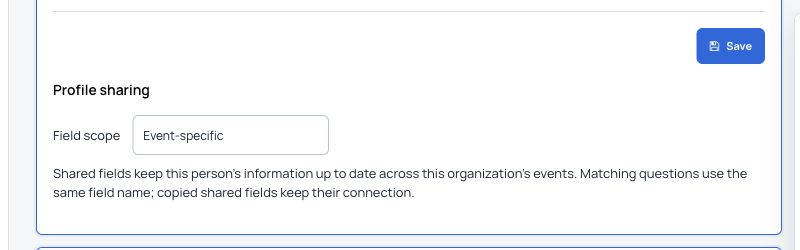
The field editor now includes a Profile sharing section with a Field scope selector. Choose Shared across this organization for a supported field that should connect across the organization’s events, or leave it Event-specific. Matching shared questions use the same field name; copied shared fields retain their connection. Review those names before introducing a new shared question.
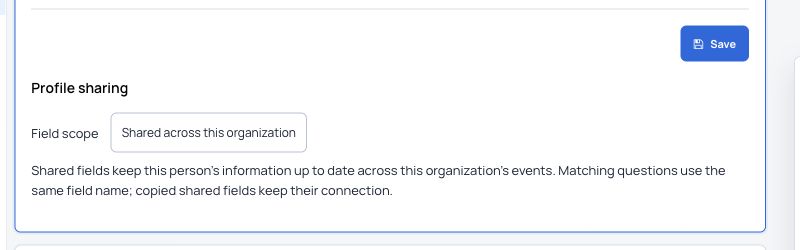
First Name, Last Name and Phone provide practical starting examples. When those fields are shared and a participant’s event accounts are connected, a normal profile save can update the matching details at the other connected event. The participant can make the next correction from either connected event.
Sharing is selective. A Company or Organization answer can remain specific to its event when that distinction matters to your workflow. Organizers should agree on which information represents the person across their event series and which information describes one particular registration.
| Choice | Expected behavior | Example to review |
|---|---|---|
| Shared across this organization | Connected profile updates can propagate between the organization’s linked event accounts | First Name, Last Name or Phone |
| Event-specific | The answer remains associated with its individual event | An Organization answer that needs a different value for each event |
Set up a small, clearly defined set of shared fields
Start with events that belong to the same organization in Dryfta. An administrator with access to the relevant forms should review the existing questions and their labels before changing scope. Participants also need their corresponding event accounts connected before you rely on information reaching those accounts.
- Open People, then Contacts Setup and Account Creation Form for the event.
- Open the existing eligible profile field using its edit control.
- Find Profile sharing and review the current Field scope.
- Choose Shared across this organization only for information that should follow the participant across the organization’s events. Wait for the scope change to save, then reopen the field and confirm its saved choice.
- Review the corresponding fields in the other events, using matching field names. Keep answers that belong to an individual event set to Event-specific.
- Use an appropriate test account to check a profile change in each direction and confirm that an event-specific answer remains separate before wider use.
What participants see when they update a profile
Participants continue to use the normal profile form. They edit their information and save it in the event they are using. Shared updates are delivered in the background, so the save confirmation may say that shared updates are pending synchronization. Allow the update to complete before checking the other event’s profile.
The distinction is useful for support teams too. A successful local save and the completed update at another event are separate observations. If the receiving profile stays unchanged, review the field’s saved scope and the account connection. Ask support to investigate persistent pending updates rather than repeatedly recreating questions or accounts.
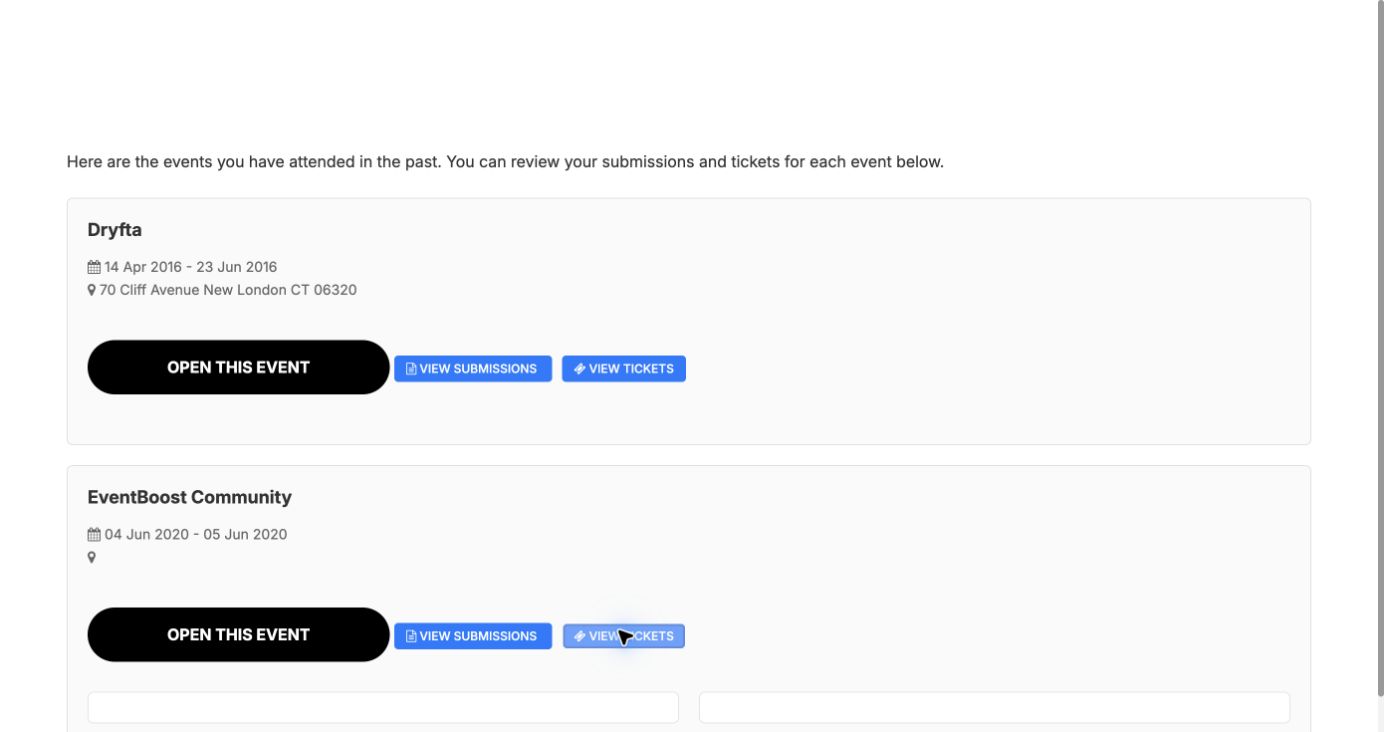
Use My Events to open a connected event
My Events is an existing part of the participant experience. Alongside shared profiles, it offers a way to open another connected event. An existing destination account may ask for its current password once to establish ownership. After that connection is established, supported My Events entry can open the other event already signed in.
This helps a returning participant move between an organization’s event sites without treating every visit as a completely separate profile-maintenance task. The event they open still has its own context and access rules. Opening an event does not itself demonstrate that a shared profile update has finished.
Three practical ways to use shared profiles
An association with an annual congress and workshops
A member may attend the annual meeting and several workshops. Sharing selected name and phone fields lets the team check one correction across connected accounts, while retaining each event’s own registration questions. Agree on those boundaries before copying a form for the next workshop.
A university running a conference series
A university events office can use consistent shared field names across related conference sites. Returning researchers can maintain selected core details through their connected profiles. Each conference team can continue collecting information needed for its own programme and registration process.
A training organization with returning participants
Participants may return for a later course with a corrected surname or contact number. A defined set of shared fields gives the organization a repeatable way to check those updates across connected course events, without making every answer common to the entire series.
Keep event operations and profile sharing clearly separated
Sharing selected profile fields does not move a participant’s submissions, orders or tickets into another event. Those records continue through their existing event workflows. It also does not automatically register a person for a new event or change membership entitlements. Review the actual event account and its permissions when helping someone with access.
A sensible launch checklist covers both shared and separate information:
- Confirm the relevant events belong to the intended organization.
- Reopen each shared field and check its saved scope and matching name.
- Check the participant’s account connection before expecting cross-event updates.
- Verify an update from each connected event, allowing background synchronization to finish.
- Confirm an event-specific answer remains separate and each event’s normal access rules still apply.
Questions event teams should settle before wider use
Must every profile field be shared?
No. Scope is selected per eligible field. Start with a short set of core details and keep other answers event-specific where appropriate. Confirm support for older registration forms and additional field types before depending on every entry point.
Will participants have one new password for every event?
Existing credentials remain in use. My Events can establish account ownership and provide supported automatic entry after connection; this release does not replace your organization’s entire authentication setup.
What if an update is still pending?
Allow background processing to complete, then check the receiving event. If the update remains pending or the saved values disagree, contact support with the affected event and field names. Avoid creating another account or changing unrelated form settings to try to force synchronization.
Plan the shared information before connecting more events
Choose a small set of useful shared fields, confirm the event and account connections, and check the experience from both sides. For help reviewing an existing event series or planning your configuration, visit the Dryfta support knowledge base.