Dryfta makes it easy to create webinars, online training sessions, and even in person workshops from the same workflow. This guide walks you through the full process, from creating the session to customizing the registration form and managing attendees.
Step 1: Go to Agenda builder
From your Dryfta dashboard, go to:
Agenda & Virtual Meetings
Then click Add Webinar.
This is where you will create your webinar, training session, or workshop.
Step 2: Enter the basic session details
Start by filling in the core information for your session:
- Title
Add the name of your webinar or training session. - Start date and time
Choose when the session will begin. - Venue
If it is an online session, select a virtual venue you have already created.
If it is an in person session, choose the physical venue. - Attendee capacity
Set the maximum number of participants allowed to register.
Step 3: Choose the session type
Under Virtual Meeting Options, choose the format that matches your session:
- Live Meeting
- Webinar
- Live Stream
- Custom Virtual Meeting URL
- In Person
Important note: If you are using an external platform such as Zoom or GoToMeeting, select Custom Virtual Meeting URL and paste in the meeting link.
If the session is physical, select In Person.
Step 4: Assign track, format, tags, moderator, and speakers
Next, configure how the session should be categorized and who will be involved.
- Track / format
Select the appropriate track if you use tracks in your event setup. If not, you can skip this. - Tag
Add a tag if needed for filtering or grouping. -
Moderator / chair
Select the person who will chair the session.Important note: moderators must already exist in the People module. If they have not been created there yet, you will not be able to select them here.
- Speakers / trainers
Choose the people who will be presenting during the session.
Step 5: Upload session materials
Scroll down to the Slides section.
Here you can upload materials such as:
- PowerPoint files
- PDFs
- DOCX files
- Other downloadable documents
These files will appear on the session page so attendees can access them easily.
Step 6: Enable audience interaction tools
If your session is online, you can enable interactive features to make it more engaging.
- Live Chat: Enable this if you want attendees to post comments and replies during the session.
- Live Polls: Turn this on if you want to run live polls.
- Text Q&A: Enable this so attendees can submit questions for speakers to answer.
For in person sessions, these tools may not always be necessary, but they are available if you want to use them.
Step 7: Set the registration type
Under Session Options, choose whether the session is free or paid.
- If the webinar/training session is free, Select Free.
- If the session is paid, Select Paid, then choose the ticket type linked to that session.
- If you have not created a ticket type yet, go to the Workshop Tickets area first and create one. After that, return to the session setup and attach the correct ticket.
Once this is set, attendees will be able to purchase access and then join or check in on the day of the session.
Step 8: Configure additional session settings
Dryfta gives you a few extra options to control how the session appears and how attendees interact with it. You can choose to:
- Show or hide moderators
- Display the Add to Schedule button
- Limit how many attendees can add the session to their personal schedule
- Enable a survey form for post session feedback
Once everything looks good, click Save.
Step 9: Customizing the Webinar Registration Form
After saving the session, you can customize the registration form linked to it. From the session list, click the form icon associated with your webinar or training session. Inside the form editor, you can:
- Change the form name
- Edit the submit button text
- Add extra registration fields
Step 10: Add custom questions
By default, the form includes standard fields. You can expand it with additional questions using different field types such as:
- Text input
- Dropdown
- Radio button
- Country selector
- File upload
- Digital signature
If you need attendees to sign a waiver or consent form, you can add a Digital Signature field as well.
Once you finish customizing the form, save your changes and return to the session list.
Step 11: Use the session action buttons
Once the webinar is created, Dryfta gives you several tools to manage it. From the session list, you can:
- Preview the form
- Edit the session
- Unpublish the session
- Delete the session
- Clone the session
- Notify attendees by email
- View attendees
- Access live chat activity
- Review Q and A submissions
- Check live poll responses
- Open the webinar registration link
- Customize the confirmation email
This gives you full control over the session from one place.
Step 12: Customizing the Registration Confirmation Email
Dryfta automatically sends a confirmation email after someone registers. By default, the email includes:
- Session title
- Date and time
- Venue
- Webinar link
You can customize the wording and layout to better match the nature of your session.
For example, if the event is a training session rather than a webinar, you can update the language so the email feels more accurate and professional.
Step 13: Viewing Registrations and Waitlisted Users
Click the attendee icon to see who has registered for the session. From there, you can also:
- View waitlisted users
- Notify waitlisted users if more seats become available
This is especially helpful if you increase the capacity later and want to invite people from the waiting list to complete their registration.
Step 14: Preview the session
To see how everything looks from the attendee side, click on the Preview button.
This takes you to the event website, where the session appears in the event schedule. When attendees open the session detail page, they can see:
- Session information
- Speakers
- Moderators
- Attendees
- Downloadable slides and files
- Buttons to add the session to their personal schedule
- A calendar button
- A survey button
- The registration button
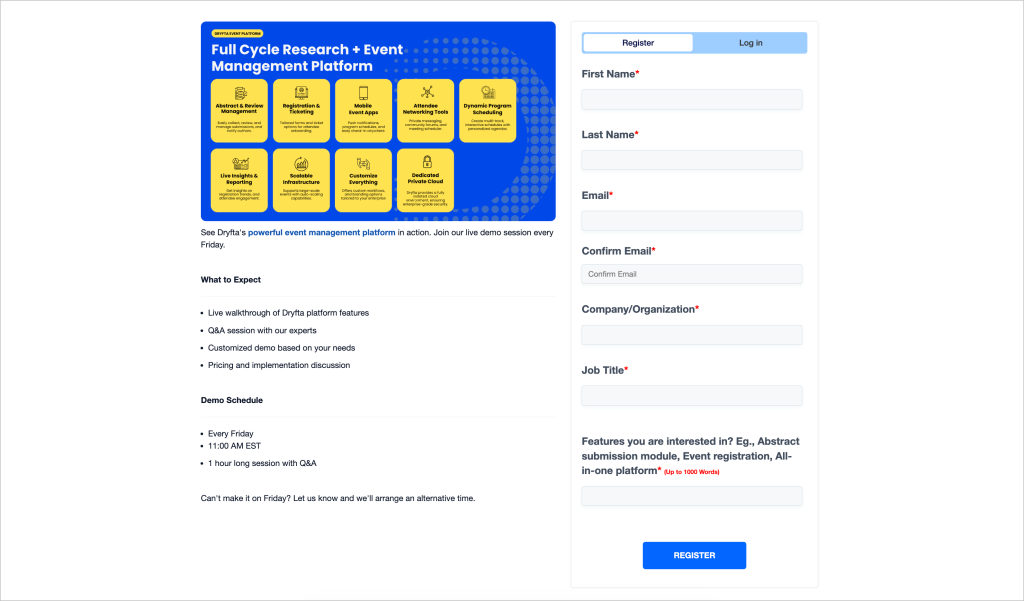
When they click to register, they will see:
- Session details on the left
- The registration form on the right
If they already have an account, they can simply log in instead of creating a new one.
Step 15: Activate new users (optional)
If your Dryfta account is set to require admin approval for newly created users, then a person may register successfully but still be unable to log in until their account is manually activated.
In that case:
- Go to Registered Users
- Find the new user
- Activate the account manually
If this setting is disabled, registrants can log in immediately after registration.
Dryfta also sends login credentials by email, so users can access their account once activation is complete.
Step 16: Joining the webinar as an attendee
Once logged in, attendees can go to their dashboard and view the webinar details.
If the session is online, the Join Webinar button becomes active 5 minutes before the session start time.
Until then, the button remains inactive. This helps prevent attendees from entering too early.
Step 17: Collect feedback after the session
If you enabled a survey for the webinar, attendees can click the survey button and submit feedback.
As the admin, you can create survey questions linked to that session to collect whatever feedback matters most to you. This is useful for:
- Session ratings
- Trainer feedback
- Content relevance
- Suggestions for improvement
That is the full process for setting up a webinar or a training session in Dryfta.