International attendees should be able to explore a conference without first becoming fluent in its main language. Dryfta offers automatic translation in the event app, helping attendees read eligible navigation and public event content in a language they choose.
Organizers control whether translation is available and can set a starting language for the event. Attendees then use a language selector under More, with an Original option for returning to the source text. The feature also supports right-to-left presentation for languages such as Arabic. Here is how to prepare it, explain it to delegates, and use automatic output with appropriate care.
Give attendees a language choice inside the event
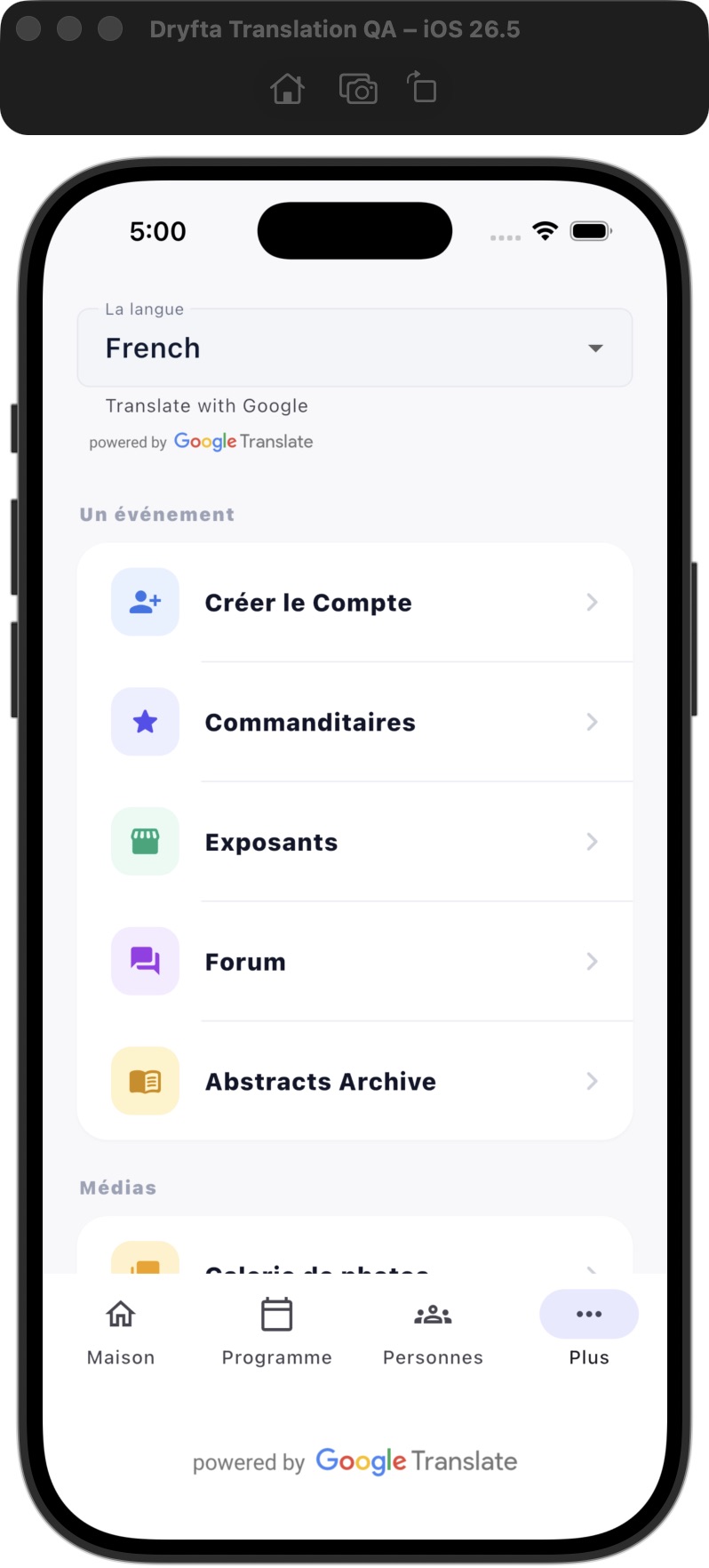
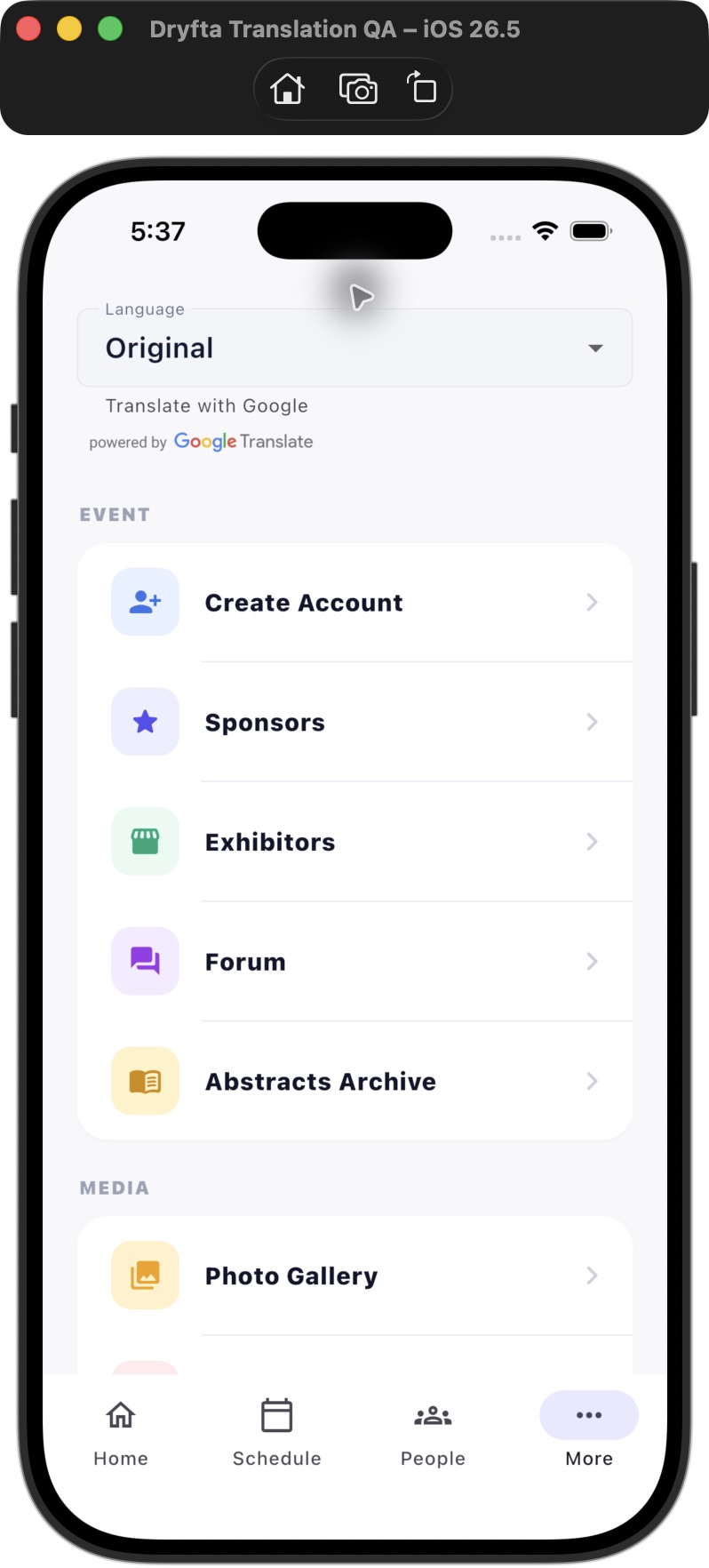
When the organizer enables translation, a language dropdown appears near the top of More. It is available to guests as well as signed-in attendees, with its position adapting to the profile area. The selector includes Original and the supported languages offered in Event App Publisher.
The event’s default language applies until an attendee makes their own choice. The app remembers that choice for the event, including an explicit selection of Original. Someone attending several events can therefore make a different language choice for each one.
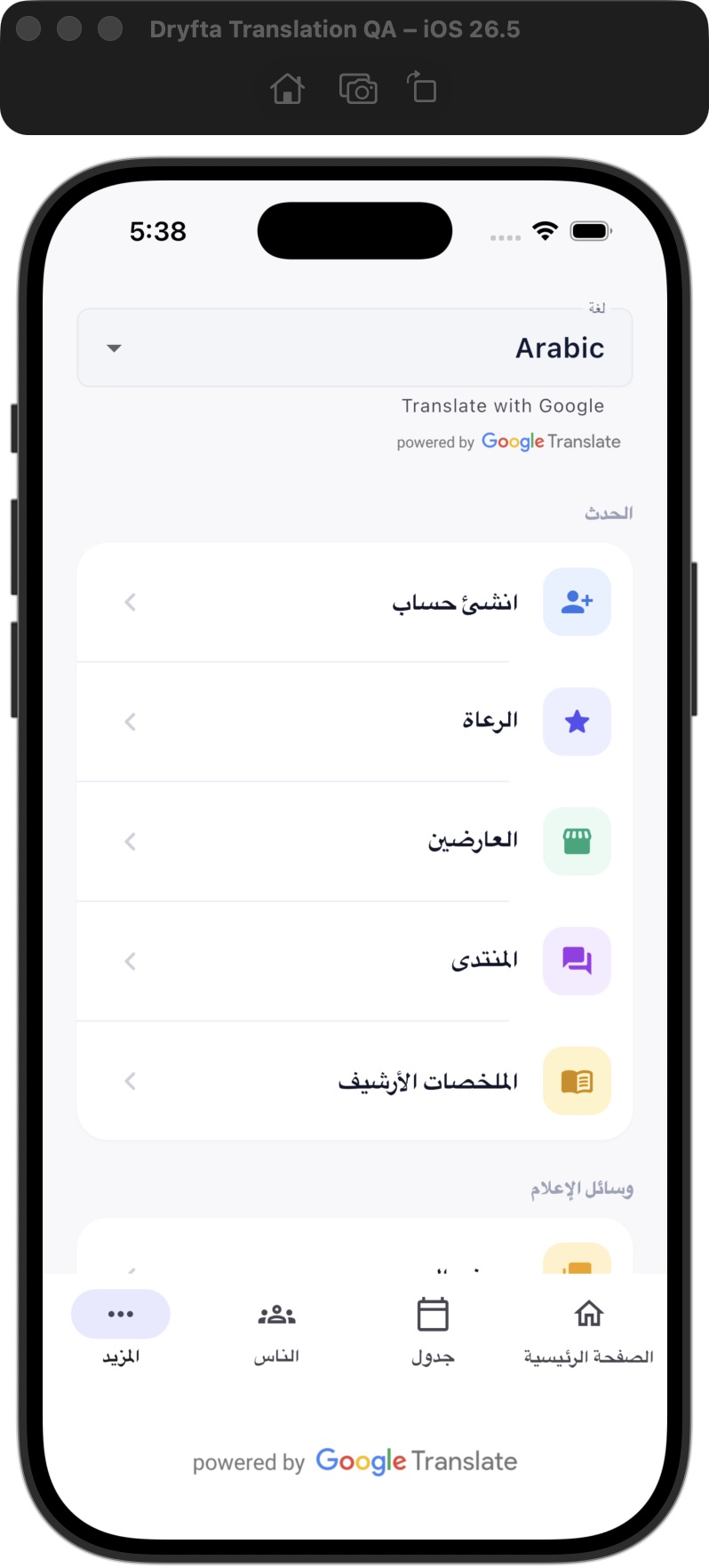
The screenshots show actual French and Arabic app examples. Translation is automatic and carries Google attribution. It changes the presentation of eligible content rather than creating a separately maintained, manually translated edition of the event.
- Organizer control: enable the feature and select the event’s default language.
- Attendee choice: select a supported language under More or return to Original.
- Per-event preference: keep the attendee’s selected language with that event.
- Right-to-left presentation: adapt supported controls and direction for languages such as Arabic.
Translate useful content while preserving important values
Eligible app controls and public event text can be translated on the device. That helps attendees understand navigation and event information without the organizer writing a manual translation dictionary for every available language.
Person and organization identity fields, identifiers, web addresses, private messages and answers entered into forms retain their original treatment. Translation changes what the attendee reads; it does not rewrite the event’s stored source information or replace the values they submit.
Links, emphasis and media remain part of eligible formatted content. However, a person’s name appearing inside a paragraph can still be affected by automatic translation. Review representative content rather than assuming that every name, abbreviation or specialist expression will remain exactly as intended.
Prepare the event and the attendee’s device
Language packs download over Wi-Fi. If a download or translation fails, readable source text remains available and More provides a way to retry. Encourage delegates to choose and prepare their language before leaving a reliable connection.
A missing dropdown can have a simple explanation: translation may be disabled for that event, or the attendee may be using an older app. Check the event’s setting and the app version before treating it as a content problem.
- Review the app translation controls in Event App Publisher. Enable automatic translation only when your team is ready to offer it.
- Choose an event default from the supported language list, or use Original as the starting point.
- Use the current Dryfta app to open the event and check the language selector under More.
- Choose a representative language while connected to Wi-Fi so its language pack can download.
- Review navigation, event descriptions and several session details. For Arabic or another right-to-left language, check the layout as well as the words.
- Return to Original and confirm that attendees have a clear way to read the source content.
Three practical uses for event teams
An international scientific congress
Delegates can read eligible session descriptions and navigation in a language they are more comfortable with, while names and original event information remain available. The scientific committee should review common technical terms in representative translations and keep authoritative instructions clearly accessible in their approved wording.
A meeting with mixed local and visiting audiences
Organizers can choose an appropriate starting language without forcing every attendee to use it. Visitors can select another supported language and local attendees can retain Original. A short note in arrival instructions can explain where the selector is and that the output is automatic.
A delegate attending several events
A participant may prefer French at one event and Original at another. The per-event choice supports those different contexts. The participant can revisit More to change the selection rather than asking an organizer to rewrite the event’s primary content for one person.
Write source content that is easier to understand
Clear source writing helps both readers and automatic translation. Use descriptive headings, short sentences and complete instructions. Explain an abbreviation the first time it appears, and avoid putting essential text only inside a graphic where it may not be translated.
Keep session titles and room information consistent across the program. If a term has a specific meaning for your field, give it enough context. A concise, well structured explanation gives attendees a better chance of understanding the intended action, even when they return to Original.
Translation is one part of accessibility and multilingual support. It does not replace interpretation, captioning, a reviewed bilingual program or staff assistance where those are needed by your audience.
Questions attendees are likely to ask
Will choosing a language change my submitted answers?
The feature changes presentation. Answers entered into forms and the event’s source data are not rewritten into the selected display language. Private messages also retain their original treatment.
Can I return to the event’s original wording?
Yes. Select Original under More. The app remembers an explicit Original choice for that event, giving attendees a direct way to read the source wording when a translation is unclear.
Introduce the language selector before arrival
If translation is enabled, add a short instruction to your app welcome information: open More, choose a language on Wi-Fi and use Original whenever you need to check the source wording.
The current app is available through Dryfta for iPhone or Dryfta for Android. For help reviewing the event setting or preparing multilingual attendee instructions, contact Dryfta support.