




Conference Wi-Fi can be difficult to reach just when an attendee needs a room number or the next session time. Dryfta’s offline event download lets attendees prepare event information while connected, then refer to saved content when their connection is unavailable.
The download focuses on the program and essential event reference material. It also makes an important distinction between saved event content and personal details an attendee has deliberately opened online. This guide explains what is included, how to prepare before arrival, and which activities still need a connection so your team can set clear expectations for every delegate attending.
Save the information attendees need to navigate the event
Offline event downloads bring together a defined set of reference material. Attendees can prepare the event before moving away from a reliable connection, rather than relying on each screen having been opened recently.
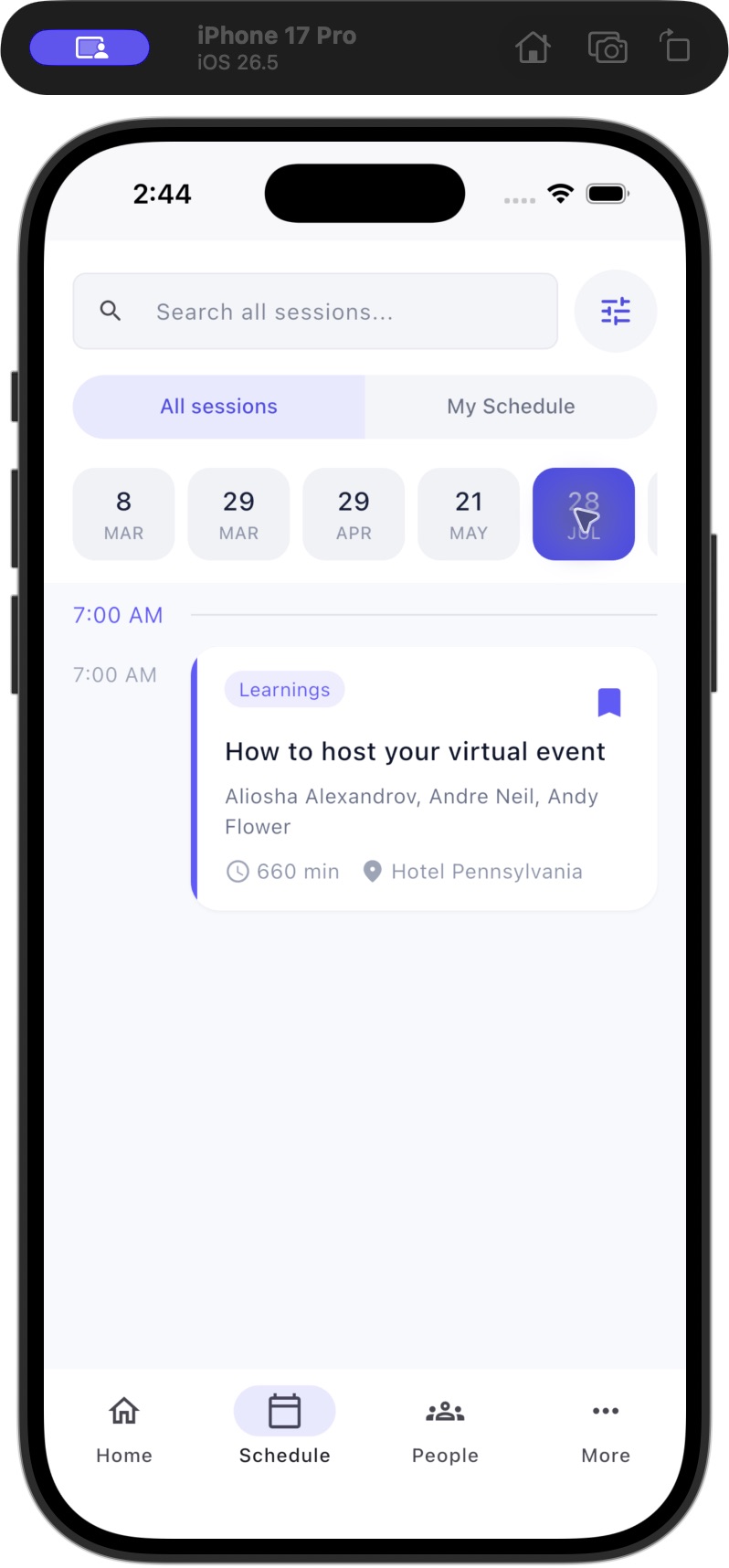
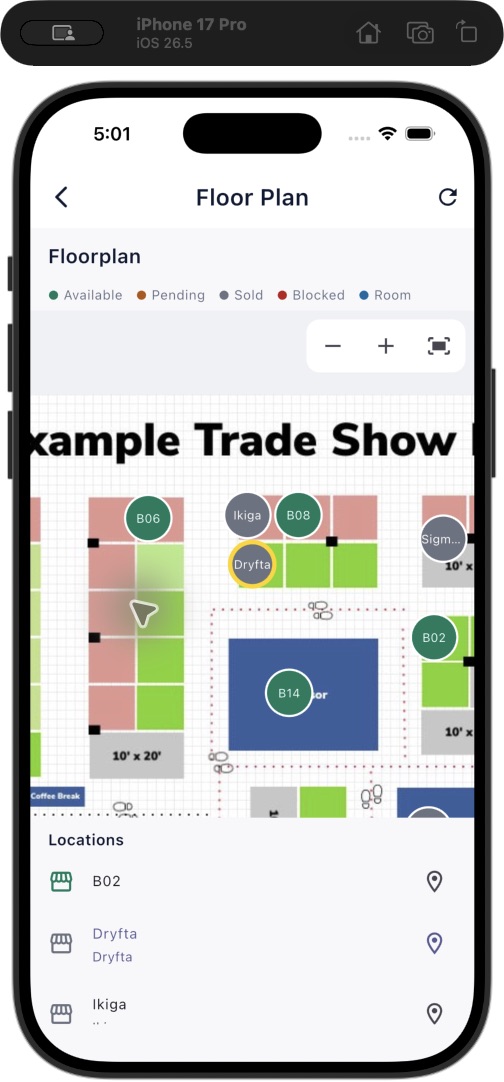
The download includes the event homepage, scheduled days and session details, abstracts linked to sessions, basic sponsor and exhibitor information with supported logos, and the published floor plan. Session information retains speaker and moderator names, organizations and roles so the saved program keeps useful context.
The screenshots in this article show the Schedule and Floor Plan screens that form part of that reference experience. They illustrate the event content, rather than a live network test or a guarantee that any particular attendee’s device has finished its download.
- Program: scheduled days, sessions and their linked abstract content.
- Event reference: the homepage and published floor plan.
- Companies: basic sponsor and exhibitor details with supported logos.
- Session people: presenter and moderator information associated with the saved program.
Understand what is deliberately outside the download
The event download does not preload the entire People directory, every personal profile or portrait, the complete Abstracts/Archive collection, or company banners. It is designed around essential event reference material rather than copying everything visible online.
People and Archive details use a separate visited-content rule. A detail becomes available in those offline lists after the attendee deliberately opens it while online. Browsing a list or downloading the event does not count as opening every record in that list.
This distinction is useful when preparing instructions. Tell attendees to download the event for its core program, then open particular people or archive details online if they want those details available later. Do not promise a complete offline attendee directory.
Prepare, check and refresh the saved event
Missing images can be reported separately from useful core content. Read the download status instead of treating one successful screen as proof that every item is ready. A short check before travelling gives an attendee a better understanding of what is actually available on their device.
Organizers should also give attendees a sensible refresh point, such as after the final program update. A saved copy reflects what was downloaded; it cannot automatically know about a room change made after the device lost its connection.
- Update the Dryfta app and open the correct event while connected to reliable Wi-Fi.
- Open More and the Offline event option, then start the event download.
- Review the progress and completion information. If part of the download fails, use the available retry controls rather than assuming everything is saved.
- Check the saved time and open representative content, such as a session and the published map.
- While still online, deliberately open any particular People or Archive details you expect to need later.
- Refresh the saved event after important program changes. Use the removal option when you no longer need the stored download.
Three practical uses for event teams
A delegate travelling to the venue
Before leaving the hotel or airport Wi-Fi, a delegate downloads the event and checks the first session and venue map. They can then consult the saved program during the journey. They should refresh again when connected if the organizer announces a change to a room or session time.
A large venue with uneven reception
An organizer includes a download reminder in arrival instructions, giving attendees a chance to prepare the program and floor plan before entering areas with weaker reception. The reminder should describe reference access clearly and explain that live interactions still depend on connectivity.
An attendee following selected research
A participant downloads the main event, then deliberately opens specific archive details while online for later reference. This supports preparation around their own interests without suggesting that the entire archive or all personal profiles have been downloaded automatically.
Keep live actions separate from saved reference content
Messaging, arranging meetings, payments, check-in and submitting forms remain connected activities. Reading a saved session does not mean a message or form response can be sent offline. Event downloads should therefore complement your connectivity plan and on-site support arrangements.
Saved content also follows the event and viewer context. Signing out, changing access or losing permission can remove restricted saved material. Attendees should prepare their event using the account and permissions they will actually use during the conference.
Common questions about offline event access
Will a later program change appear automatically while I am offline?
An offline device uses its saved copy. Reconnect and refresh the event to retrieve changes. Check the saved time when deciding whether the program on the device includes the latest organizer update.
Does downloading an event save every attendee profile?
No. The full People directory and personal portraits are excluded from the event download. The offline People and Archive lists reflect details deliberately opened online, subject to continuing access.
Add a download reminder to your preparation checklist
Prepare a short attendee message with three actions: connect, download the event and check the saved program. Include a reminder to refresh after significant changes and a clear route to help at the venue.
Get the current app through Dryfta for iPhone or Dryfta for Android. If you need help explaining offline access for your event, contact Dryfta support.