
A conference app earns its place when attendees can find their next session, recognize a speaker and reach useful event information without stopping to ask for directions. The refreshed Dryfta app brings those tasks into a clearer experience on iPhone and Android.
The update improves schedule navigation, people and company information, and the way event content appears across the app. Organizers continue to manage the event in Dryfta, while attendees use familiar destinations with more useful detail. Here is what has changed, how it supports a busy conference day, and what your team should check before inviting attendees to explore.
Move through the program with fewer decisions
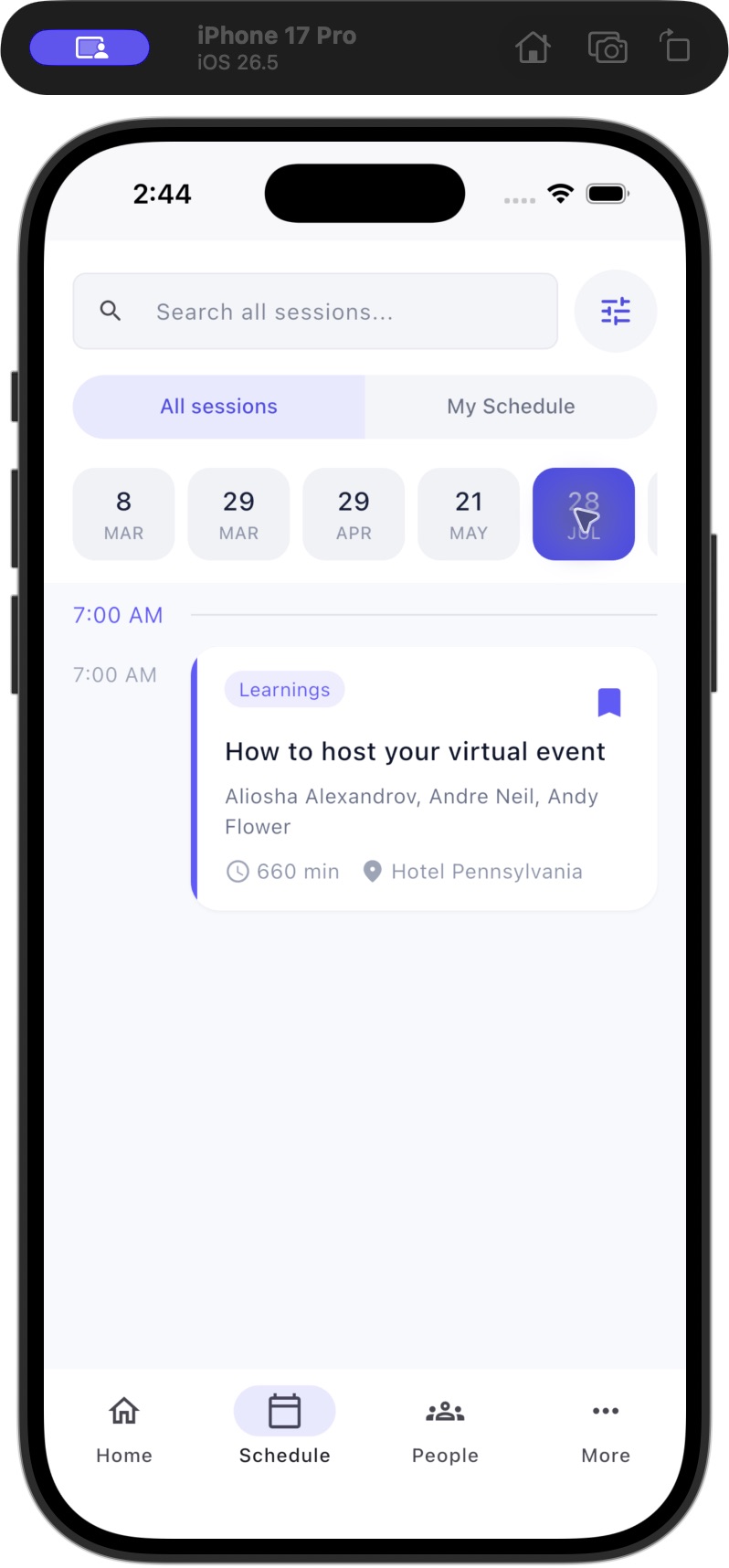
The Schedule screen brings the event days, the complete program and the attendee’s personal agenda into one place. Attendees can swipe between days and switch between All sessions and My Schedule. That makes the difference between exploring the full program and following an existing plan easier to understand.
This is especially useful at events with parallel tracks. An attendee can inspect the sessions available on a particular day, open a session for its details, and return to their own schedule when it is time to move. The app presents the program your team has published; it does not decide which sessions an attendee should attend.
- Day navigation: move between the event’s scheduled days without treating the program as one long list.
- All sessions: explore the available program before deciding what to attend.
- My Schedule: return to the attendee’s own agenda when following the day’s plan.
- Session context: use the session detail view to connect the program with its presenters and associated information.
Recognize people and understand their role
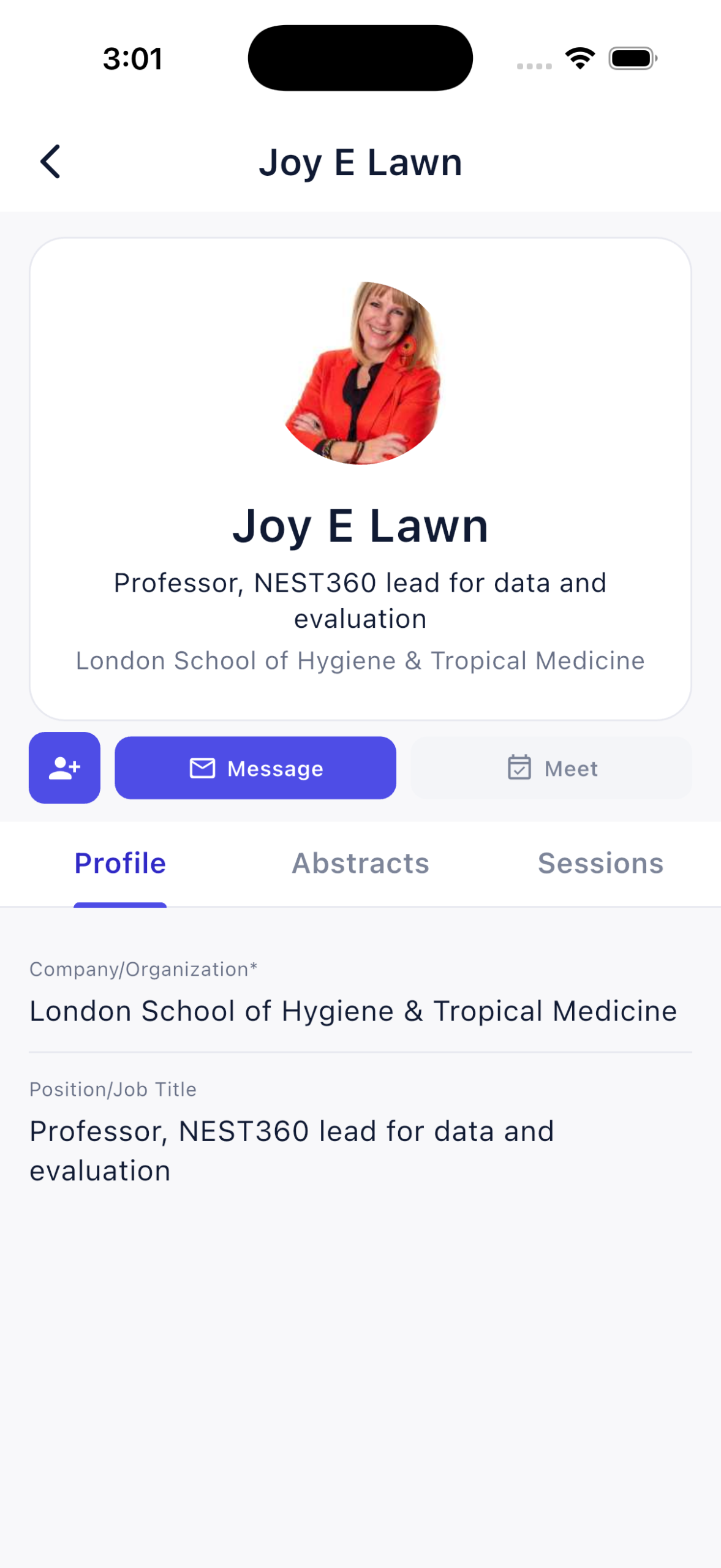
Updated people cards and profile layouts make professional information easier to scan. Organization and position appear as distinct pieces of information, and a profile can bring together its Profile, Abstracts and Sessions tabs when those sections are available for the person and event.
People lists also provide filtering and sorting options, including first name, last name, organization and role. These controls help attendees browse a large directory with a purpose: looking for a presenter, finding someone from a particular institution, or returning to a person they noticed earlier.
Visibility still matters. The app follows the event’s access settings and the information made available for that person. A clearer profile layout does not make restricted attendee information public or replace your team’s decisions about who can see each section.
Bring useful event content into familiar destinations
The refreshed Home, people and company cards give attendees clearer starting points. Photo, video and document views provide dedicated places for material that your event has made available. Session files use a more readable list layout, while company details can present descriptive content and media together.
These improvements work best with considered event content. A short welcome message, an accurate venue description, well named session files and a current company profile are more useful than simply filling every available space. Modules, permissions and organizer configuration determine which destinations appear for an event.
Three practical uses for event teams
A research conference with parallel tracks
A delegate can browse all sessions for the next day, inspect presenters and return to My Schedule before leaving the hotel. Clear separation between the full program and the personal agenda helps the delegate keep exploration and their own plan organized. The program team should check room names, dates and speaker assignments before asking attendees to build their agendas.
An association meeting with a large directory
Attendees can filter or sort the people directory to find colleagues by organization or role, then use the visible profile tabs to understand their contribution to the event. The association should explain the directory’s purpose and confirm that its access settings match the audience it intends to connect.
An exhibition alongside a conference
An attendee can move from the program to company information and review the event’s supporting media in the relevant sections. Organizers can use accurate company descriptions and recognizable logos to make that transition useful. Exhibitor details and maps remain dependent on the content and modules configured for the event.
Prepare the refreshed app for your event
A short walkthrough using your own event is often more effective than a long feature list. Use the same terminology attendees will see in the app, and make the most important first task obvious in your welcome instructions.
- Update the Dryfta app from the appropriate store, then open your event.
- In your event dashboard, review the saved branding, welcome content, navigation and enabled sections in Event App Publisher.
- Check the published schedule, including multiple days, session titles, locations and presenter assignments.
- Review representative people and company profiles using the same access level your attendees will have.
- Open documents, photos and videos that your team expects attendees to use. Confirm that names and permissions make sense.
- Give attendees a short orientation: where to find the program, how All sessions differs from My Schedule, and which sections are available.
What should organizers expect?
Do we need to rebuild the event?
The refreshed app uses the event information managed in Dryfta. Review your existing setup and content rather than assuming that the app update has created missing sessions, profiles or files for you. Different events can show different sections because their modules and access settings differ.
Does every task work without a connection?
No. Saved event content and live interactions have different requirements. Messaging, meetings, payments and form submissions require an internet connection. If attendees need reference material away from Wi-Fi, prepare and check the app’s separate offline event download before the event.
Give attendees a useful first task
Ask attendees to open the event, review the next day’s schedule and inspect one relevant session or speaker profile. That small task introduces the destinations they are most likely to need during the conference.
Find the current app through Dryfta for iPhone or Dryfta for Android. For help reviewing your event’s content and access settings, contact Dryfta support.