
Preparing a conference app involves several connected decisions: what attendees should see, how the event should look on a phone, and where organizers should manage app communications. Dryfta’s latest Event App Publisher update gives that work a clearer home in the event administration dashboard.
Event App Publisher is now a dedicated module, with direct access to app setup, Push Notifications, and Private Messaging. A new phone-style preview also shows the guest homepage using your event’s saved settings. Together, these changes help organizers review the saved mobile experience and find the relevant controls before directing attendees to their event’s mobile app.
What has changed in Event App Publisher?
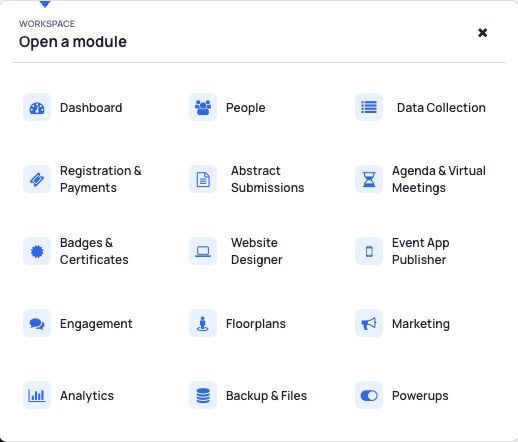
The module selector now presents Event App Publisher separately from Website Designer. Website work and event app work have their own clearly named destinations, making the dashboard easier to navigate when your team is preparing both channels.
Inside the app module, the sidebar provides three direct routes:
- Event App Publisher: review and manage your event’s app settings and saved guest-homepage preview.
- Push Notifications: open the existing notification tool from the app workspace.
- Private Messaging: reach the existing messaging controls without first searching through another module.
These shortcuts bring related tools together. They do not introduce a new messaging system or change the permissions that determine which tools an administrator can use. The existing notification and messaging shortcuts in Engagement remain available.
Review the guest homepage with a phone-style preview
The updated Publisher includes an App preview panel styled around the Flutter app’s guest homepage. It presents an event-branded view with the familiar Home, Schedule, People, and More navigation, helping organizers assess the page in a mobile context.
The preview is labeled Saved settings. That distinction matters during preparation: the panel represents the configuration already saved for the event. If you change a supported setting, save it before expecting the preview to reflect that change.
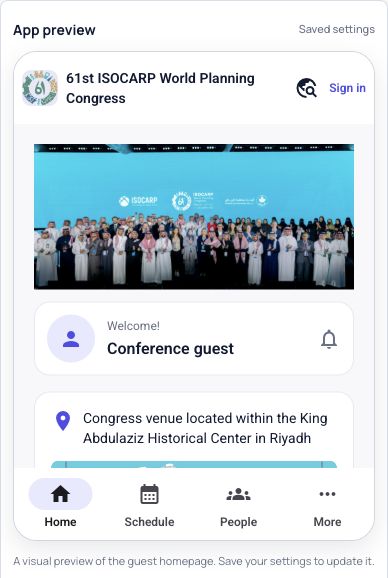
Depending on the event’s saved configuration and available content, the preview can show branding, a guest welcome area, venue information, quick links, and supported homepage sections. This helps you check whether the content you intend to emphasize is represented in the saved guest view.
The panel also represents a saved disabled-app state clearly. If the app is disabled in the saved settings, the preview explains that state instead of suggesting that attendees can already access a configured event app.
Why this helps event organizers
A clearer starting point for app preparation. A team member tasked with getting the app ready can open the named module directly. The same workspace then provides access to the configuration screen and the related communication routes.
Easier conversations about the attendee experience. A phone-style guest view gives organizers a concrete screen to discuss. For example, a program coordinator can review the event identity and available homepage content with the person responsible for registration communications.
More deliberate checks before promotion. Seeing a visual preview beside the settings encourages a practical review of the saved configuration. A team can confirm the intended guest-facing presentation before adding app download instructions to an attendee email.
Less ambiguity between website and app work. Website Designer remains the place for website-related administration, while Event App Publisher provides the app-focused destination. The new navigation makes that distinction visible in the module selector.
Three practical ways to use the updated workspace
1. Prepare an academic conference app before registration emails go out
University conference teams often divide responsibilities among a program chair, a registration coordinator, and a communications colleague. The coordinator can use Event App Publisher to review the saved guest homepage and check that the event identity and relevant content appear as intended.
Once the configuration has been reviewed, the communications colleague can prepare the attendee guidance. Opening the real app remains part of that final check, especially for the routes attendees will use after signing in.
2. Review the mobile welcome experience for an association congress
An association may want the opening app experience to highlight its congress banner, venue, and important homepage links. The saved preview provides a useful place to review those elements together rather than discussing each setting in isolation.
Where a saved setting or content item needs adjustment, the administrator can make the change through the appropriate existing control, save it, and return to the preview. Review the displayed result before assuming the mobile presentation is ready.
3. Give the onsite team a clear route to app communications
During an event, organizers may need to open notification or messaging tools while they are already managing the app. The direct sidebar routes make those tools easier to locate from the app workspace.
Each communication still needs the usual review of its audience, content, and timing. Simply viewing the Publisher preview does not send a notification, start a conversation, or carry out an attendee action.
How to get started
- Sign in to your event administration dashboard with an account that has the appropriate access.
- Open Modules and select Event App Publisher.
- Review the event’s app availability and the relevant saved settings. Access still depends on your event’s enabled add-ons and administrator permissions.
- Inspect App preview, noting its Saved settings label and whether the saved app state is enabled or disabled.
- If you make supported configuration changes, save them and review the resulting preview.
- Open the actual event app on the devices your team uses and check the important guest and signed-in journeys before promoting it to attendees.
What should you check outside the preview?
The preview focuses on the guest homepage. It does not replace checking sign-in, a participant’s personal schedule, messaging, notification delivery, or other interactive journeys in the installed app. Its navigation and content are visual representations, so clicking a preview element should not be treated as a test of that native feature.
App availability, supported settings, and the installed app version remain relevant. If a control is locked or a feature is unavailable for your event, review the event’s access and add-on status or contact support.
Frequently asked questions
Why is the preview different from an unsaved change?
The panel reads saved event settings. Save supported changes, then review the updated panel. This gives your team a clear reference to the stored configuration.
Where do I manage the event website?
Use Website Designer in the module selector for website-related work. Use Event App Publisher for the app workspace.
Are the existing Engagement shortcuts still available?
Yes. The existing Push Notifications and Private Messaging shortcuts in Engagement are retained, alongside the direct routes in Event App Publisher.
To explore the wider attendee experience, visit Dryfta Event Apps. For help with your event’s configuration, open the Dryfta support knowledge base.