




Collecting signatures at events has traditionally been slow, manual, and prone to errors. Paper forms get misplaced. Approvals get delayed. Compliance becomes harder than it should be.
Digital signature fields solve this. They allow organizers to collect legally binding signatures directly within online forms, speeding up workflows while maintaining a clear audit trail.
With Dryfta, adding digital signatures to your event workflows is straightforward. You can embed them across registration forms, submission forms, surveys, and more.
Let’s walk through how it works.
Why Digital Signatures Matter for Events
Before jumping into the setup, it’s worth understanding where digital signatures actually fit into event operations.
Event organizers commonly use them for:
- Commercial agreements: Partnership contracts, sponsorship deals, vendor agreements
- Registration and ticketing: Faster attendee onboarding with signed confirmations
- Invoices and quotes: Instant approval without back-and-forth emails
- Waivers and consent forms: Liability waivers, restricted access permissions, informed consent
The result is simple: faster turnaround, fewer manual steps, and a verifiable record of every signed document.
Step 1: Navigate to the Form Builder
To create a digital signature field in Dryfta:
- Go to Modules → Data Collection
- Select an existing form or create a new one
This could be a:
- Contact or inquiry form
- Abstract submission form
- Survey form
- Registration form
Digital signatures work across all of these.
Step 2: Add a Digital Signature Field
Inside your form builder:
- Click to add a new field
- Choose Digital Signature Field
- Give it a label, such as:
- “Sign the Waiver”
- “Authorized Signature”
You can also:
- Add a short description explaining what the user is signing
- Mark the field as mandatory if required
- Publish the field
Once saved, the field becomes instantly active in your form.
Step 3: Preview the Form Experience
Use the preview option to see how it works from an attendee’s perspective.
Here’s what happens on the front end:
- The user fills out the form
- Scrolls to the signature field
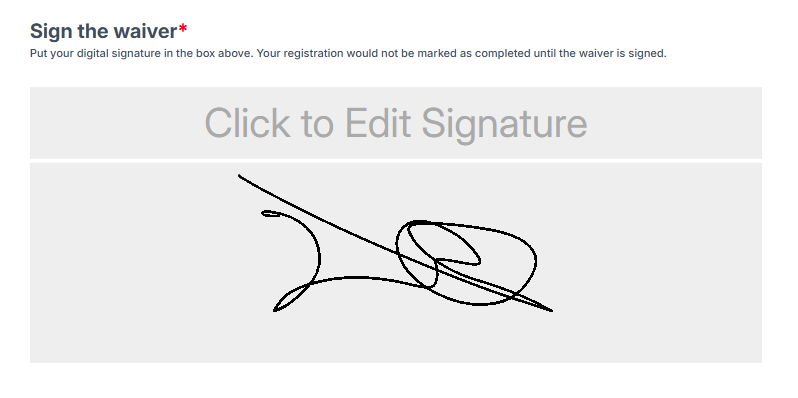
- Clicks Add Signature
- Draws their signature
- Clicks Save
- Submits the form
At this point, the signature is captured and stored within the system.
Step 4: Access Submitted Signatures
All submitted signatures are stored alongside the form data.
To view them:
- Go to the backend
- Go to Modules > People or Abstract Submissions
- Click on user’s name or submission
You’ll see:
- All submitted form data
- The associated digital signature
This creates a complete, traceable record for each user.
Step 5: Use Digital Signatures in Registration and Ticketing
Digital signature fields are not limited to standalone forms. You can also add them to your event registration workflow.
To do this:
- Go to Registration & Payments → Registration Questions
- Add the digital signature field (e.g., “Sign the Waiver”)
Now, during ticket purchase:
- Attendees select tickets
- Fill in their details
- Provide their signature before checkout
This is especially useful for:
- Liability waivers
- Consent agreements
- Terms acceptance
Everything is captured in one seamless flow.
Step 6: Export Signatures and Data
Dryfta allows you to export all collected data, including signatures.
Here’s how:
- Go to Manage Attendees
- Click on Tools → Export
- Select the relevant fields (including the signature field)
- Export the data as CSV
Important detail:
- The exported file includes links to signature images
- Each signature is stored as an image
- You can download them or access them anytime via the link
This makes it easy to archive, share, or verify signatures when needed.
How Dryfta Handles Signature Data
When a user signs:
- The signature is converted into an image
- A secure link is generated
- The link is included in your exported data
This ensures:
- Easy access
- Secure storage
- Clean audit trails
Final Thoughts
Digital signatures are no longer optional for modern events. They are essential for speed, compliance, and professionalism. With Dryfta, you don’t need external tools or integrations. You can:
- Embed signatures directly into any form
- Collect them during registration or submissions
- Store and export them with full traceability
It’s a small feature that removes a surprising amount of friction from your event operations.