Reorder homepage widgets in Dryfta
Last updated Nov 16, 2026
Question
Answer
Before you start: Sign in as an event administrator with access to Website Designer. This guide changes the order of existing homepage widgets.
Open Website Designer from Modules
Sign in to your event administration account. Open Modules and select Website Designer.
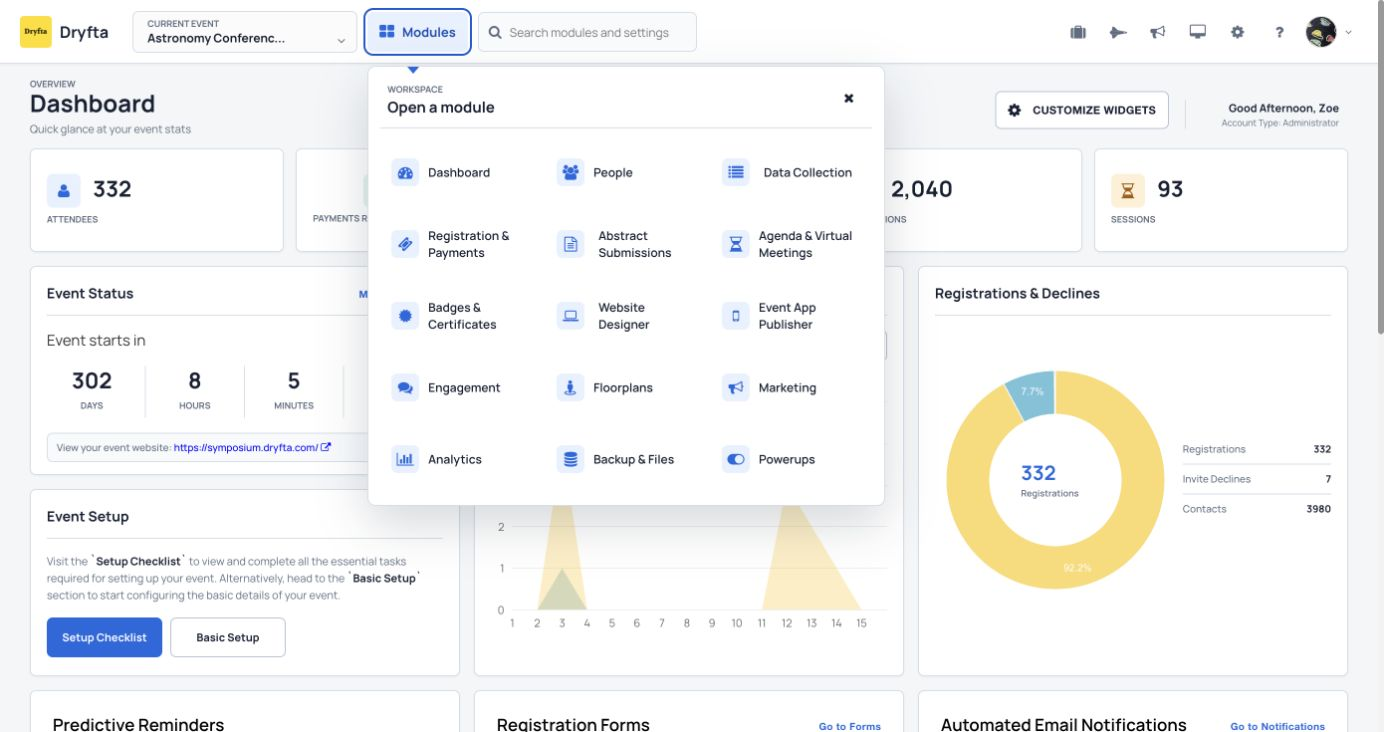 The Modules menu contains Website Designer.
Open the website builder
Select Website Designer from the left navigation menu.
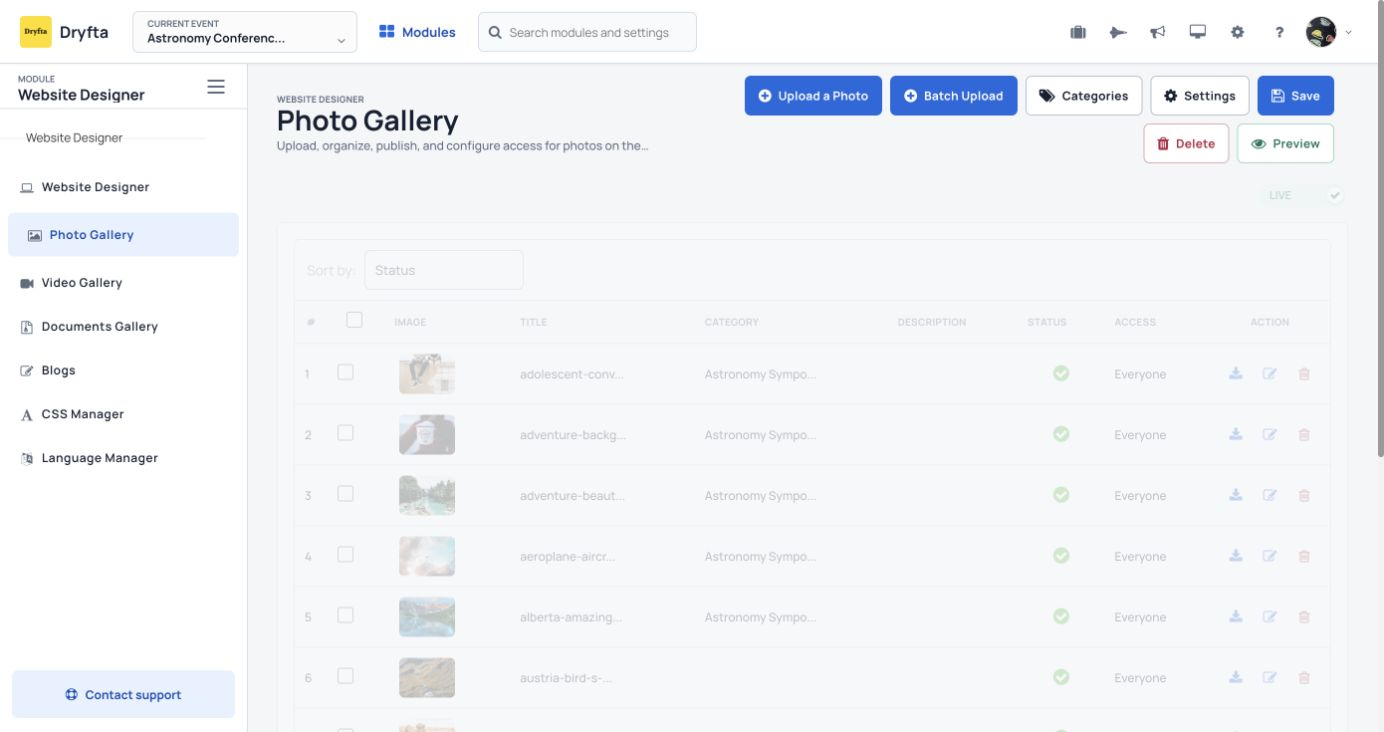 The Website Designer module links to the website builder.
Open the homepage ordering dialog
In the Homepage Widgets panel on the right, select Reorder Widgets.
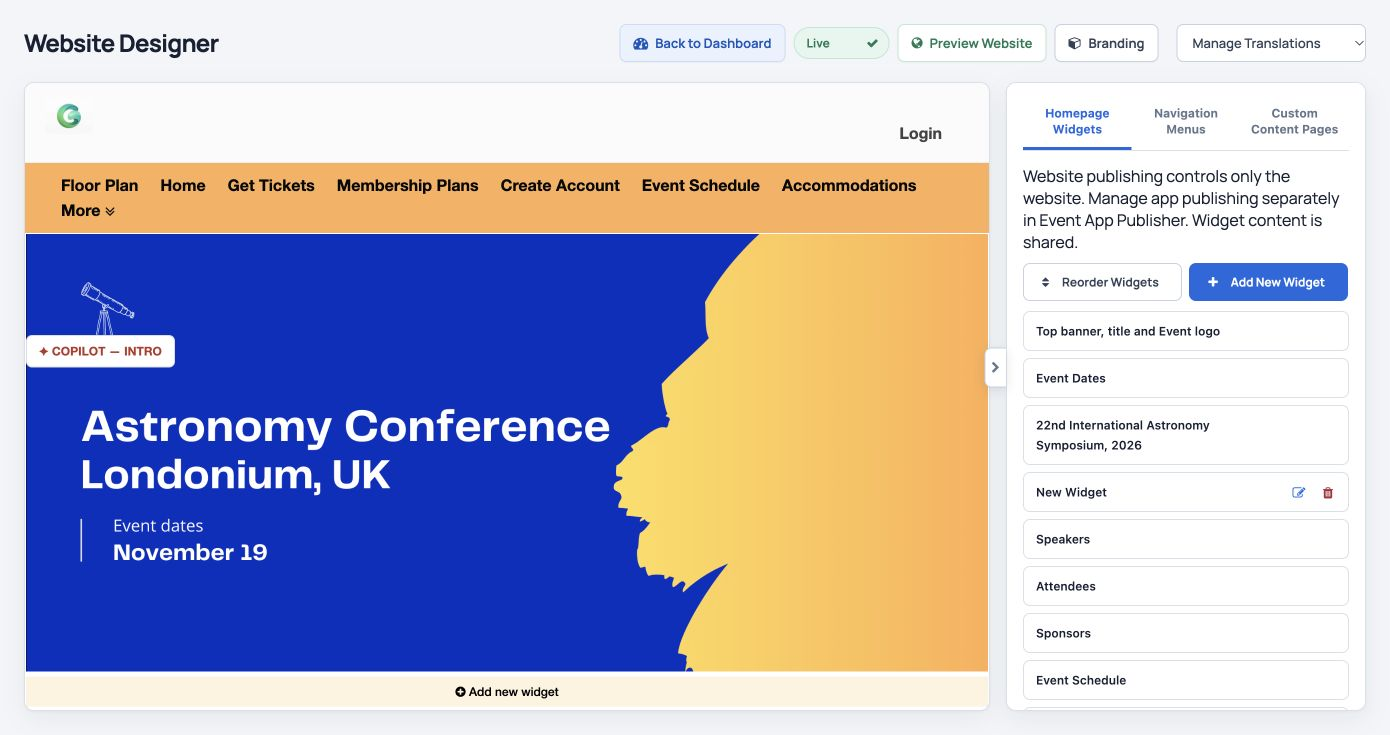 Reorder Widgets opens from the Homepage Widgets panel.
Drag a widget into position
In Reorder Widgets, drag the handle beside a widget to its new position. For this example, move Attendees above Speakers.
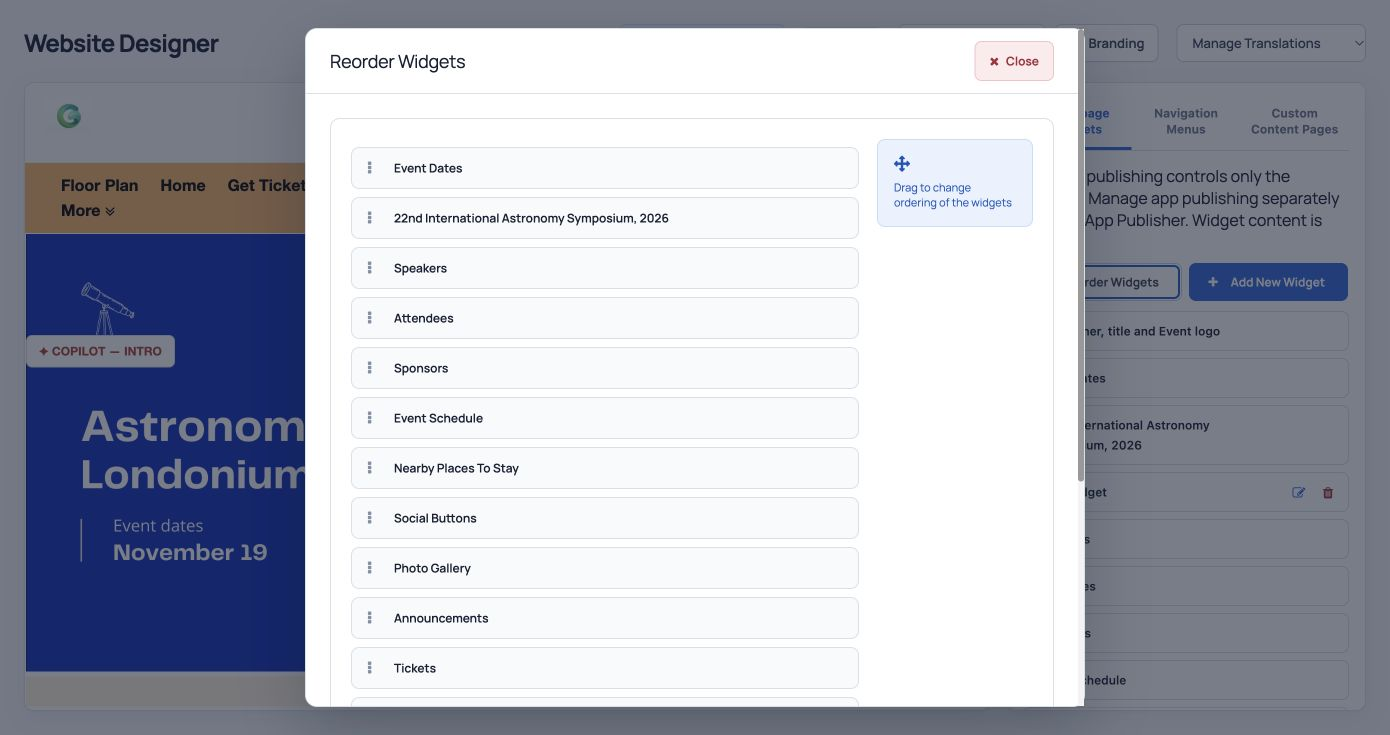 The Reorder Widgets dialog shows a drag handle beside each homepage section.
Check that the order was saved
Close the dialog, reload the designer, and open Reorder Widgets again. Confirm that the widgets remain in the new order. In this example, Attendees appears above Speakers.
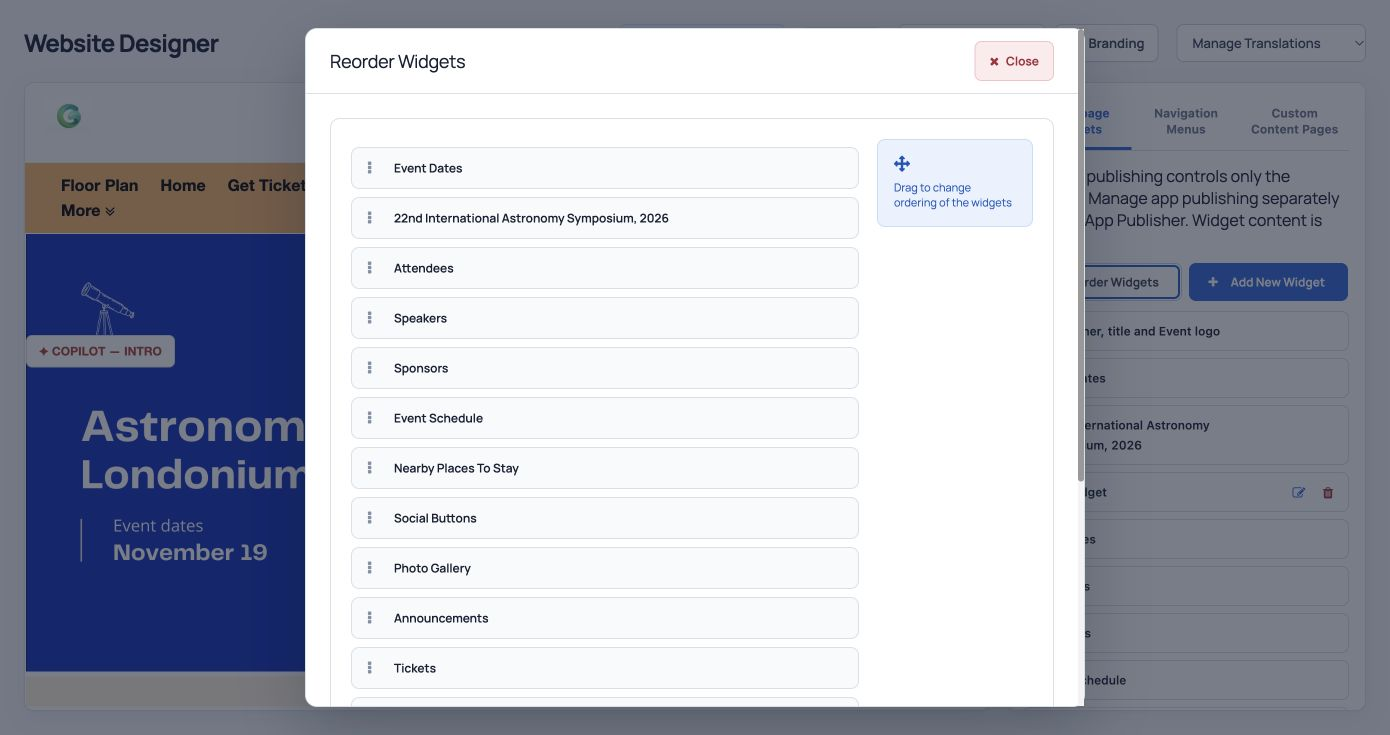 The reopened dialog retains Attendees above Speakers.
Watch the video: Reorder homepage widgets in Dryfta.
Tags: homepage, widgets, website designer, reorder